|
Plus: A cheap internet troubleshooter and five things to pin
Superior system search tools |
Plus: Google's lower-priced Pixel, a cheap internet troubleshooter, and five things to pin |
No disrespect to the likes of Google, but sometimes web search doesn't go far enough. |
What I really want is one search box that covers the full breadth of my digital life, including not just the web but also all my files and the contents of my favorite apps. And instead of having to open a browser tab, I should be able to access this search box from anywhere. |
This concept, as I imagine it, doesn't quite exist yet, but a handful of options come close. This week, I'll walk through how you can squeeze more utility out of the system-level search tools in Windows and MacOS. And if those aren't enough, I'll highlight some additional tools for casting your search net even wider. |
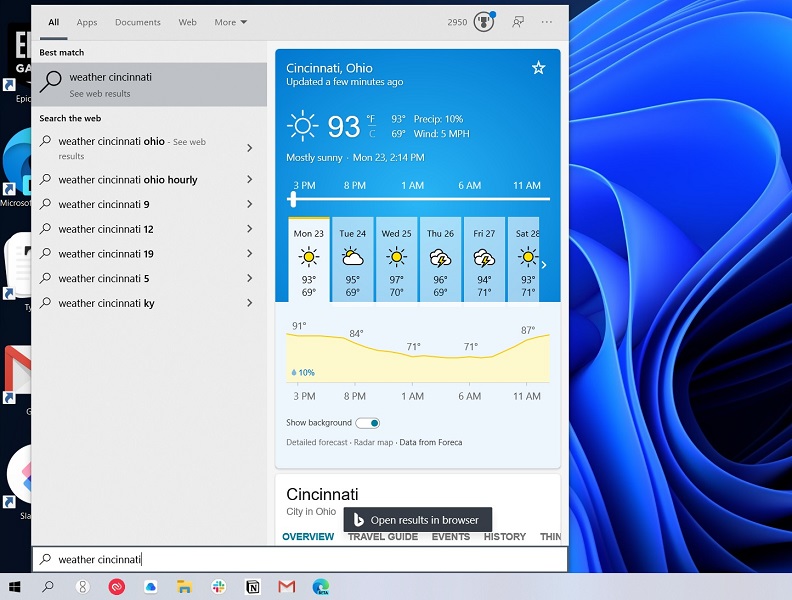
If you know how to use them, Windows search and MacOS Spotlight search can be quite powerful on their own for finding files, launching applications, locating system settings, or searching the web. In Windows, just press the Windows key or Start menu button and immediately start typing. In MacOS, hit Cmd+Space or click the magnifying glass icon in the menu bar. |
These tools do a decent job digging through your local files, and Apple's Spotlight can even search through certain apps, such as Apple Mail and Notes. They can also both search through the content of documents, such as Word files, though in Windows you'll need to click the "Documents" tab to see those results. |
Both tools include some basic utilities that you can access from right inside the search box as well, sparing you from opening yet another app or browser tabs: |
- Type "Weather" and a location to see the forecast.
- Type a word and "Definition." (In Windows, also try "Synonym" or "Antonym.")
- Type a team name and a score to see the latest results.
- Enter a math equation to get the solution.
- Ask to convert currencies or units of measurement.
- In Windows, type "[phrase] in [language]" for a quick translation.
|
Changing the default search engine |
Windows' search box has one big problem: For web searches, results always go through Microsoft's Edge browser and Bing search engine. While there's no official way to change these settings, you can install a couple of third-party tools to use your preferred browser and search engine instead. |
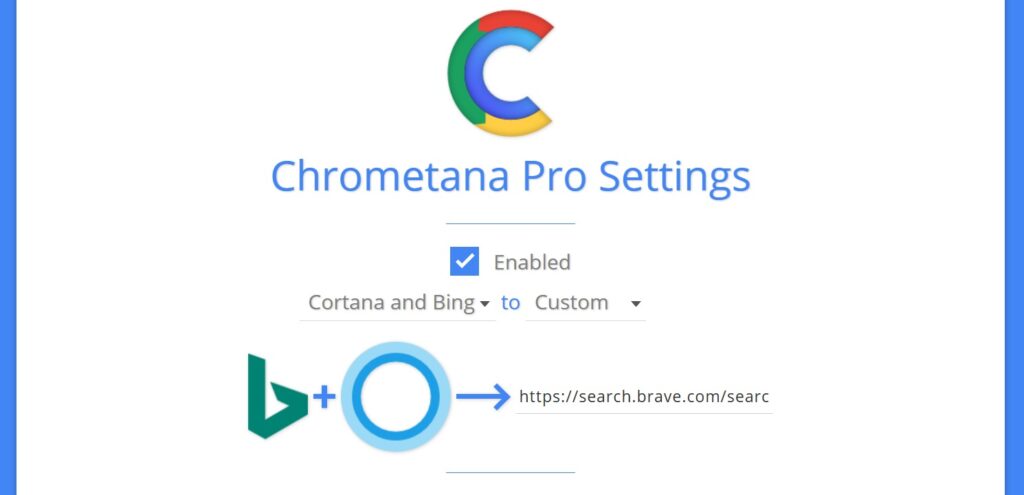
Start by installing EdgeDeflector and following the on-screen instructions, which will make the search bar use your default browser. Then, install the Chrometana Pro extension (for Chrome, Edge, Brave, or Vivaldi) or Foxtana Pro (for Firefox), which redirects all Bing searches to Google by default. To use a different search engine, click on the Chrometana extension icon and choose an alternative from the list. |
MacOS has its own peculiar search issue: While Spotlight web searches open in your default web browser, they use Safari's default search engine. That means you must change your search engine in Safari to change it in Spotlight, regardless of which browser you're actually using. |
Also, because Safari only supports five major search engines, you can't easily use Spotlight with alternatives like Brave Search. If you're not using Safari as your default browser, you can work around this by setting Bing as Safari's default search engine, then using Chrometana Pro in your preferred browser to redirect those Bing searches. This allowed me to search in Spotlight, and get results from Brave in Microsoft Edge. |
Alfred for MacOS: An endlessly extensible alternative |
On MacOS, Spotlight's biggest limitation is its inability to look inside certain apps. You can't, for instance, search for a page in Notion or look through the catalogs of your streaming services. |
That's where Alfred comes into play. It's essentially a replacement for Spotlight, including similar file search features, and the free version includes some tricks that Spotlight lacks. For instance, you can press Shift to preview files, use keyboard shortcuts to select search results, and set up keywords to search on specific websites, like YouTube or Wikipedia. (You can install it alongside Spotlight and use it by pressing Option-Spacebar.) |
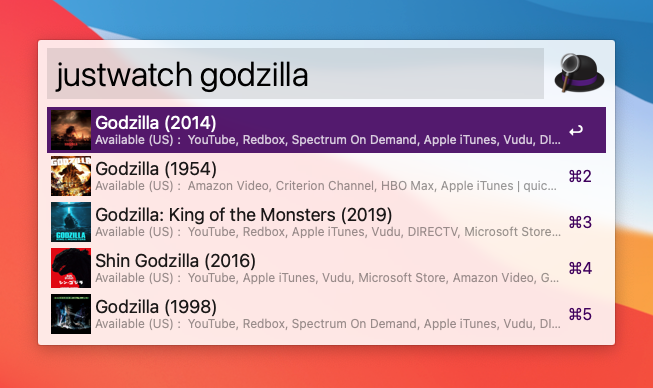
Alfred's greatest powers, however, come from its "Workflows," which allow you to install extra search capabilities made by other users. I've found Workflows for looking up where to stream movies and shows on JustWatch, searching through my bookmarks in Raindrop, browsing the Mac App Store, and looking through my notes in Notion. The website Packal.org is a great resource for finding and installing these extensions. |
The downside is that Alfred's Workflows require a paid license, which costs roughly $40. They can also be a hassle to set up, and using them requires memorizing specific search keywords. I don't regret buying a license, but I wouldn't recommend it unless you're a power user who enjoys tinkering with automation. |
PowerToys Run: Faster Windows file searches |
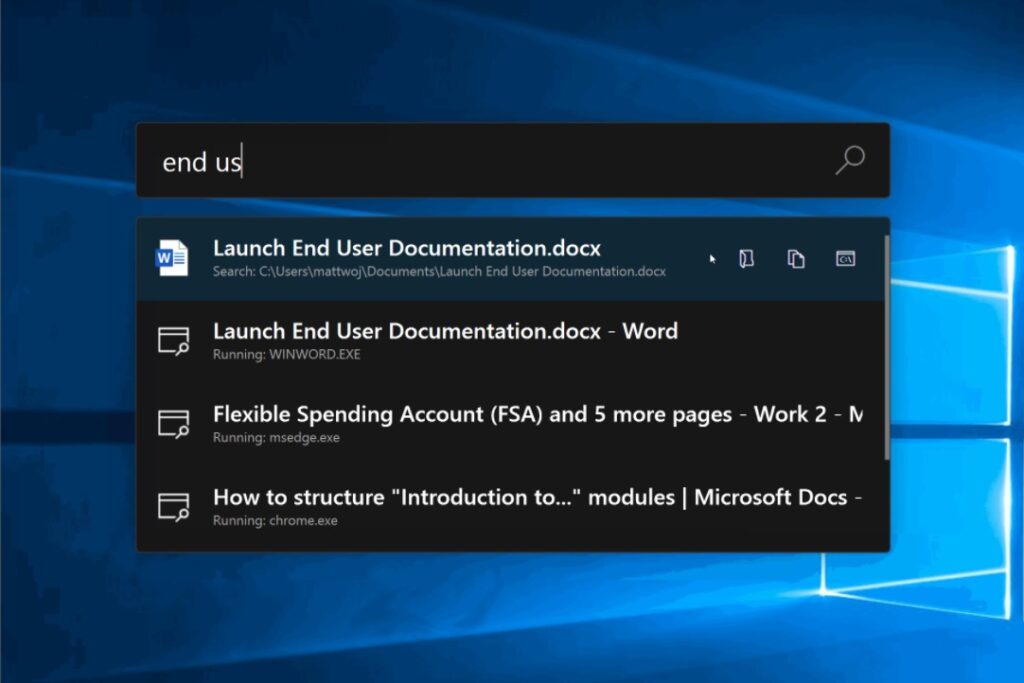
Microsoft's PowerToys is a free utility that adds a bunch of geeky features to Windows, one of which is an speedy system search tool that you launch with Alt+Space. It's a faster for tracking down files than Windows' built-in system, plus it lets you search through open windows based on application name or document title. I also like that it opens up right in the middle of the screen. |
Unfortunately, PowerToys Run doesn't support web searches, but there's a workaround if you're using a text shortcut app like Beeftext: Run a search in your browser, then copy everything up to and including "q=" in the address bar. Paste this into a new keyboard shortcut in Beeftext, and you can then use the shortcut, followed by your search query, to open a web search. (This works because PowerToys can load specific URLs, and you're essentially typing in the address of your search site with your query included in the URL.) |
Slapdash: An intriguing new option |
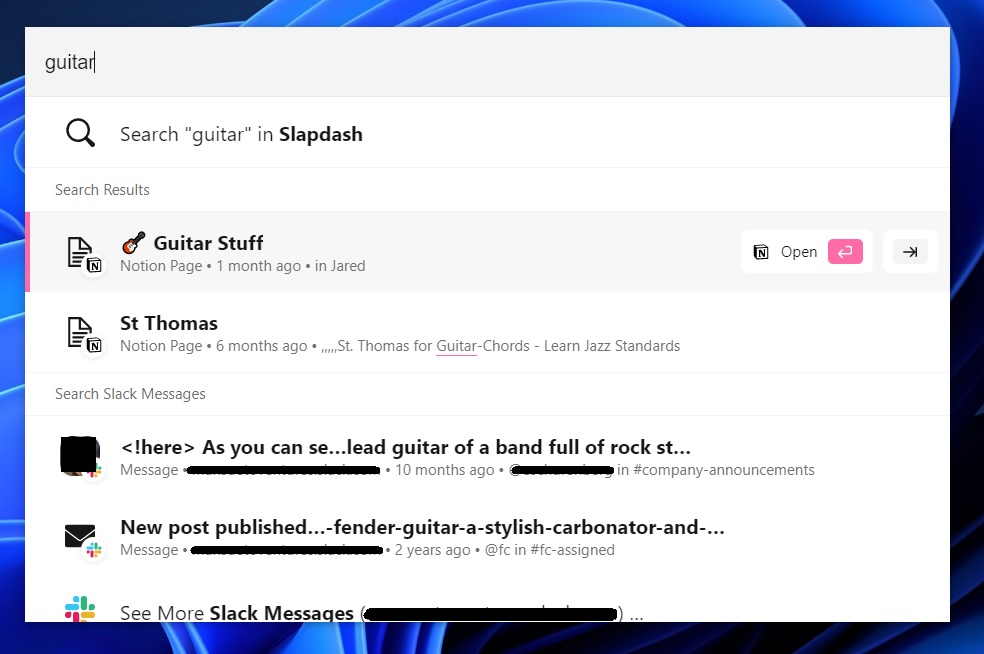
The last option to check out is Slapdash, a relative newcomer for both Windows and Mac that feels like a more polished version of Alfred's Workflow concept. Instead of searching through local files, the app can interact with online services like Notion, Slack, Dropbox, and Google Calendar. Just press Ctrl-J or Cmd-J, and you can search your notes, files, conversations, upcoming calendar events, and more, all in one place. (You can connect five of these apps for free, or more with a $12 per month subscription.) |
It's clearly early days for the software. The number of app integrations is pretty limited, and while the software mentions being able to search local files, I couldn't get that to work on Windows or MacOS. It also can't search the web unless you set up elaborate keyboard commands. |
Still, Slapdash is also the one I'm most excited to watch. If it can add more apps alongside table-stakes file and web search features, it could become just the universal search engine I've been looking for. |
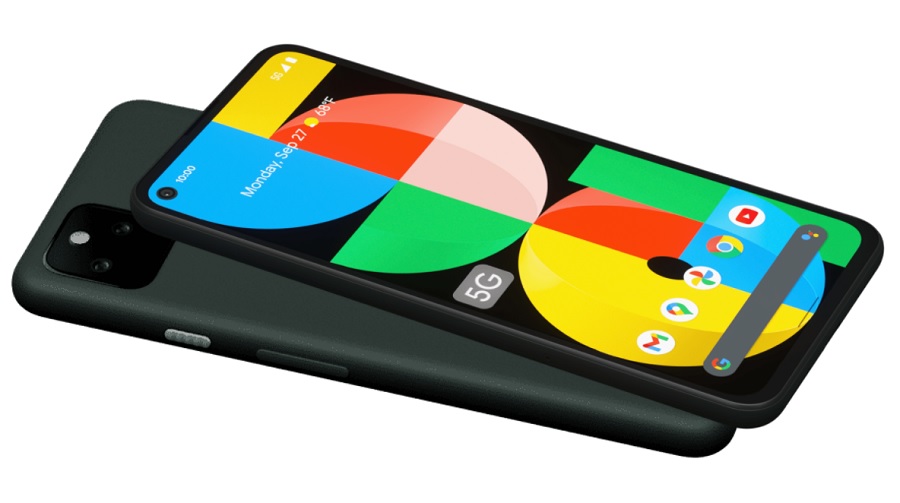
Google's lower-priced Pixel: Last year's Pixel 4a 5G felt sort of like the best-kept secret in smartphones. At $500, it was $200 cheaper than Google's Pixel 5, but came with the same great camera system and polished version of Android. It also had a big screen and long battery life, and it even included a headphone jack. |
But it's been strangely hard to find in recent months, and now we know why: Google's replaced it with a new phone called the Pixel 5a, which has slightly taller 6.34-inch screen, an even bigger battery, and IP67 water and dust resistance. It also costs $50 less, at $450. Reviews have been pretty solid so far. |
The same knocks against the previous Pixel apply here: Processing power isn't state-of-the-art, and there's no wireless charging—you'll have to wait for the high-end Pixel 6 for those features—but this looks like the cheap Android phone to beat if you want a camera that just works and three years' of guaranteed software updates. (The only major bummer this time: No more fabric cases.) |
Android Auto's app undoing: Starting with Android 12 this fall, Google will no longer offer a standalone Android Auto app, which provides jumbo-sized buttons for phone calls, media playback, and navigation while driving. Instead, the company will push a new "Driving Mode" that adds similar controls to Google Maps. (None of this affects the version of Android Auto that's built into car dashboards.) |
Android Auto's mobile app has been on life support for a couple years, so in theory this is a positive change. But the problem is that Driving Mode only activates when you're using turn-by-turn directions, so you can't get to its car-friendly menus for music and phone calls without entering a destination first. It's an unnecessary extra step if you know where you're going, which for me is most of the time. |
Also, Google has yet to roll out Driving Mode across all Android devices—it's on my Pixel 2 XL, but not my OnePlus 8 Pro—resulting in an odd state of limbo for a lot of users. To see if you've got it, try asking Google Assistant for "Driving Mode," entering a destination, and looking for an app menu at the bottom of the screen. |
SmartThings' second act: Samsung seems to be coming full circle on SmartThings, its once-promising smart home platform whose thunder was subsequently stolen by the likes of Amazon Alexa, Google Assistant, and Apple HomeKit. Instead of trying to slay those giants outright, Samsung is refashioning its platform as one for enthusiasts. It's adding local device control—that is, no need to contact the internet just to trigger a light bulb—and overhauled tools for people to build and share their own device integrations. Both features are still in beta, but users seem excited. |
None of this changes my mind about smart homes being being conceptually broken, or about hub devices like SmartThings being unnecessary for most people. But Samsung's commitment to offline operation and community-based development does seem like a breath of fresh air. While it benefits Samsung by reducing the company's server and development costs, it also caters to the diehards that the bigger platforms might ignore. |
Five things to pin: One of the most enduring examples of skeuomorphism in computing is the metaphorical pin. If an app offers something in list form, chances are you'll be able to "pin" items to the top, sparing you from having to dig through the list to find them. If you're not yet in the habit of pinning, here are some places to start: |
-
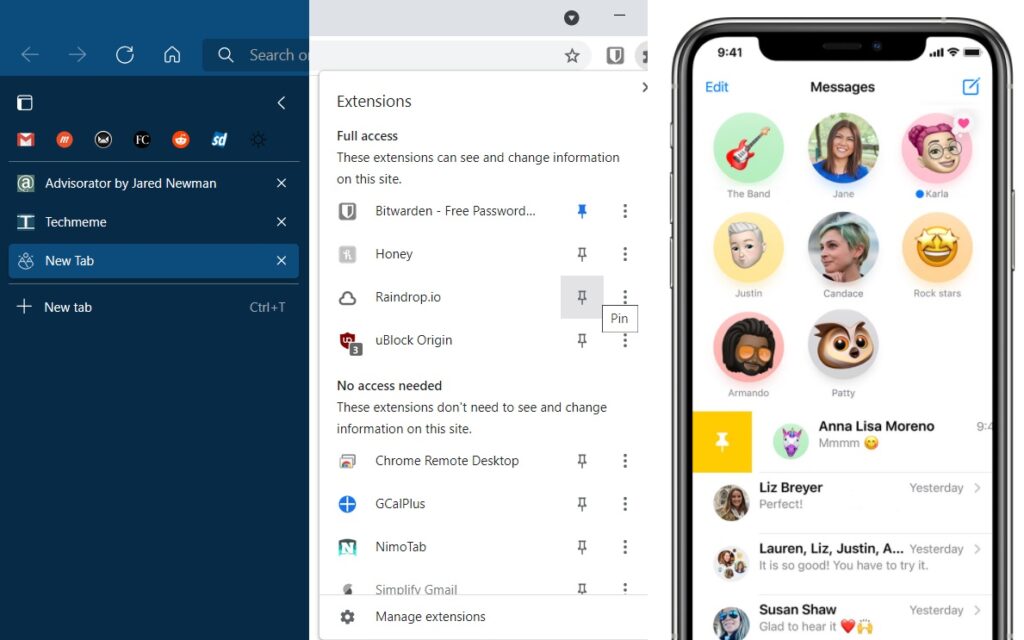
Browser tabs: In most desktop web browsers, pinning a tab sticks it to the left side of the tab bar and automatically loads it at launch, which is ideal for email, social media, or other frequently-visited pages. Just right-click on a tab in your browser, then select "Pin tab."
-
Text messages: In Apple's Messages app, keep your favorite people or group chats at the top of your conversation list by long-pressing the chat thread, then selecting "pin." You can do the same in the Google Messages app for Android.
-
Notes: In the mobile apps for Google Keep or Apple Notes, long-press any note and hit the pin icon to stick it to the top. (You can also right-click and select "Pin" in Apple Notes for the Mac, or hover over a note to click the pin icon in Google Keep on the web.) Try pinning your grocery list, or setting up a "scratchpad" for temporary notes.
-
Browser extensions: With certain web browsers, new extensions no longer appear in the main menu bar, and are instead relegated to a secondary menu. Click on the extension button, which inexplicably looks like a puzzle piece, then click the pins (in Chrome) or the eyes (in Edge) to move your favorite extensions to the menu bar again.
-
Slack messages: To save a message in Slack for quick reference, hit the vertical "..." menu, then select "Pin to channel" or "Pin to this conversation." Give it a try in the Advisorator chat room if you like.
|
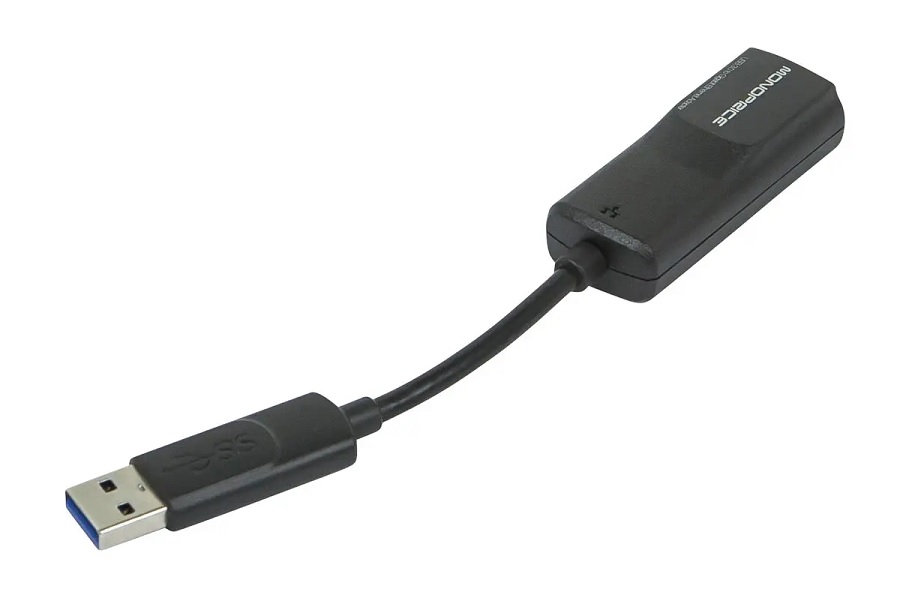
If you ever need to troubleshoot internet connection problems, the humble USB to Ethernet adapter is great to have in your toolkit, especially as fewer laptops ship with Ethernet ports built in. Plug the adapter into your laptop, then wire the ethernet port to your cable modem, and you see exactly how fast of a connection you're getting. That can help you figure out whether you need a new Wi-Fi router or if there's a problem with your modem and internet connection instead. |
Other notable deals this morning: |
If you ask me what's the hardest thing about writing this newsletter, it's figuring out what degree of difficulty you're comfortable with. From what I've heard, people come to Advisorator with a pretty broad range of technical expertise, and making it valuable for everyone is something I'm always trying to calibrate. |
To that end, don't hesitate to let me know how I did with this issue or any other one. Should I spend more time nerding out on Alfred Workflows, or zoom in more the basics? Either way, I'm always happy to hear from you, and I'm up for further discussion of any topic over email or in the Advisorator chat room. |
This has been Advisorator, written by Jared Newman and made possible by readers like you. Manage your subscription by clicking here, or reply to this email with "unsubscribe" in the subject to cancel your membership. |
|

 Jared Newman | August 24, 2021 |