|
Plus: Apple's big week
Eliminating auto-rotate annoyances
|
Plus: iOS 14.5 tips, Apple's new hardware, and another nifty noise app
|
|
On Monday, Apple released iOS 14.5, which packs in a lot of new features despite being a "point" release. It includes new privacy controls, more Siri voices, an easier way to unlock your phone with a face mask on, and more, all of which I'll discuss later in the newsletter.
|
|
But the one feature I'm most excited about involves auto-rotate, which for years has been one of my biggest smartphone nuisances.
|
|
Usually, I keep rotation lock enabled on my phone, so it never accidentally flips into landscape mode while I'm lying in bed or relaxing on the couch. But that means I have to disable rotation lock every time I want to view a landscape photo. Meanwhile, video apps like YouTube make you hit a teeny button to enter and exit full screen mode. Wouldn't it be better if your phone just automatically knew when to rotate based on which apps you're using?
|
|
With iOS 14.5, this is finally possible, so against my better judgement, I'm dedicating an entire feature article to eliminating auto-rotate annoyances once and for all. (Android users; fret not, I've got a solution for you as well.)
|
Automating auto-rotate in iOS 14.5
|
|
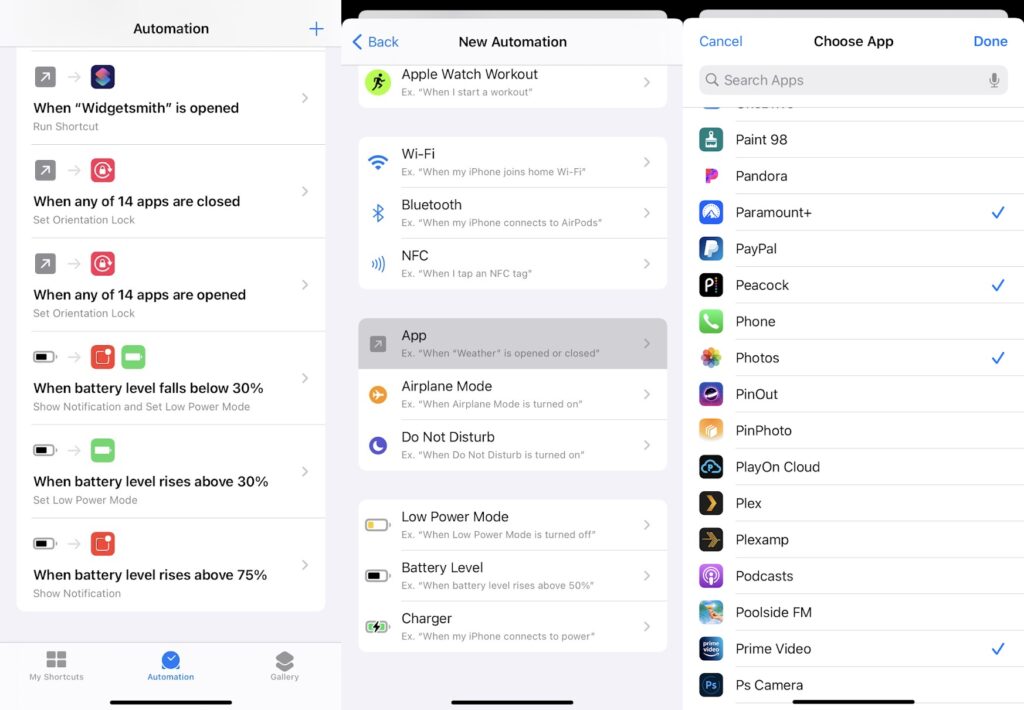
By creating a couple of automations in Apple's Shortcuts app, you can enable auto-rotate in specific apps like Photos, Camera, Google Photos and YouTube. Once you exit those apps, rotation lock will kick back in.
|
- Open the Shortcuts app and switch to the "Automation" tab
- Hit the + button at the top, then select "Create Personal Automation"
- Select "App," then tap "Choose."
- Check off all the apps where you want rotation lock disabled, then hit "Done."
- Make sure "Is Opened" is checked off on the next screen, then hit "Next."
|
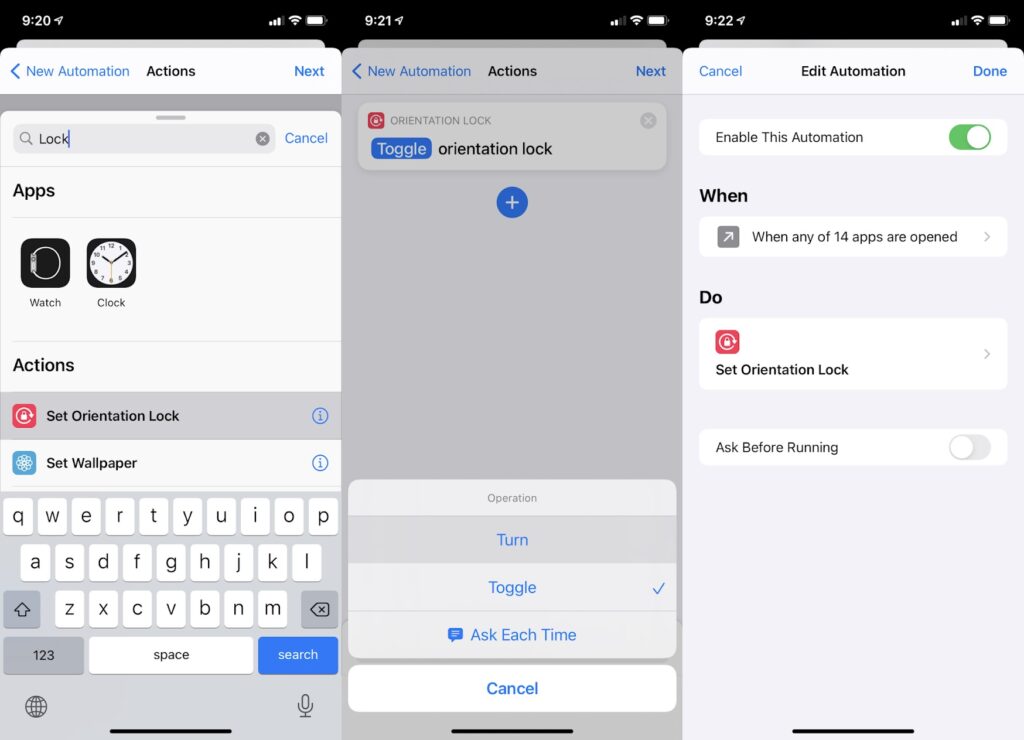
- On the Actions screen, select "Add Action," then type "lock" and select "Orientation Lock" from the list below.
- Tap on the word "Toggle," then select "Turn."
- Tap the word "On" so it changes to "Off," then hit "Next."
- Finally, disable "Ask before Running" on the next screen, then hit "Done."
|
|
At this point, any apps you selected will disable rotation lock when they're opened. But you'll still need to set up another automation to re-enable rotation lock when they're closed. To do this, just repeat the steps above, but choose "Is Closed" in step five, and make sure "On" is selected in the penultimate step.
|
|
One more thing: After setting this up, you'll probably want to disable notifications from the Shortcuts app. To do so, head to Settings > Screen Time > See All Activity. Then, scroll down to the "Notifications" section and select "Shortcuts," where you can toggle notifications off. (Unfortunately, restarting your phone resets this setting, so you may have to repeat the process later to turn off notifications again.)
|
|
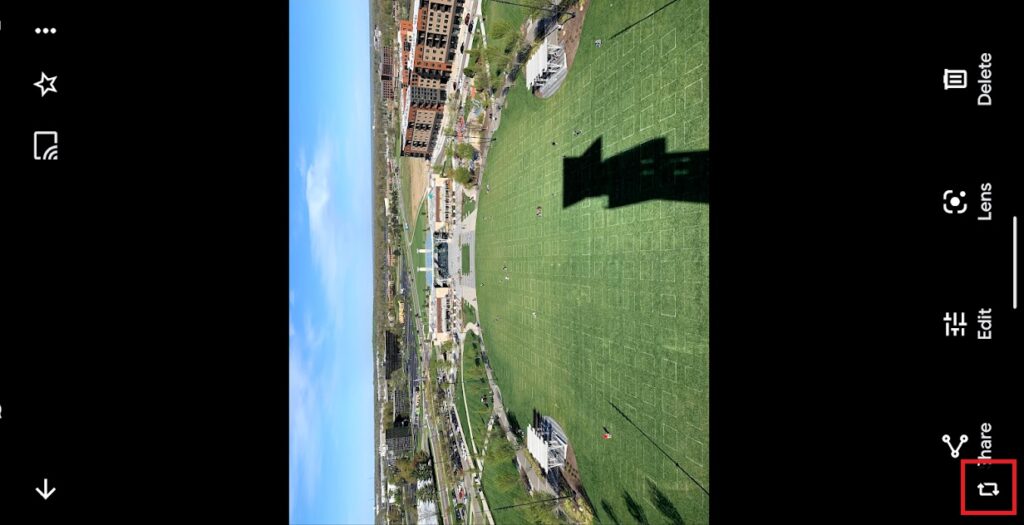
By default, bypassing your phone's rotation lock settings is pretty easy on modern Android phones. Just rotate your phone into landscape mode, and—provided you have auto-rotate disabled in Quick Settings—you should see a little rotation icon in the corner.
|
|
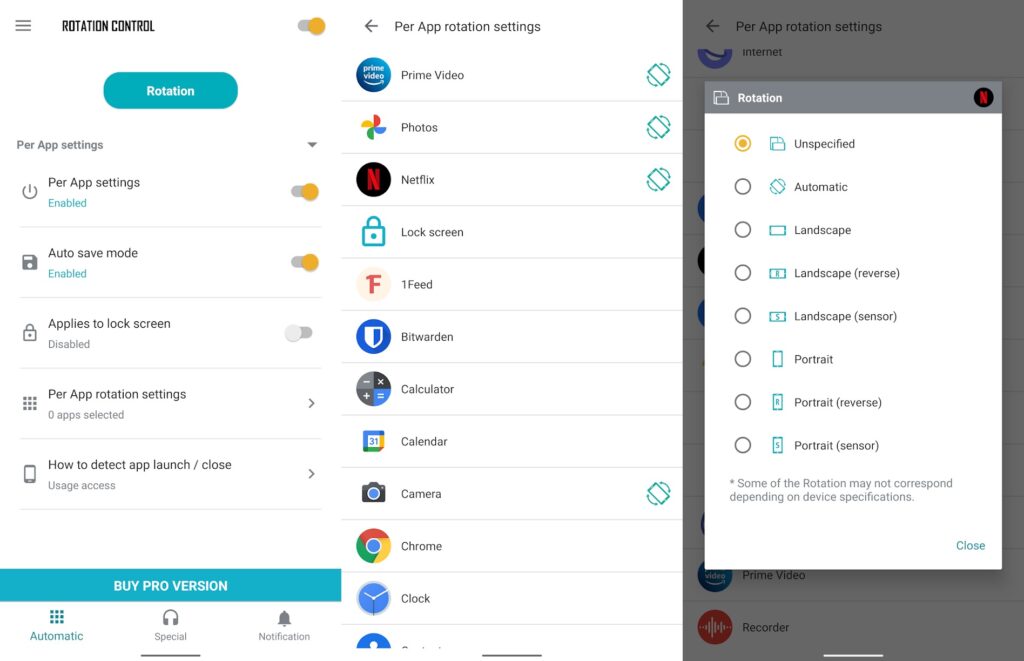
Still, that's not quite as convenient as having the screen rotate automatically in specific apps. For that, I suggest a third-party app called Rotation Control. The app is free for three days, after which it require a $3 in-app purchase to unlock. (If you prefer a completely free option, Rotation - Orientation Manager also works well, but the setup is clunkier to navigate and it has advertisements in its menus.)
|
|
After installing Rotation Control, skip past the initial tips page and follow the set of permissions prompts that pop up. For each one, you'll be sent to Android's settings menu, where you must select "Rotation Control" and grant access. This allows the app to set rotation lock based on the apps you're using.
|
|
Once you've granted those permissions, tap on "Per app rotation settings." For each app you want to let run in landscape mode, tap on it and select "Automatic."
|
|
Finally, clear away Rotation Control's persistent notifications. Head to the Notification tab in the app, then tap "Notification" and select "Don't show all." Then, tap on the "Useless Notification" in your notification area and uncheck the "Show Notifications" toggle.
|
|
With any luck, you'll never have to think about auto-rotate again.
|
|
For those who are less irked about auto-rotate than I am, iOS 14.5 still has plenty to offer. As the name suggests, it feels like a halfway point between Apple's big fall software updates and the smaller "point" releases that spill out over the rest of the year. It's even big enough to get its own press release.
|
|
Here's what to check out once you've got the update:
|
|
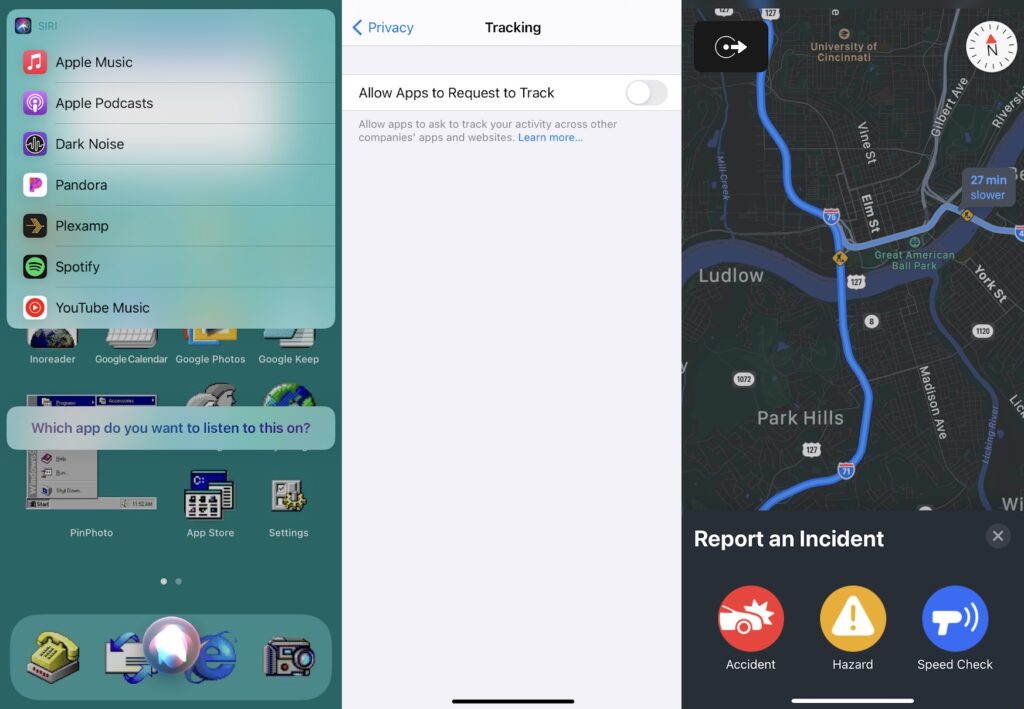
App Tracking Transparency: The headlining feature of iOS 14.5, this makes apps get your permission to share personal data with other companies. For instance, if you're playing a game that wants to sell your behavior data to marketers, it'll have to ask you first via a pop up. While this isn't a catch-all way to protect your privacy—companies like Facebook and Google can still collect whatever they want about you through their own apps—it's still a big step forward for controlling where your data ultimately goes.
|
|
You don't have to wait for apps to ask for permission before saying "no," either. Instead, just head to Settings > Privacy > Tracking, then uncheck "Allow Apps to Request to Track." This will prevent apps from even asking if they can spread your data around.
|
|
Bypass FaceID with a mask on: If you're wearing both an Apple Watch and a face mask, iOS 14.5 also lets you skip the lock screen without entering a PIN. Just make sure your watch is running WatchOS 7.5, then head to Settings > Face ID & Passcode > Unlock with Apple Watch on your phone. (I still hope Apple will drop the mask requirement for this feature someday.)
|
|
Apple Maps crash reports: Apple's taking a page from Waze by adding traffic incident reporting to Mask. You'll see icons for incidents that other users report, and while driving, you say things like "Hey Siri, there's a crash ahead."
|
|
Sort-of-default music apps: When you ask Siri to play music without specifying a source, it'll ask which app you'd like to play it in. Sadly, you still can't choose a default music app outright, but Apple says Siri will learn your preferences over time. (In the meantime, you can still say things like "play [artist] on Spotify" or "play [station] in Pandora.")
|
|
More Siri voices: Apple's assistant no longer defaults to a female voice when you're setting up a new iPhone, and it now has more English voices to choose from. Find them under Settings > Siri & Search > Siri Voice, but good luck not selecting "Irish, Voice 1" once you're there.
|
|
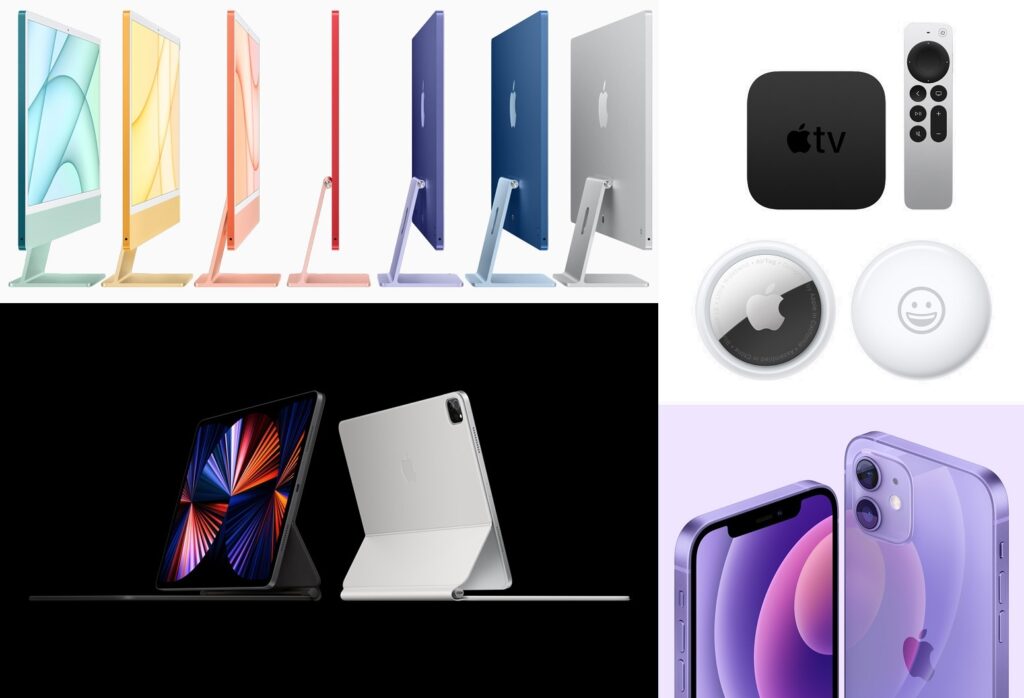
Even before releasing iOS 14.5, Apple dominated the tech news cycle last week with a slew of hardware announcements, including new iPads Pro, the first M1-powered iMacs, an updated Apple TV 4K, and the long-rumored AirTags item trackers. Some quick thoughts in no particular order:
|
|
New iPads Pro: Apple's high-end iPads now have the same M1 processor that the company's putting into its Macs—Apple says they're 50% faster than the old A-Series chips—and they'll have 16 GB of RAM if you opt for a model with at least 1 TB of storage. (Other models have 8 GB of RAM instead.) The larger 12.9-inch iPad is also getting a display upgrade to mini-LED (or, if you prefer Apple lingo, "Liquid Retina XDR"), which should improve contrast levels while boosting full-screen brightness to a searing 1,000 nits.
|
|
That all sounds great, though frustration with the iPad's software side gets more palpable each time the hardware take a big leap forward. I already opined on my inability use an iPad as a laptop replacement a few weeks ago; Jason Snell seems just as exasperated in this well-argued Macworld piece. Big iPadOS changes are supposedly coming this fall, but you may want to see exactly how those work before sinking a grand or more into the idea of leaving your laptop behind.
|
|
New iMac: Apple has also brought the M1-processor to its 24-inch iMac, which looks sort of like a giant iPad and speaker array bolted to a desktop stand. At $1,299 and up, the question of course is why you'd buy this instead of a Mac Mini with an external display and speakers. Apple's answer: The display is 4.5K, the built-in speakers are pretty good, and it comes in six colors. It's not a bad argument, though the lack of larger display options somewhat limits the appeal. The 27-inch iMac still uses Intel chips and is getting increasingly hard to justify.
|
|
AirTags: Apple has joined the item tracker business at last with a $29 Bluetooth beacon you can stick in your bag or slip onto your keychain (if you spring for optional accessories). If you lose it, Apple's Find My network kicks in, using any iPhone in Bluetooth range to update the tag's last-known location on a map. With an iPhone 11 or newer, you can also get pointed to the exact spot where the tag is sitting when it's close by.
|
|
Does this spell doom for Tile, which is currently the king of item tracking? Apple's sprawling Find My network certainly makes Tile's own crowdsourced network seem patchy by comparison, but Tile still has some features that AirTags don't, like the ability to find your phone by pressing the tag and to let multiple people track a single Tile. Plus, it works with Android phones, so you're not forever locked into Apple's world.
|
|
Apple TV 4K: I won't spend much time rehashing this after covering it in Cord Cutter Weekly last Friday, but it includes a much better remote and faster processor for the same $179 price as before.
|
|
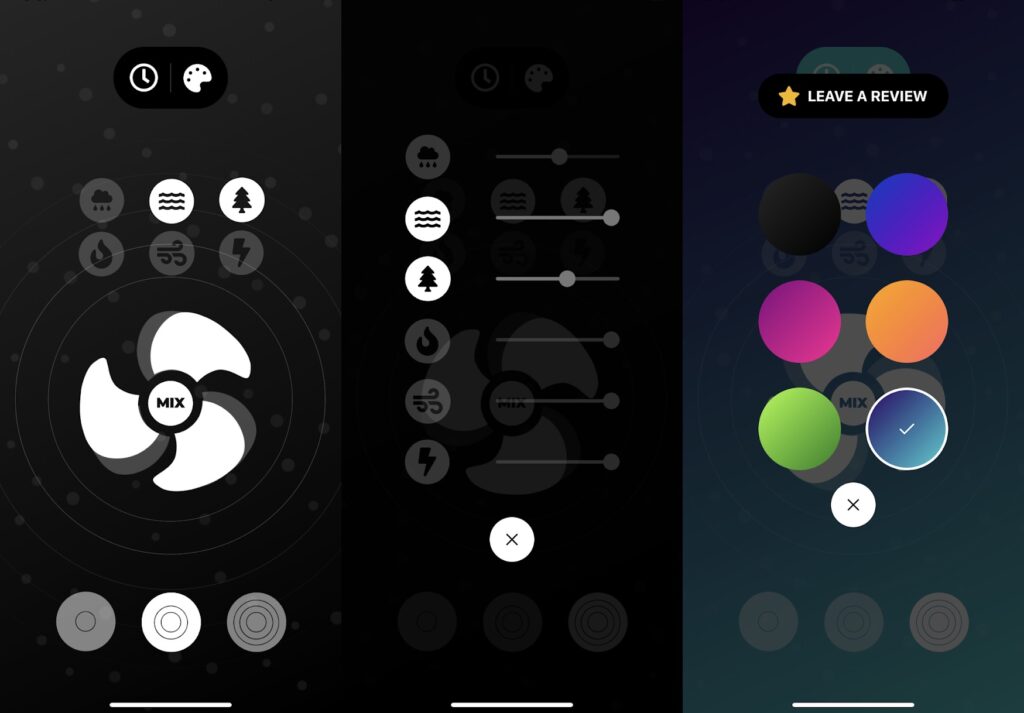
Another neat noise app: My collection of useful ambient noise apps continues to grow with Fan of Sleep, a free iPhone app that recreates the relaxing sound of a standing fan. It has three levels of fan noise, plus you can mix in a variety of nature sounds. The app also lets you set a sleep timer and has adjustable background colors for good measure. Give it a try next time you're struggling to doze off.
|
|
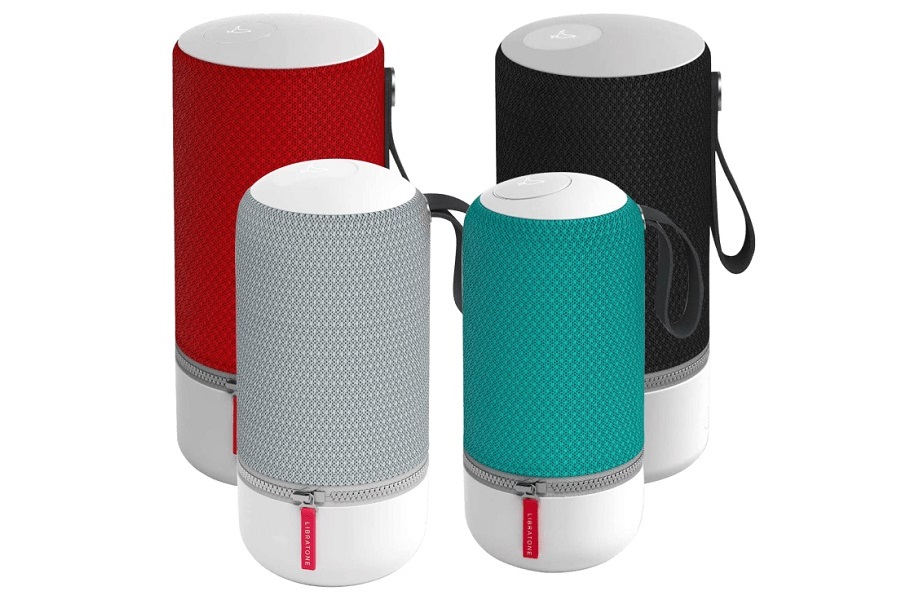
If you're in need of more portable AirPlay 2 speakers for your multi-room music setup, MorningSave is selling Libratone's Zipp speaker for $65. Just make sure to click "Got a coupon code?" on the order page and use the code LIBRAGONE. (You can also opt for the Zipp 2, which has hands-free Alexa voice control built in, for $80, but I'd skip the cheaper "Mini" variants.)
|
|
The Zipp and Zipp 2 originally sold for $299, and reviews praised the speakers' style and sound quality while knocking the high price. They've got an advertised 10-hour battery life, and they also support Bluetooth connectivity in addition to Apple's AirPlay 2. Libratone has since gone into bankruptcy, which may explain why MorningSave is clearing out inventory.
|
|
A word of caution, though: Don't choose MorningSave's $4.99 shipping option, or you'll be on the hook for a monthly subscription at that price. (Flat shipping at $7.99 should be selected by default.)
|
|
Other notable deals this morning:
|
- Amazon's Echo Dot with clock is on sale for $40, down from $60.
- Amazon's also taking 15% off several Eero mesh Wi-Fi routers.
- Last-gen iPads Pro are $100 off, and so is the Magic Keyboard.
- Need a cheap phone? Woot has Google's Pixel 3 in "Grade A" refurbished condition for $120.
- Logitech's wireless mechanical keyboard is on sale for $64 when you clip the on-page coupon.
|
|
You may have noticed that I tinkered with this week's format to deal with the avalanche of Apple news. Advisorator's recent redesign makes breaking the mold a bit easier, and I think it'll be fun to do every once in a while when the occasion calls for it.
|
|
And for the Android users out there: I'd love to hear your ideas on what to cover next. I'll do my best to make it up to you after an especially Apple-heavy issue!
|
|
This has been Advisorator, written by Jared Newman and made possible by readers like you. Manage your subscription by clicking here, or reply to this email with "unsubscribe" in the subject to cancel your membership.
|
|
|
|

 Jared Newman | April 27, 2021 |