Plus: Alexa's music transfer tricks and a notepad for YouTube |
Chargers and power banks demystified |
Plus: Facebook's face erasure, Alexa's music transfer tricks, and a notepad for YouTube |
In theory, charging your phone, tablet, or laptop should be pretty simple: Plug a cable into the device, plug the cable into a charger, wait for the device to charge, and be on your way. |
But never underestimate the tech industry's ability to complicate. What should be a mindless interaction instead involves a plethora of competing plugs, formats, and requirements, all in service of topping up your tech's batteries faster than before. |
Lately I've been getting a lot of emails about the best way to charge various gadgets on the go, which makes me suspect a lot of you are itching for a vacation. What better time, then, to demystify this topic once and for all? |
I originally thought about writing this piece in paragraph form, but then I realized a glossary would be a better fit. With so much jargon to consider, breaking down each element is the best way to make sense of it all: |
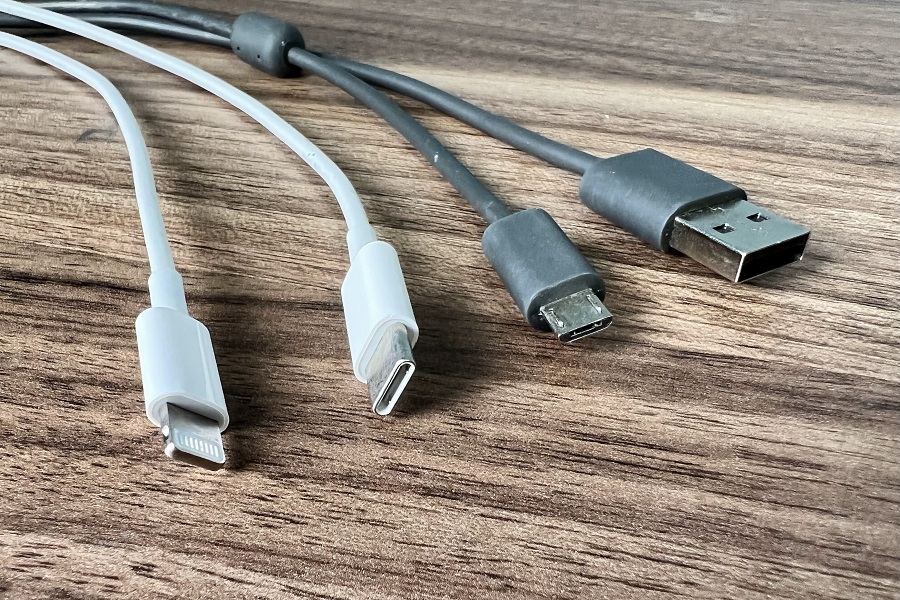
With the exception of gaming laptops and super-cheap Windows laptops, most modern devices will use one of the following charging connectors: |
Micro-USB: Flat on one side and curved on the other, found on older Android phones and a decent number of accessories. Cable typically has a large, rectangular USB-A connector on the other end. |
USB-C: Reversible connector that's flat on top and bottom with rounded sides, now the standard on Android phones, the iPad Mini/Air/Pro, many Windows laptops, and most recent MacBooks. Cable has either USB-C or USB-A on the other end. |
Lightning: Apple's proprietary connector for the iPhone, AirPods, and the standard iPad. Can have USB-A or USB-C at the other end of the cable. |
While there's no official industry definition for fast charging, Apple loosely defines it as as replenishing 50% of the battery in roughly 30 minutes. To get this level of charging speed, you'll need a Lightning to USB-C cable (for Apple) and USB-C to USB-C cable (for Android). |
Assuming you've got the requisite charging cables, you'll also need a compatible charger or portable power bank to enable fast charging. That's where things get tricky, as you'll often be confronted with number and alphabet soup while shopping for either type of product. Here's what to watch out for: |
USB Power Delivery (USB-PD, or just PD): Industry standard for fast charging, supported by the iPhone and most notable Android phones. Requires a USB-C connection on the charger. |
Quick Charge (or QC): Proprietary fast charging format from Qualcomm. Has some advantages over PD but is omitted by some phone makers (most notably Apple and Google) due to licensing costs. |
PowerIQ: Proprietary Anker technology that combines PD and QC on a single charging port, allowing fast charging with either format. |
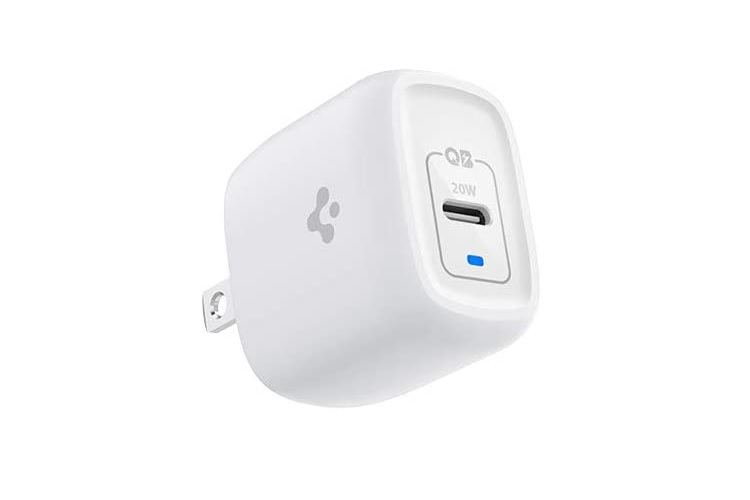
20W: The safest bet for wattage when buying a phone charger. While the iPhone 8 through iPhone 11 can use 18W chargers instead, the iPhone 12 and up requires a 20W USB-PD charger. (That said, tests by PhoneArena and others have found 18W chargers to be nearly as fast.) |
60W: The maximum charging wattage for many laptops with USB-C connectors, therefore a good minimum to target when buying a laptop charger. (Note that the MacBook Air only requires 30W, while some newer laptops, such as the new 14-inch MacBook Pro, can charge even faster.) |
mAh: Stands for milliamp hour, generally used to convey the battery capacity of phones and portable power banks. The iPhone 13 has a 3,227 mAh battery, while the Samsung Galaxy S21 has a 4,000 mAh battery. Power banks often come in capacities of 5,000 mAh, 10,000 mAh, or 20,000 mAh. |
GaN: Stands for gallium nitride, a semiconductor material that allows for smaller chargers. GaN adapters tend to cost a little more than their larger counterparts. |
Qi: Wireless charging standard that's become table stakes on higher-end phones. Lets you charge by placing the phone on a compatible charging mat or stand, albeit at a slower rate than with a cable. |
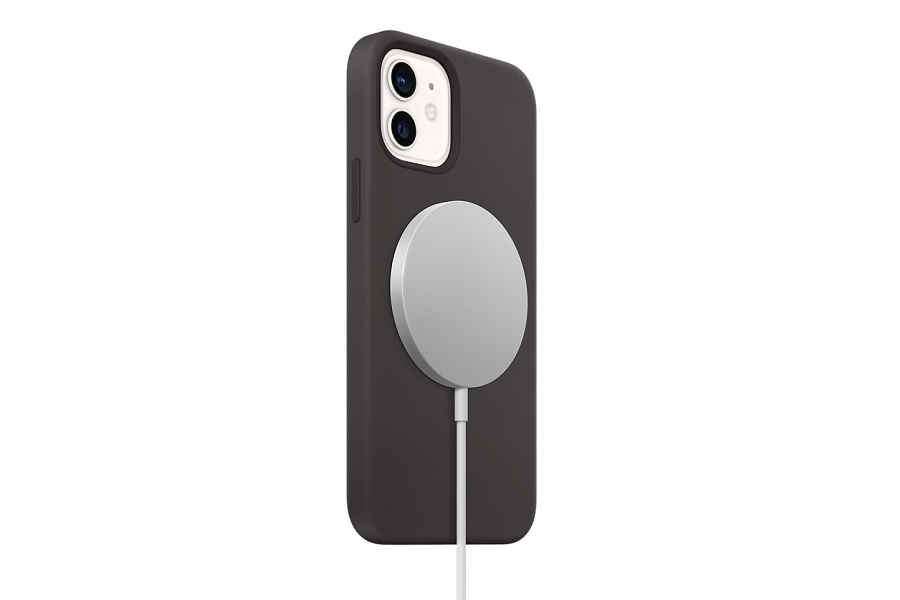
MagSafe: Refers to various proprietary Apple charging systems, including a magnetic charging puck for iPhones and a snap-in connector for pre-2016 and late 2021 MacBook Pros. The MagSafe charger on iPhones 12 and higher supports fast charging at 15W when paired with a 20W USB-PD 3.0 adapter. |
"Made for MagSafe": Refers to Apple-approved, third-party magnetic chargers that support 15W charging speeds on the iPhone 12 and higher. Other magnetic chargers have speeds of 7.5W instead, even if they advertise MagSafe compatibility. |
7.5W: The maximum iPhone charging speed when using a Qi mat or stand without official MagSafe support. |
Now that you're a master of fast charging jargon, you can more easily buy a charger or portable power bank that meets your needs. You'll know, for instance, that a 20W charger with USB PD 3.0 support will let you want to charge an iPhone as fast as possible, and that only Apple's own MagSafe Battery Pack can recharge an iPhone at speeds close to those of fast-charging cables. And if you spot a charger or power bank that's a lot cheaper than the rest, you'll hopefully have an eye for what features it might be missing. |
Even so, I'm happy to help if you need more guidance. Just send me an email and we can talk through it. |
But said initiative also has limits. As Recode reports, the decision doesn't apply to the company's "metaverse" products, referring to its forays into virtual and augmented reality. Facebook believes those products represent the future of technology, and recently changed its company name to Meta to underscore that point. Eye tracking and face tracking play big roles in the new frontier Facebook is now trying to build, so it's no surprise the company is unwilling to limit the data it'll collect there. |
Beware of two-factor authentication scams: Vice's Joseph Cox had a great story last week on how cybercriminals trick people into bypassing two-factor authentication on their accounts. Using automated phone calls, text messages, or emails, the scammers will pretend to represent PayPal, Venmo, Amazon, or your bank, asking to verify your account with an additional code. That code will arrive in a separate message—this one from actual account in question—and if you copy and paste it over, you've essentially turned over the keys to the castle. |
Two important takeaways here: First, this doesn't make two-factor authentication any less important. Two-factor provides an extra layer of protection against stolen passwords, so this scam only works if our password has already fallen into the wrong hands. Second, you should never enter a two-factor code outside of the actual app or website to which it belongs, and never engage in this extra step unless you've initiated a login attempt yourself. For more details on how to set up two-factor authentication the right way, check out my newsletter from last month. |
iPhone 13 screen repair roadblocks: Last month, I wrote about how the Apple was disabling Face ID on unauthorized iPhone 13 screen repairs. At the time, several repair shops believed Apple would rectify the matter with a software update, but it seems the the folks iFixit have gotten tired of waiting. They've now written a scathing report on how repairs are still locked down, even with the launch of iOS 15.1 last week. |
While replacing the screen is still possible without Apple's blessing, doing so requires microscopic swapping of components, adding significant time and expense to what should be a simple fix. That in turn could increase repair prices at third-party shops. (Apple itself charges $279 to replace the screen on most iPhone 13 models without AppleCare+, and $329 on the iPhone 13 Pro Max.) |
Apple may argue that it's locking down repairs for users' sake, protecting them from shops that use cheap aftermarket parts. Still, I'm inclined to think users should get to decide for themselves where and how to fix their gear, and that iFixit's criticism is justified. |
Alexa's music transfer tricks: Moving music between Alexa speakers just got a lot easier. Assuming you've got more than one Echo device at home, you can say "Alexa, move my music to [speaker or group name]" to push the audio there. You can also pull music onto any speaker that isn't already playing by saying "Alexa, move my music here." This trick even works with Amazon's Echo Buds, so you can transfer music to the earbuds as you're leaving the house. (No such luck with Alexa on Fire TV devices, which seem to recognize the commands but fail to actually move the music around.) |
If you're keeping score, Google and Apple offer similar music transfer features with their respective speaker ecosystems. |
- With any Nest or Google Home speaker, say "Hey Google, move to [speaker or group name]."
- With an iPhone or HomePod, say "Hey Siri, move to [speaker or group name]." Alternatively, tap the AirPlay button in Control Center on an iPhone, or hold your phone near any HomePod to transfer music without pressing anything.
|
Unfortunately, you still can't move music between speakers that hail from different tech giant ecosystems. Because that would be a little too convenient. |
Speedy Mac voice controls: Speaking of neat voice tricks, Speech Utility is a free app for launching MacOS Shortcuts by voice, with no need to invoke Siri first. It uses on-device speech recognition, so you only need to say the name of the Shortcut, and the app will recognize and run it without sending any data to the cloud. I'm using it to quickly launch apps, load specific folders, and email notes to myself. |
Keep in mind that the Shortcuts app is only available in MacOS Monterey, and Apple still seems uncertain about how to make it more appealing to non-power users. If you're unsure where to start with Shortcuts, the Gallery section of the app has some useful examples to install, including one that opens any two apps in split view, and another that simultaneously closes distracting apps while enabling Do Not Disturb. (You can also install my "Email Note" shortcut from here.) |
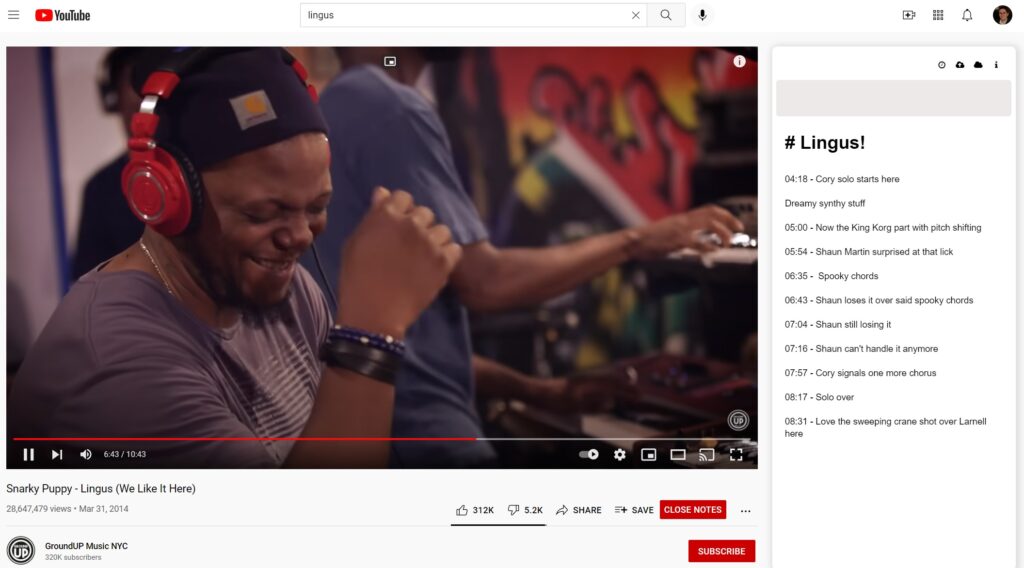
Simple notes for YouTube: If you ever find yourself needing to annotate a YouTube video, Clarity is a handy way to do so. The free Chrome extension gives each video its own scratchpad, so you can take notes without juggling a separate app. Typing "/ts" also marks the current time—useful for referencing a specific part of the video later—and you can use keyboard shortcuts such as Ctrl/Cmd+P to pause, Ctrl/Cmd+F to fast forward, and Ctrl/Cmd+R to rewind. |
The extension is free to use—the developer only asks for donations—and notes are in Markdown format, so you can copy and paste them into many other note-taking apps. You'll also find a centralized list of all your notes on Clarity's website, with links to their corresponding videos. |
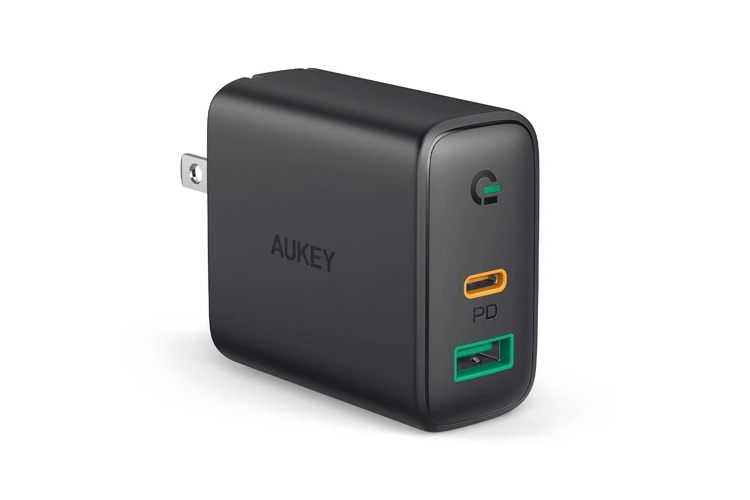
Relevant to this week's feature topic, Aukey's 30W charger is on sale for $13 with the code AK68. It has both a USB-C port with Power Delivery 3.0 for fast charging and a secondary USB-A port, though charging speed on the former drops to 18W when the latter is in use. I hope this make sense now! |
Also, for today only, Best Buy is selling the Acer Spin 713 Chromebook for just $279, down from a list price of $529 and $50 lower than a previous sale price. It has a Core i3 processor, 4 GB of RAM, and 64 GB of storage—all decent enough for a Chromebook, in my view—and the 13.5-inch touchscreen is taller than usual for a laptop, so you can see more on the page when you're browsing the web. It's a highly-regarded Chromebook at an excellent price. (A newer version, with a faster processor, 8 GB of RAM, and 256 GB of storage, is also on sale for $529.) |
Let me know if you liked this week's feature and would like to see more explainers like it, or if there's anything else you'd like me to cover next. I'm always happy to hear from you! |
This has been Advisorator, written by Jared Newman and made possible by readers like you. Manage your subscription by clicking here, or reply to this email with "unsubscribe" in the subject to cancel your membership. |
Advisorator LLC, PO Box 42711, Cincinnati, OH, 45242 |
|
|
|

 Jared Newman | November 9, 2021 |