|
Plus: The old phone apocalypse and a year of great apps
|
Start the year with a tune-up
|
Plus: The old phone apocalypse, finding library books with ease, and a year of great apps
|
|
This newsletter was originally published on January 4, 2022.
|
|
While some of you might be hitting the gym as part of your New Year's resolutions, now's a fine time to make sure your gadgets are in peak shape as well. That means paring down distractions, clearing up some space, and generally making sure devices are serving you, rather than vice versa.
|
|
To that end, here are a handful of simple tips for getting your devices all tuned up:
|
|
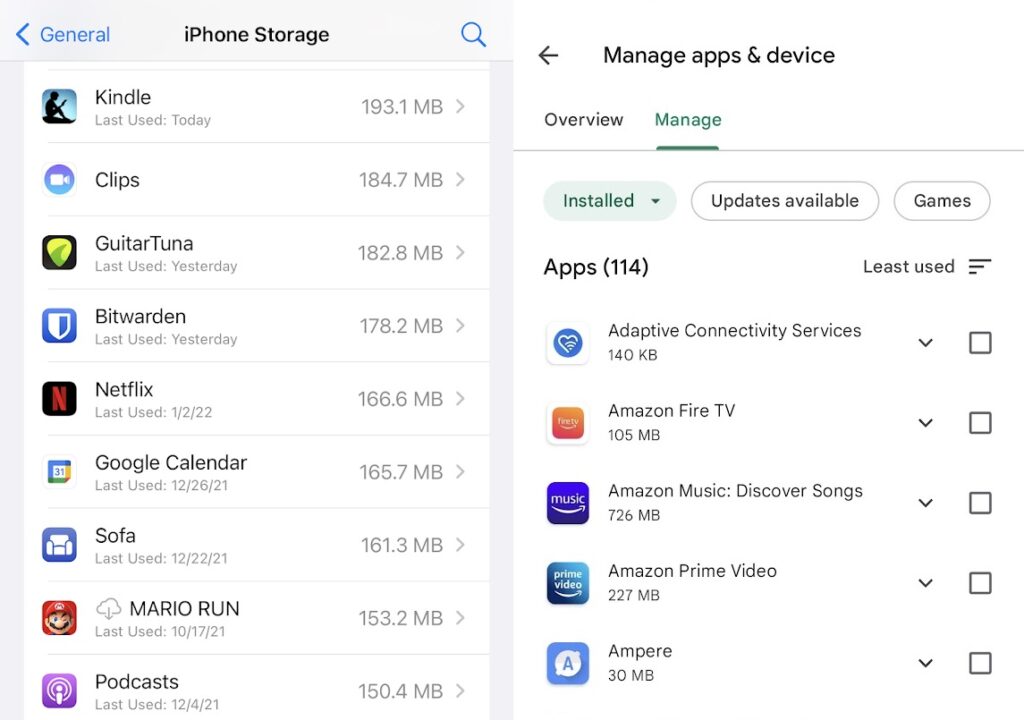
A few minutes is all it takes to audit your apps and clear out the ones you never use. Or you can use the steps below to sort through your app list:
|
|
On iOS: Head to Settings > General > iPhone Storage, then look for apps that don't show a "Last Used" date—meaning you've never used them—or that you haven't used in a while. Tap on an app to delete or "offload" it. (The latter will preserve its data in case you want to reinstall it later.)
|
|
On Android: Open the Google Play Store, tap your profile picture, then head to Manage apps & device > Manage. Then tap the sorting options next to "On this device" and select "Least Used." Check off the apps you want to remove, then click the delete icon. Alternatively, the Files by Google app can quickly identify unused apps to delete.
|
|
On Windows: Head to Settings > Apps > Apps & Features, then sort by install date. You may find lots of apps worth removing at the bottom of this list.
|
|
On a Mac: In Finder, head to Applications, then click "Date Added" in the sort bar so the arrow points upward. The apps you've installed the longest time ago will appear at top, so you can drag unwanted ones to the trash.
|
|
As long as you're deleting the apps you seldom use, take a moment to consider which ones you're using too much, social media or addictive mobile games being the prime candidates. Even if you're not ready to delete them, simply moving them to another part of your home screen can be an effective habit-breaker. It'll mess with your muscle memory and force you to rethink whether another session is truly necessary.
|
|
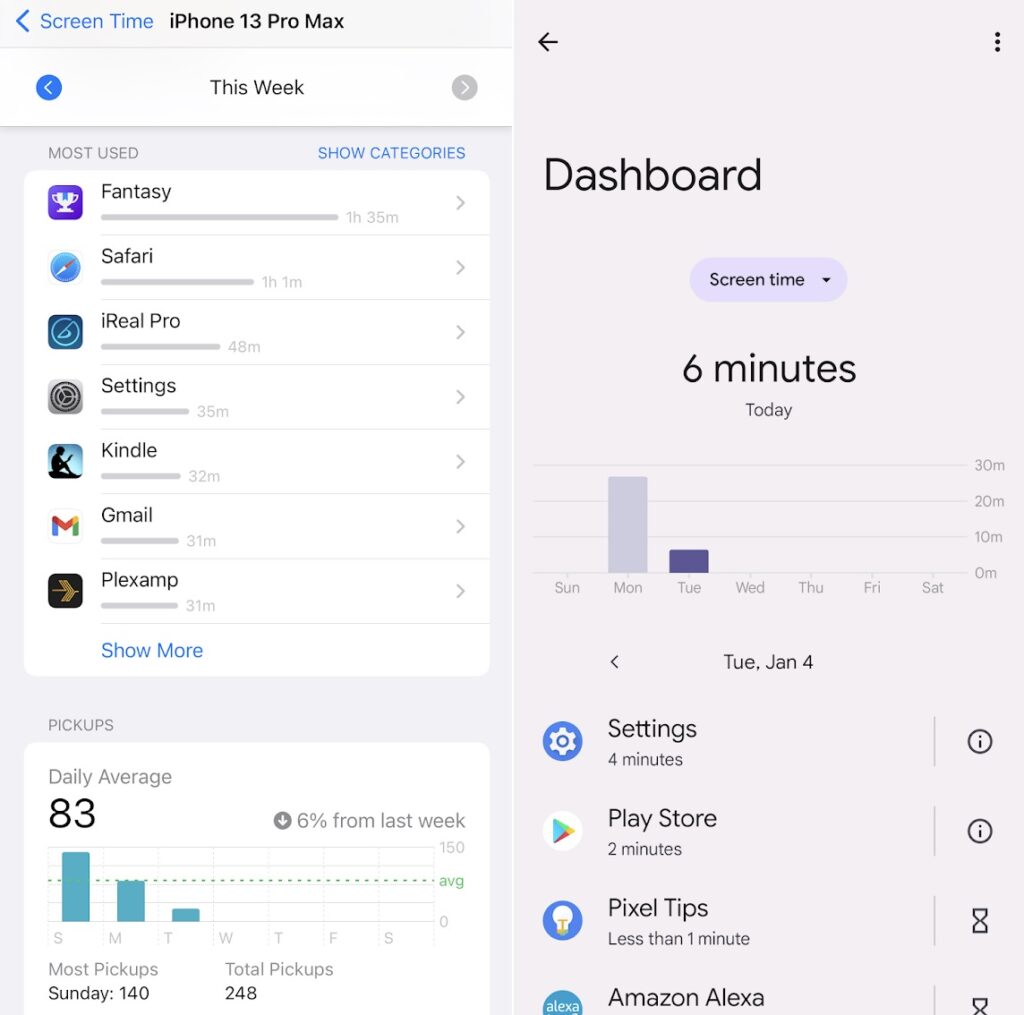
If you need more help identifying unhealthy phone behavior, you can see which apps are sapping your time and even set up usage limits:
|
|
On iOS: Head to Settings > Screen Time > See All Activity, then look under "Most Used" and "Pickups." Tap an any app to set up a daily time limit.
|
|
On Android: Head to Settings > Digital Wellbeing > Dashboard. Tap the timer icon next to each app to set a daily time limit.
|
Silence annoying notifications
|
|
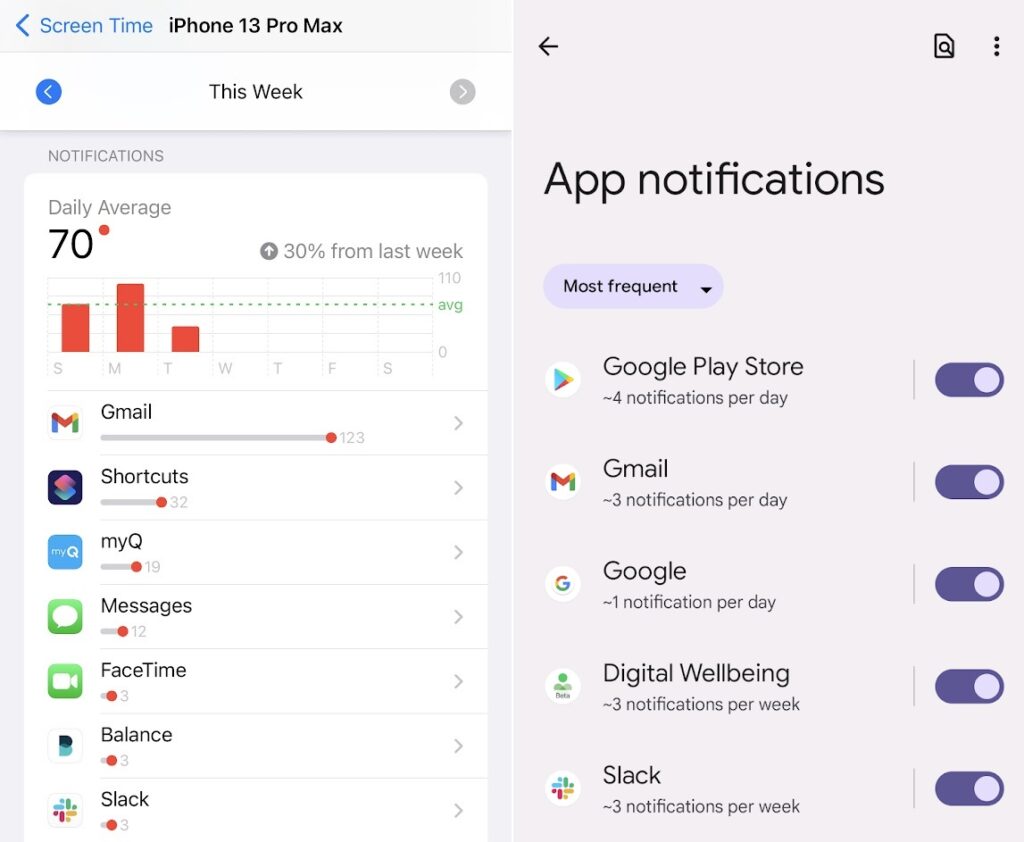
Even if you're not ready to delete every distracting app on your phone, you can dial down their annoyance level by cutting off notification privileges.
|
|
On iOS, head back to Settings > Screen Time > See All Activity, then scroll down to "Notifications." Tapping the apps in this section brings up a menu to turn them off or silence them.
|
|
On Android, a similar menu exists under Settings > Digital Wellbeing > Manage Notifications. (You may also find it under Settings > Notifications > App Notifications, or something similar.) Tap the sorting options at the top and select "Most frequent" to see which apps nag you most.
|
|
Note that each Android app comes with its own set of granular toggles, so you can turn off some types of alerts without disabling an app's notifications entirely. This is helpful for apps like Google, which offers more than two dozen controls over things like sports, weather forecasts, tips, and reminders. You may want to examine each app's notification list and turn off only the most annoying alerts.
|
Consider a calmer lock screen
|
|
Lately I've realized that having my phone light up with new emails, text messages, and Twitter notifications isn't a good thing, especially when I'm trying to concentrate on work.
|
|
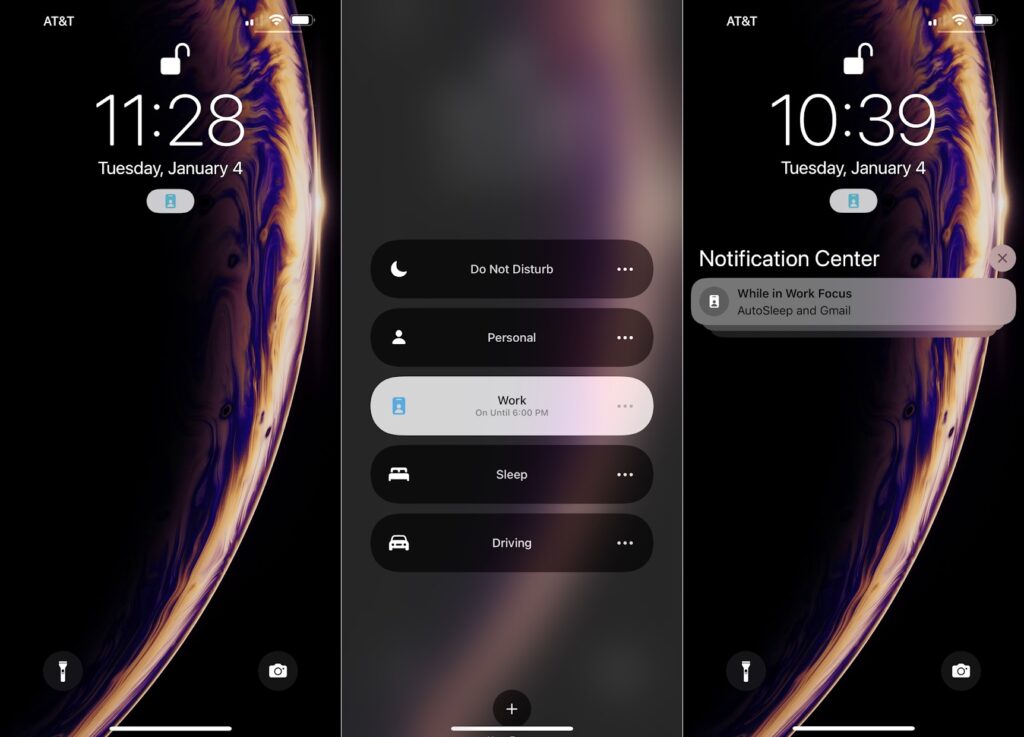
That's why I've become a big fan of iOS 15's Focus feature, which lets you schedule times when only certain notifications can make the phone light up. (The rest get quietly bundled together, and only appear when you swipe up on the lock screen.)
|
|
To set this up, head to Settings > Focus, then select one of the preset categories, such as "Work" or "Personal." Choose the people and apps that you always want to see, and on the next page, hit "Add Schedule" to trigger this mode automatically.
|
|
On Android, you've got a few options for keeping your lock screen from becoming a distraction center:
|
- Head to Settings > Digital Wellbeing > Focus mode, then choose the apps you want to disable and schedule a time to disable them. Note that this will prevent you from even opening the apps in the first place.
- Head to Settings > Display > Lock screen, then disable "Wake screen for notifications," which will always prevent your phone from lighting up. (These instructions are for Pixel phones, and may differ somewhat for other models.)
- Check out BuzzKill, a $2.49 app that can deliver notifications in batches, similar to Apple's Focus mode. (This one comes highly recommended by my pal JR Raphael in his Android Intelligence newsletter.)
|
Reclaim more storage space
|
|
Hopefully all this will set you on a path to more mindful tech use in 2022. If you have any questions or tips that I missed, let me know!
|
|
The old phone apocalypse begins: If you're still hanging onto an aging BlackBerry phone, it's about to become a lot less useful. The company has warned users that phone calls, text messages, cellular data, and 911 calls "will no longer reliably function" for these devices after January 4.
|
|
But the reason has to do with more than just BlackBerry itself. As the Washington Post points out, the company is being forced to retire its old phones by wireless carriers, all of which are now winding down their 3G and CDMA networks to make room for 5G. AT&T plans to phase out its 3G network in February, followed by Sprint's CDMA network in March, T-Mobile's 3G network in June, and Verizon's CDMA network in December. Once those networks shut down, lots of other old phones will lose connectivity as well, either because they can't make calls over 4G or don't have 4G radios at all. (For instance, the iPhone 6 from 2014 is the oldest phone to make the cut.)
|
|
I'll have more to say about the old phone apocalypse as it happens. In the meantime, you can check AT&T's compatibility list to see if you're phone is safe, use T-Mobile's compatibility checker, or read about affected Verizon phones here. While you're at it, take a moment of silence for BlackBerry's phones, even though the company hasn't made its own hardware since 2016.
|
|
Alexa's growth issues: Over at Bloomberg, Priya Anand has an interesting story about how Amazon is bracing itself for a sluggish smart speaker market, with internal planning documents projecting just 1.2% annual growth for the next several years. The documents also show that people don't end up doing much with their speakers beyond playing music, setting timers, and controlling smart home devices.
|
|
All of this helps explain why Amazon is now turning the screws on monetization for the platform. In December, it replaced a free Alexa eldercare service with one that costs $20 per month, and it launched a $5 per month Alexa-based home security service last January. The company has also doubled the price of its Ring home monitoring service, in which Alexa plays a role. After years of distributing Alexa hardware on the cheap, a push to make more money from that hardware seems likely.
|
|
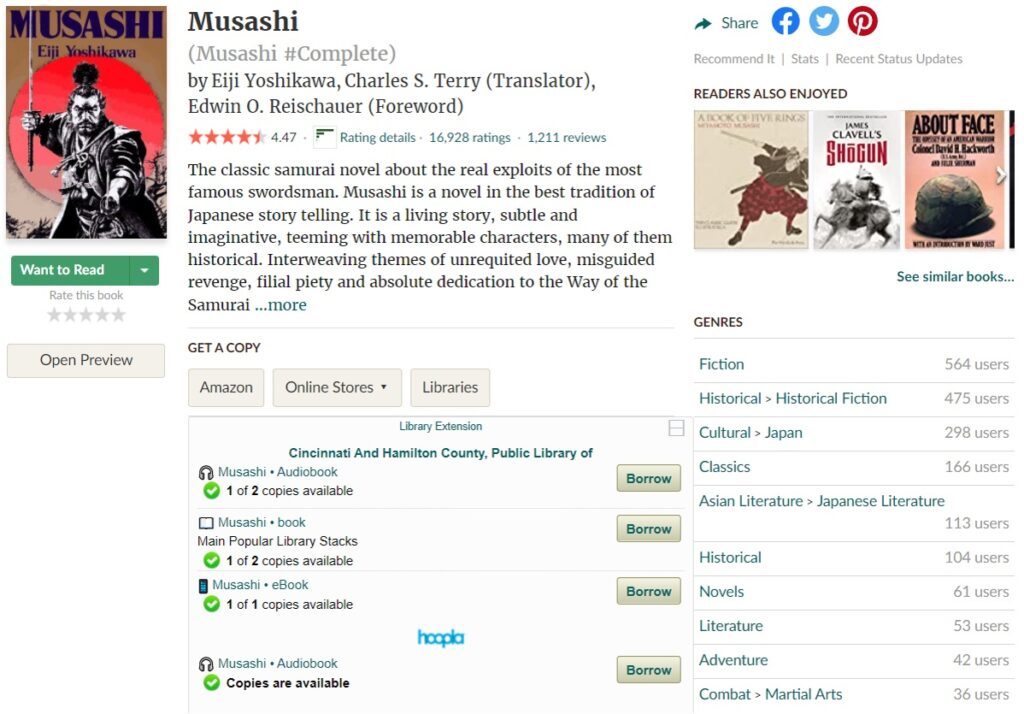
Find library books with ease: After I mentioned my growing usage of Libby for e-book borrowing in the previous newsletter, reader Kathy R. reached out with a great tip: With Library Extension for Chrome and Firefox, you can look up a book on Amazon or Goodreads and automatically see if it's available through your local library. The extension can find physical copies, e-books, and audiobooks, with each source displaying a "Borrow" link for online checkout.
|
|
After installing the extension, click on its icon in your browser's toolbar, then select your state and add your library from the drop-down menu. You can also log into Hoopla from the same page if your library supports it.
|
|
My only nitpick with Library Extension is that it links to OverDrive for e-books, rather than the more user-friendly Libby website. Still, any books you borrow via OverDrive will appear inside Libby, and you can still send books to the Kindle app if you prefer reading there. It's a great way to subvert Amazon's purchase process and remind yourself of what's available through the library instead.
|
|
A year of great apps: Over at Fast Company, I've put together my annual list of the year's best new apps. As with previous iterations, I only considered apps that launched or received major upgrades in 2021, and I tried to avoid ones that everyone's heard of already.
|
|
You'll likely recognize a lot of my picks if you've been reading Advisorator for a while, but one I haven't mentioned yet is Uptime. This iOS and Android app condenses entire books, courses, and documentaries into "Knowledge Hacks" that you can read in about five minutes, largely around themes of education or self-improvement. This lets you extract the main takeaways and decide whether to dive in further.
|
|
The full app costs $80 per year after a three-day trial, but the free version still gives you one curated Knowledge Hack per day. It beats trying to read an entire book every 24 hours.
|
|
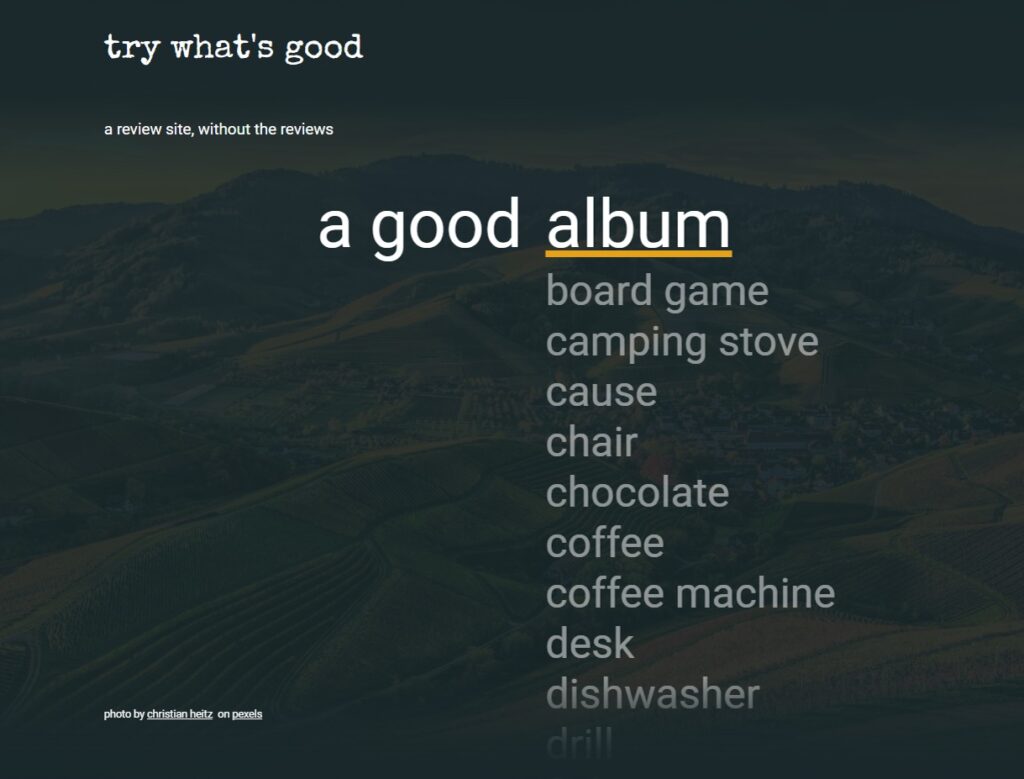
Serendipitous picks: Try What's Good is a fun little web page that bills itself as a "review site without the reviews." Click on one of its links—for instance, to "a good board game" or "a good coffee machine"—and you'll be whisked off to a relevant recommendation without comment or context.
|
|
The developers, whose day job is making mechanical keyboards, say they're not influenced by affiliate links or paid promotion (though you'll notice that the "good keyboard" recommendation links to their own product). Give it a try if you like being discovering new things with an element of surprise.
|
|
(Note that these deals are from January 4, when this newsletter was first published.)
|
|
I hope you enjoyed this sample issue of the newsletter. Send me an email, and we can talk about how Advisorator can bring more tech savviness to your library with weekly newsletters, personalized advice, and presentations for staff and patrons.
|
|
Advisorator LLC, PO Box 42711, Cincinnati, OH, 45242
|
|
|
|