 |
| |
 |
| February 2, 2021 |
| Space-saving tips and tools |
|
Plus: A vital iPhone update, a relaxing bedtime app, and more browser tab trickery
|
| |
 |
|
Over the weekend, I solved a small storage mystery that had been bothering me for weeks.
My desktop computer's primary 256 GB storage drive was suddenly nearing full capacity even though I don't use it to store photos or other media. (I have secondary internal hard drives for that.) Emptying my recycle bin, clearing out temporary files, and deleting unwanted programs provided only a modicum of relief.
Fortunately, a friend of mine (thanks Rob!) clued me into a long-running program called SpaceSniffer. The free Windows application visualizes all your folders as a set of interlocking rectangles; the larger the rectangle, the more storage that folder is hogging. You can then click on any folder to zoom in on its subfolders, or right-click for a list of file options, such as deleting the folder or opening it in the Windows File Explorer.
With SpaceSniffer, it didn't take me long to find the source of my storage dilemma and rectify the situation—apparently Ubisoft's game launcher was installing games where it shouldn't have been—and I went on to free up space on my other drives using SpaceSniffer as well. I wish I'd known about it earlier.
This form of folder visualization isn't exclusive to Windows, either.
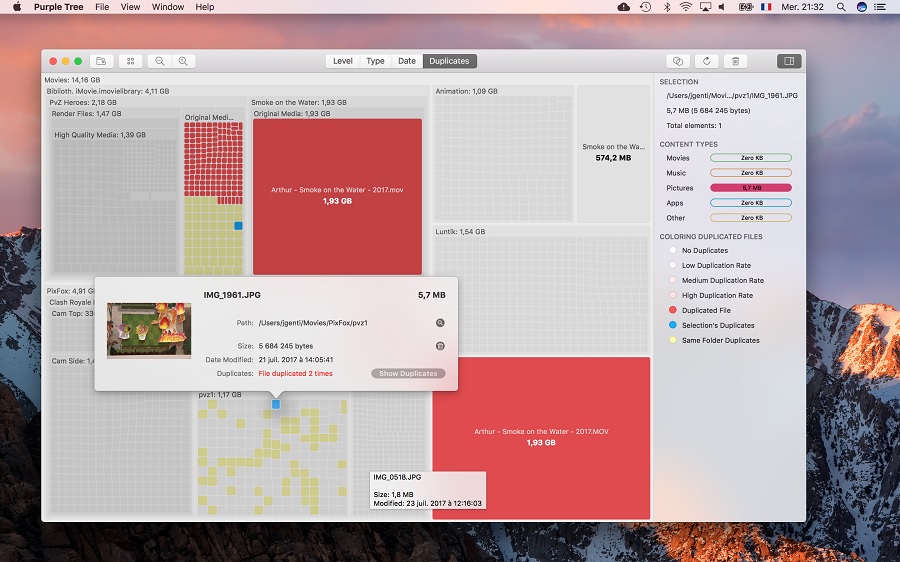
On a Mac, the best option I've found is Purple Tree, which costs $3 in the Mac App Store. It offers the same kind of overview as SpaceSniffer, with file names and sizes in each rectangle, and you can use the zoom in/out buttons to drill through each folder. Hovering the cursor over a file also gives you a pop-up preview of its contents, and you can hold Cmd while clicking on multiple items to mark them for transfer or deletion.
|
 |
|
If you'd rather not pay the $3 for Purple Tree, GrandPerspective is a decent free alternative for MacOS. It's a little clunkier to use—I don't like how it hides folder names and sizes until you hover over them—but it performs the basic job of identifying huge folders well enough.
More storage-saving tips
Of course, visualizing your folders isn't the only way to reclaim space on your devices. Here are a few other simple tricks I'm fond of:
- Windows' built-in Storage Sense feature can automatically wipe files you probably don't need anymore, including old temporary files and recycle bin contents. Just head to Settings > System > Storage to turn it on, or hit "Configure" to choose how often it runs.
- If you're using Google Photos to back up your camera roll on iOS or Android, you can easily delete already-uploaded photos and videos from your device. Tap on your profile icon in the Google Photos app, select "Free up space" or "items to delete from this device," then follow the on-screen prompts.
- To save space on an iPhone or iPad, try automatically uninstalling apps you haven't used in a while. To enable this feature, head to Settings > App Store, then toggle "Offload Unused Apps."
- Also on iOS, consider auto-deleting old iMessage conversations, which might be filled with space-hogging photos and videos. From Settings > Messages, find the "Keep Messages" setting and select either "30 Days" or "1 Year."
- To delete your largest iPhone apps, head to Settings > General > iPhone Storage. The largest apps should appear first, and you can tap on each app for an option to delete it straight from this menu.
- On Android, use Google's downloadable Files app to remove junk files that might be wasting space. You'll find suggestions on what to delete in the "Cleanup" tab.
- Instructions for deleting your largest Android apps can vary by manufacturer. On Samsung phones, you can head head to Settings > Apps, then hit the vertical "..." menu button for a "Sort by size" option. On Pixel phones, use the "Browse" menu in Google's Files app, select your apps, the use the sort button at the top.
Got any neat storage-saving tips I missed? I'd love to hear them; just reply to this email with your suggestions.
|
|
| Need to know |
|
Update your iPhone: iOS 14.4 arrived last week, and its most notable feature is a series of patches for major security holes. In theory, those vulnerabilities could allow a malicious app or website to bypass the security protections on your iPhone or iPad. (Apple is cagey about the details of what's at stake, but says attackers may have already used these exploits in the real world.) If you've been abstaining from iOS updates for whatever reason, now would be a good time to get on board.
The update also introduces a handful of minor new features and bug fixes. Try holding an iPhone 11 or higher next to a HomePod Mini to see some music suggestions and playback options.
Easier iPhone unlocking: In other iOS update news, Apple has developed a feature that will unlock your iPhone while you're wearing an Apple Watch and a face mask. It'll launch as part of iOS 14.5, which is now in early beta testing for developers. That should put it about a month and a half out from broad availability.
Android enthusiasts may gleefully note the similarities to Android's "Trusted Devices" feature, which can automatically unlock your phone when a smartwatch or other paired Bluetooth device is in range. I've wanted Apple to copy this feature for years, and trying to check my phone's grocery list at the supermarket while wearing a mask only solidified that desire. Let's hope Apple's unlocking feature sticks with us in a post-pandemic world (ideally without the mask requirement), whenever that might be.
Alexa's home security plan: Back in September, Amazon announced a premium version of its Alexa Guard service, which uses Echo speakers to monitor for potential emergencies. That version, called Alexa Guard Plus, is now available for $5 per month or $50 per year, though it's free for Ring camera users who are already paying for home monitoring.
The free version of Alexa Guard—activated by saying "Alexa, I'm leaving"—can turn connected smart light bulbs on and off, and can use Echo speakers to listen for broken glass or alarm sounds while you're not home. The paid version detects other noises, like footsteps or opening doors, and it can play some noises of its own through Echo speakers—dogs barking, sirens blaring—when a Ring camera detects motion. It also lets you say "Alexa, call for help" for access to a live helpline, which in turn can content local emergency services on your behalf.
I'm conflicted about the offering. While it makes sense for Amazon to tie its Ring and Echo devices together—and a voice-activated emergency line could be quite helpful for some folks—there's a distinct vibe of fear peddling that comes from this increasing focus on home security. I miss when smart speakers were more about playing music and automating appliances, rather than warding off a litany of perceived threats.
|
|
| Tip of the moment |
 |
|
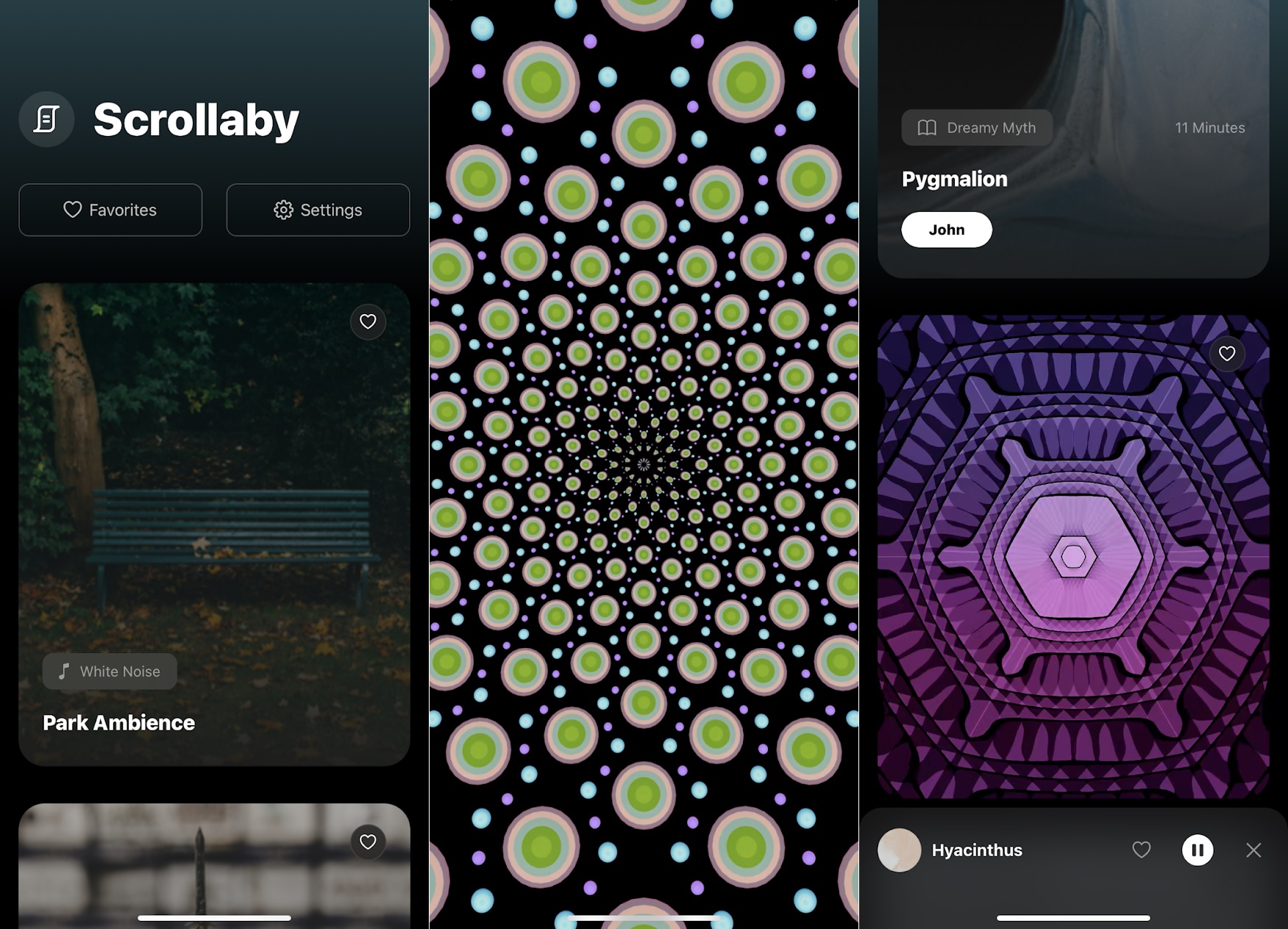
Scroll yourself to sleep: Show of hands, how many of you are in the habit scrolling endlessly through Facebook, Twitter, or Instagram right before bed? Scrollaby is a new app that tries to hijack that unhealthy pattern by providing a feed of relaxing things to scroll though instead. Those include ambient sounds, mediations, dream-like stories, and hypnotic visuals.
I do wish the app offered more visual content to go with its audio components, such as poetry or other light reading material, but even in its current form, it beats reading about imminent doom just as you're turning out the lights. The app is available on iOS for now, with Android support coming soon.
|
|
| Now try this |
|
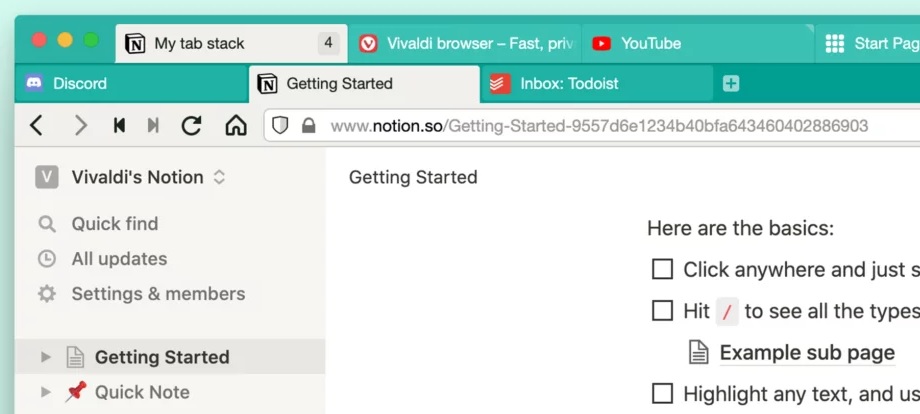
Vivaldi's two-level tabs: I love this idea for browser tab management in the latest version of Vivaldi. Just drag one tab on top of another, and they'll both appear in a second row underneath the original tab. You can then add more tabs to that same group, or create multiple groups that you can switch between. To help you remember which tabs are in each group, you can right-click a stack and select "Rename Tab Stack."
|
 |
|
Unfortunately, Vivaldi's lack of installable web app support precludes me from using the browser full-time, but I'm told that feature is in development now. In the meantime, I'm hoping other browsers will take inspiration from Vivaldi and move past the single tab row paradigm that's dominated the desktop web for over over a decade now.
Stash tabs fast: Since I clearly will never tire of tab management tips, here's a neat browser extension I recently stumbled upon called OneTab. With one click, it saves all the tabs in your current window to a list view, where you can restore them individually or in bulk. You can also rename each group of tabs or drag tabs between different groups.
Longtime readers might remember a similar extension called NimoTab, which I mentioned back in August. While NimoTab is a bit more powerful in its search and visualization features, I find OneTab's menu easier to sift through visually, and I like that you can share a list of tabs with others or export it as plain text. Try one, or both, and let me know what you think.
|
|
| Around the web |
|
|
|
| Spend wisely |
 |
|
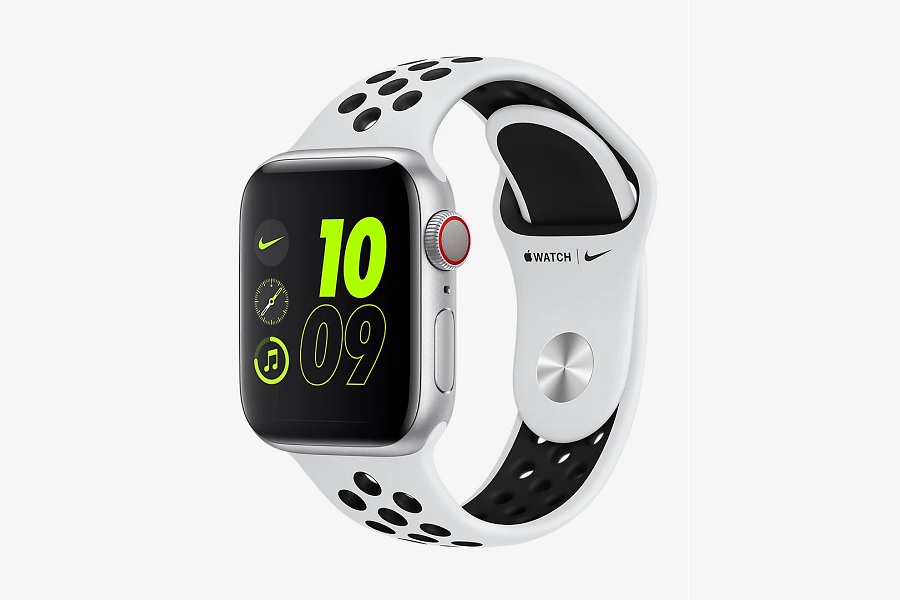
(Note that these deals are no longer available, as they date back to February 2021.) You may have to act fast, but the Nike edition Apple Watch Series 6 (40mm, silver) with cellular connectivity is on sale for $375. That's $124 off the list price, and $24 less than the regular price of non-cellular models. As of this writing, Nike's website says there are "just a few left."
Elsewhere in the deal realm today:
|
|
| Thanks for reading! |
|
I hope you enjoyed this sample issue of Advisorator. Sign up to get advice like this in your inbox every Tuesday. Thanks again!
|
|
|
|
|
|