 |
| |
 |
| February 23, 2021 |
| Bitwarden's free password manager |
|
Plus: The spy pixel problem, easier arithmetic, and new tunes to try on
|
| |
 |
|
Last week, the makers of LastPass delivered an ultimatum to those who are using the password manager for free.
Unless those users start paying $36 per year by March 16, they'll be limited to one device type—mobile or computer—per account. That means free users will have to choose between accessing their passwords on either a laptop and a phone, which isn't much of a choice for a lot of people.
I'm one of those users, having signed up for LastPass back in 2018, and while I'm not fundamentally opposed to paying for useful services (ahem), I don't like being forced to pay for something when a company can't make its freemium business model work. With password managers in particular, there are plenty of other options, both free and paid, that work just as well as LastPass did.
And so, I took some time over the weekend to switch from LastPass to Bitwarden, another password manager that's free for basic personal use. The transition was mostly painless, though I ran into a few snags along the way.
Password managers: A recap
As a refresher, password managers are a great way to break the bad habit of using the same or similar passwords across multiple apps or websites, or even having to remember lots of passwords in the first place. Here's how it works, using Bitwarden as an example:
- Install the Bitwarden extension for your web browser and the Bitwarden app on iOS or Android.
- Create a Bitwarden account and set up a master password—ideally one that's both strong and memorable. You'll need this if you haven't logged into Bitwarden in a while or if you're setting up a new device, so consider writing it down and locking it away in a safe place.
- Whenever you log into a site with your web browser, Bitwarden will show a message offering to save your login credentials. Do this every time.
- While signing up for new services, use Bitwarden to generate strong passwords (like "7S$b@!QBA12").
- When signing into an account, use Bitwarden to fill in those login details.
This admittedly sounds like a hassle, which is why I held out on password managers for years even as needing one became conventional tech industry wisdom. But once you develop the muscle memory of using a password manager, it's hard going back to not having one.
Why Bitwarden?
I'll be honest: I picked Bitwarden mainly because it's free, but also because it's open-source, comes recommended by writers I trust, and works on a broad range of devices. I'm intrigued by 1Password, which also tends to be the subject of high price, but not intrigued enough to spend $36 per year on it.
These days, you'll find that the big tech companies have been beefing up their own password management features. On iOS and Mac, for instance, Apple can generate secure passwords on websites and in apps, and it recently released a Chrome extension for Windows. But looking up your passwords can be a pain if you need to do so manually, and there's no support for Android devices, Chromebooks, or the Firefox browser. The password management features of Microsoft Edge and Google Chrome have similar limitations.
In the long run, I think those built-in solutions will end up replacing password managers for a lot of people, but I don't think they're quite ready yet. Bitwarden, meanwhile, is pretty much a drop-in replacement for LastPass, minus the subscription fees. Plus, Bitwarden's migration guide made switching from LastPass super easy.
Making Bitwarden better
That's not to say Bitwarden was perfect out of the box. To preserve some of LastPass' creature comforts, I had to make a handful of tweaks.
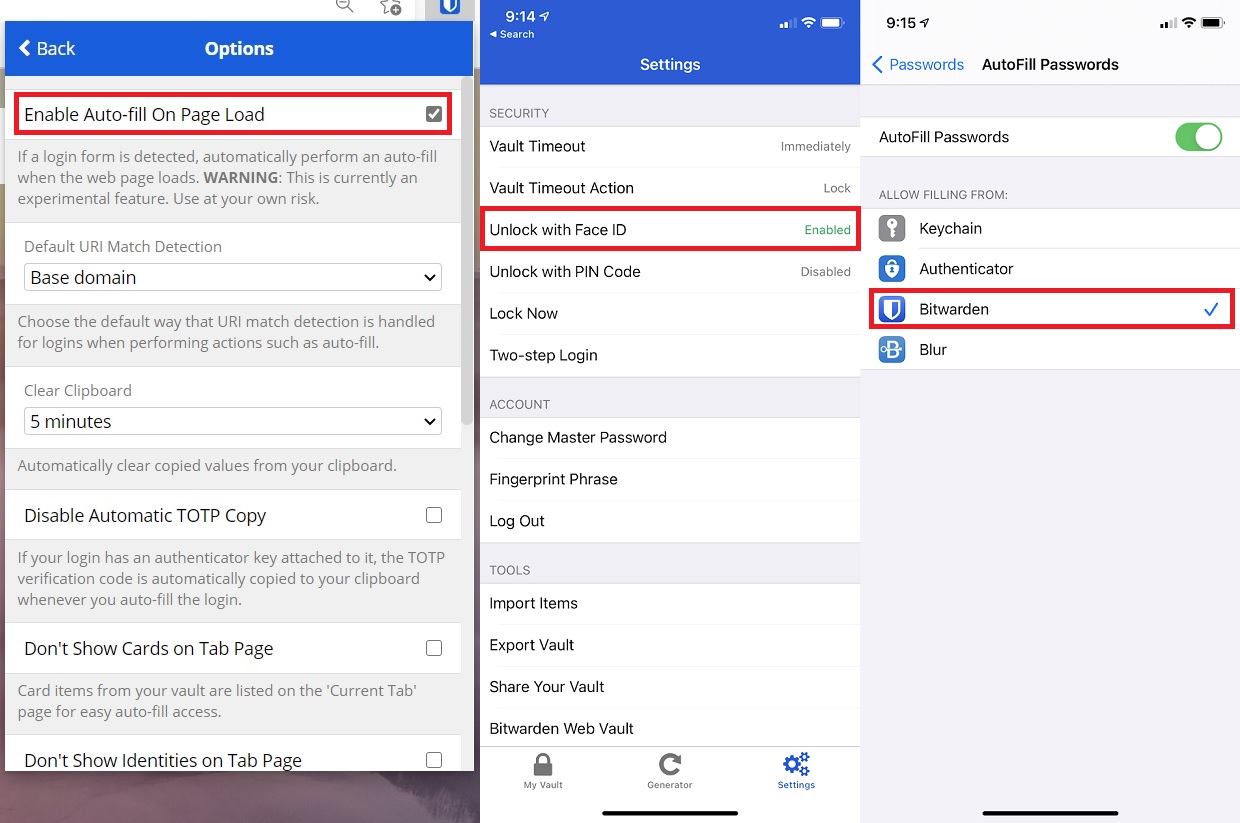
On the web, for instance, I suggest heading to Settings > Options and checking "Enable Auto-fill On Page Load," which makes sure your name and password get pre-filled on most login forms. Also under Settings, consider changing the "Vault Timeout" option so you don't have to re-enter your master password as often. (I chose "On System Lock.")
You'll also want to hook Bitwarden into your phone's auto-fill settings, allowing it to enter logins on apps and websites.
- On iOS, head to iOS Settings > Passwords > AutoFill Passwords, then check off Bitwarden.
- On Android, head to Bitwarden Settings > Auto-fill Services, then check off "Auto-fill Service." This brings up another menu where you can select Bitwarden as your password source. (I'd suggest enabling the "Accessibility" and "Draw-Over" options as well.)
Finally, make sure to set up biometric unlocking in BItwarden's mobile apps, so you don't have to re-enter your master password for every login. You'll find the "Unlock with Biometrics" or "Unlock with FaceID" option in the Bitwarden settings menu.
|
 |
|
Free vs. Paid
Of course, Bitwarden isn't just a free service. A $10 per year upgrade lets you generate authentication codes for services that offer two-step logins, plus it provides encrypted file storage and "health reports" that warn you of any compromised passwords. Most of these perks, however, can be worked around with other free services.
For instance, I'm using Authy for two-factor authentication codes, and I've started simultaneously saving my logins in Microsoft Edge to take advantage of the browser's built-in password leak alerts. (Google offers a similar feature in Chrome.) If I needed encrypted file storage, I'd probably use OneDrive's Personal Vault.
Hopefully, BitWarden can do a better job upselling people to its paid service than LastPass did. But if not, this whole exercise has left me ready to switch again.
Password management can be a pretty tricky topic. If you're still struggling to wrap your head around it or need help setting things up, just let me know!
|
|
| Need to know |
|
T-Mobile's new unlimited plan: T-Mobile has become the first U.S. wireless carrier in years to offer a proper unlimited data plan. The new "Magenta Max" plan provides both 4G and 5G data with no speed limits no matter how much you use, along with 4K streaming video support (though mobile hotspot use is still limited to 50 GB). T-Mobile isn't revealing full prices until Wednesday, but says a plan with three lines will cost $171 per month, or $141 per month with a limited-time promotion.
While T-Mobile deserves some praise for bringing back truly unlimited data, this is still essentially a price hike for an amount of data most people will never need. Right now, T-Mobile's top-shelf "Plus" plan offers 50 GB of full-speed data, 20 GB of hotspot use, HD streaming, and Netflix's Standard HD service at $141 per month for three lines. On Wednesday, that plan will be replaced by one with 100 GB of data, but it'll only include 5 GB of hotspot use, standard-def streaming, and Netflix's Basic SD plan.
In other words, customers will soon have to choose between a less desirable plan and a more expensive one. Turns out the "Un-carrier" isn't too much different from its competitors.
Paid parking in Google Maps: Having to download an entire app just to pay for street parking is the 2021 version of having to dig through your change bin for quarters to feed the meter; no one wants to do it. So it's nice to see Google partnering with Passport and ParkMobile to offer payments directly within Google Maps in more than 400 U.S. cities. Android users can now just hit "pay for parking" when they pull up to a spot, enter their vehicle color and park time, then pay through Google's billing system. iPhone support is coming soon.
The spy pixel problem: Last week, BBC News ran an interesting story about the pervasiveness of email tracking. According to Basecamp, which runs the email service Hey, roughly two thirds of all non-spam messages sent to users' personal accounts included some kind of tracking method. These trackers can determine if the recipient has opened a message, what links they've clicked on, and in some cases even the users' rough location.
I know some industry folks who've taken umbrage with the BBC story, pointing to Basecamp's vested interest in calling out these trackers. (Hey blocks known trackers and prominently shames any message that includes them.) Yet I continue to find Hey's case persuasive and stopped using trackers in my own newsletters last year. Tracking pixels may be commonplace in email marketing, but I'd wager that a lot of folks wouldn't be comfortable with the practice if they were more aware of it. And if I'm wrong about that, a little extra sunlight shouldn't hurt.
|
|
| Tip of the moment |
 |
|
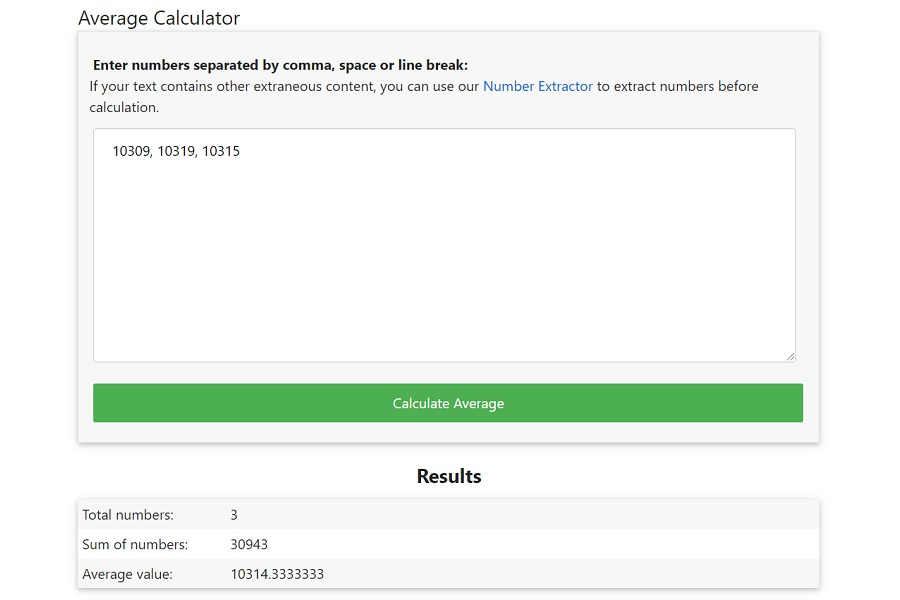
Easier arithmetic: File this one under "things that gradually annoyed me enough to Google a solution." Whenever I review a laptop for PCWorld, I have to run a series of performance tests, then calculate the average score across a series of runs for each test. Until last week, I did this with a calculator, which took way too long and was prone to errors.
That's what led me to Average Calculator, an online tool that calculates the sum and the mean from any set of numbers, even if they're separated by commas or paragraph breaks. Now I can just copy and paste my entire list of test scores to get an instant average. The site also includes a number extractor tool that can scan through text and pull out any numbers inside.
Bonus for Chrome or Edge users: Click the install icon on the right of your browser's address bar to turn Average Calculator into an app, letting you easily access it from your Start menu or dock.
|
|
| Now try this |
|
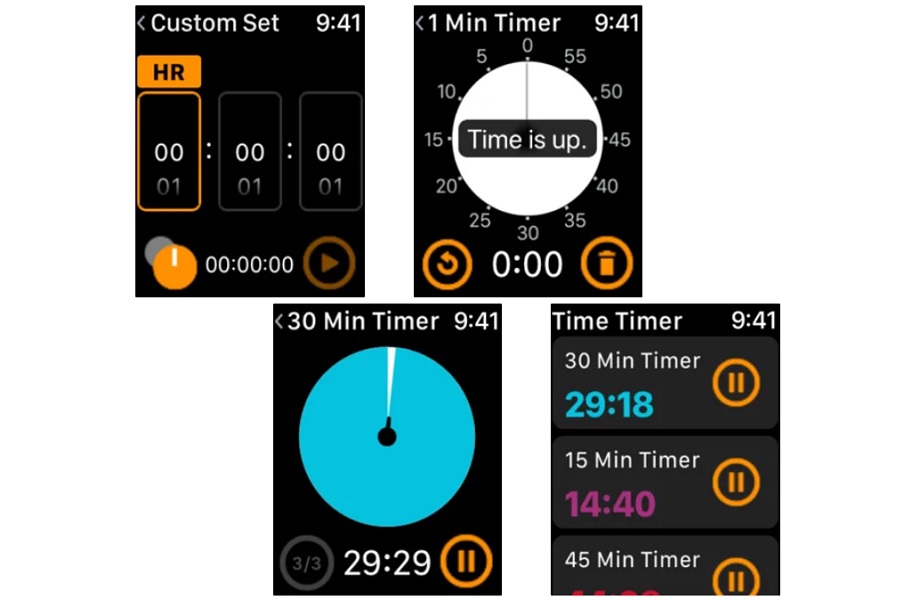
A better Apple Watch timer: Elsewhere on the annoyance elimination front, I cannot stand the built-in timer on the Apple Watch, so this week I finally downloaded a better one. If you can look past the silly name, Time Timer lets you quickly set up countdown timers by twisting the watch's Digital Crown, without making you scroll through a bunch of useless presets first. It also saves any timers you set for quick access in the future, and you can have multiple timers running at once.
|
 |
|
I'm a bit torn between this app and Just Timers, which lets you name your Apple Watch timers, has Siri integration, and syncs timers between your watch and phone. On the downside, it requires a $2 in-app purchase to set more than two timers. Give them both a try and keep the one you like best.
Tunes to try: New ways to discover music will always be neat to me, so I enjoyed reading about a website called ReWrapped, which analyzes your Spotify catalog and suggests unsigned artists with similar sounds. It's meant to demonstrate the music-matching AI of Andrson, which hopes to make its tech useful to record labels. The tool is a bit crude—it seems to grab a random assortment of tunes and provides no extra context around the similar tracks it recommends—but it's still worth checking out if you're on the hunt for something new.
|
|
| Around the web |
|
|
|
| Spend wisely |
 |
|
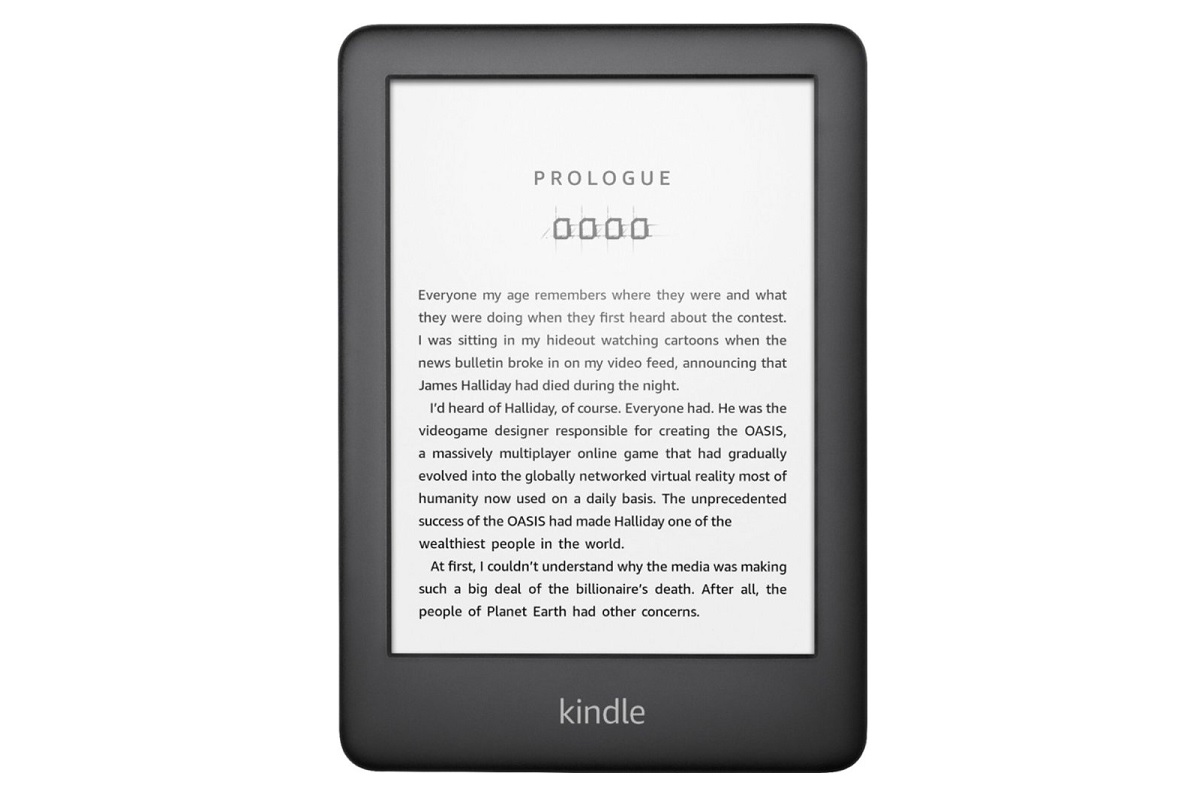
If you can withstand a little wear-and-tear, Woot is currently selling refurbished Amazon Kindle e-readers for $39 in "acceptable" condition. That's $21 less than Amazon's record-low price for a brand-new version, and it's for the latest model, which includes a built-in front light.
Other notable deals this morning:
|
|
| Thanks for your support! |
|
In addition to the standard Advisorator Archives, I've just set up a single page on the members-only site where you can find every past issue in a condensed view. It's handy if you're looking for a specific newsletter and just want to scan the headlines, and it happens to coincide with this being Advisorator's 100th issue. (Thanks for the suggestion, Chris!)
In other housekeeping news, I sent out a deal alert email on Saturday using a new system for creating newsletters. I'll be testing this system more in the weeks ahead, and if all goes to plan, it'll streamline things for me and be more aesthetically-pleasing for you. Please let me know if you did not receive Saturday's deal email or if it wound up in a spam folder. Or, if you're not receiving deal alerts and would like to, send me an email and I'll add you to the list. (Also, that particular email included a tracker due to an oversight on my part, so I apologize for that!)
Thanks again for reading, and have a great rest of your week. - Jared
|
|
|
|
|
|