 |
| |
 |
| December 1, 2020 |
| My new favorite bookmarking app |
|
Plus: Amazon's home network intrusion, a powerful screen recorder, and full-page screenshot tools
|
| |
 |
|
Back in the spring of last year, I wrote about using an app called Trello as a bookmarking tool. While that's not really its intended purpose—it's project management software at heart—I liked how it let me visualize and sort bookmarks from practically any device. It became my go-to service for gathering the links that I eventually include in my two weekly newsletters.
That changed about a month ago, when I started experimenting with a different service called Raindrop.io. Unlike Trello, this one's actually built with bookmarking in mind, and I've been using it for long enough now to declare the switch permanent. If you want a better way to manage the links you find on the web, Raindrop is worth a look.
To start with, Raindrop supports all the basic criteria I look for in a bookmarking tool:
- It works across all major platforms, like I do. There are apps for iOS and Android, and if you use Chrome or Edge, you also can hit the + button in the address bar to install the website as a desktop app.
- It offers a bookmarklet for saving links, as an alternative to yet another browser extension. (Read my guide to bookmarklets here.)
- It's free to use, without any paywalls you'd run into from using it too much. Raindrop does have a $3 per month "Pro" version with nested folders, automatic webpage archiving, full article text search, and more, but I don't need any of those features.
- It's not completely ugly to look at. The app does a nice job formatting links and including thumbnail image previews, plus it supports light and dark modes.
But beyond those table-stakes requirements, Raindrop also has lots of nice little touches.
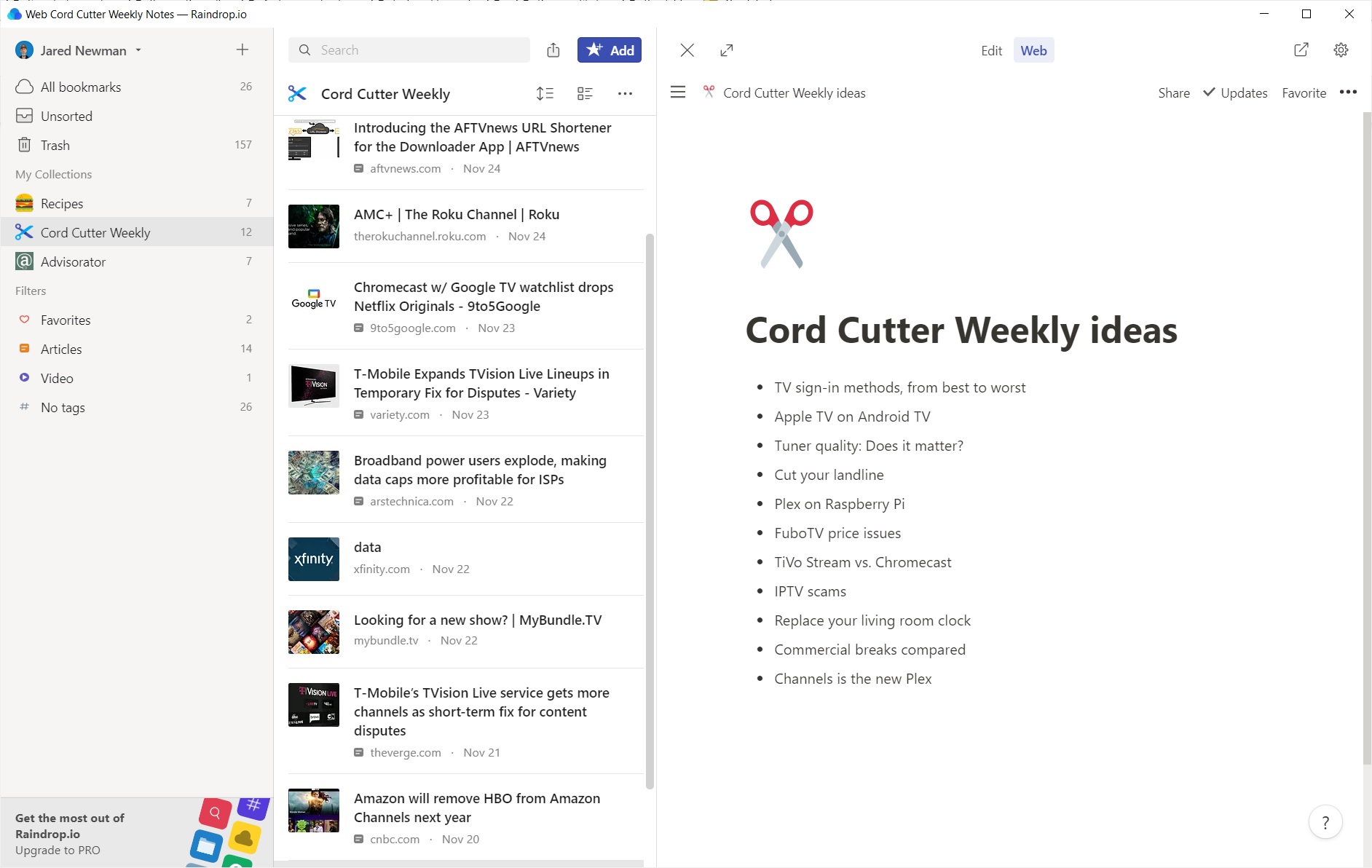
Best of all is the ability to view web links directly inside the Raindrop.io app instead of having to open them in a separate window. On my computer or iPad, those links open in a sidebar next to the bookmark list, and I can quickly toggle between pages without leaving the app.
Using that embedded link viewer, I've also given myself a scratchpad for free-form notes (each linked to a page in the taking app Notion) that I can view alongside my bookmarks. This allows me to jot down story ideas directly inside Raindrop while planning each week's newsletters. You could potentially use the same trick to organize important Google Docs, keep a checklist handy from a service like Todoist, or give yourself quick access to a cloud storage folder in Dropbox or OneDrive. Any page you can link to, you can probably view and interact with inside Raindrop.
|
 |
|
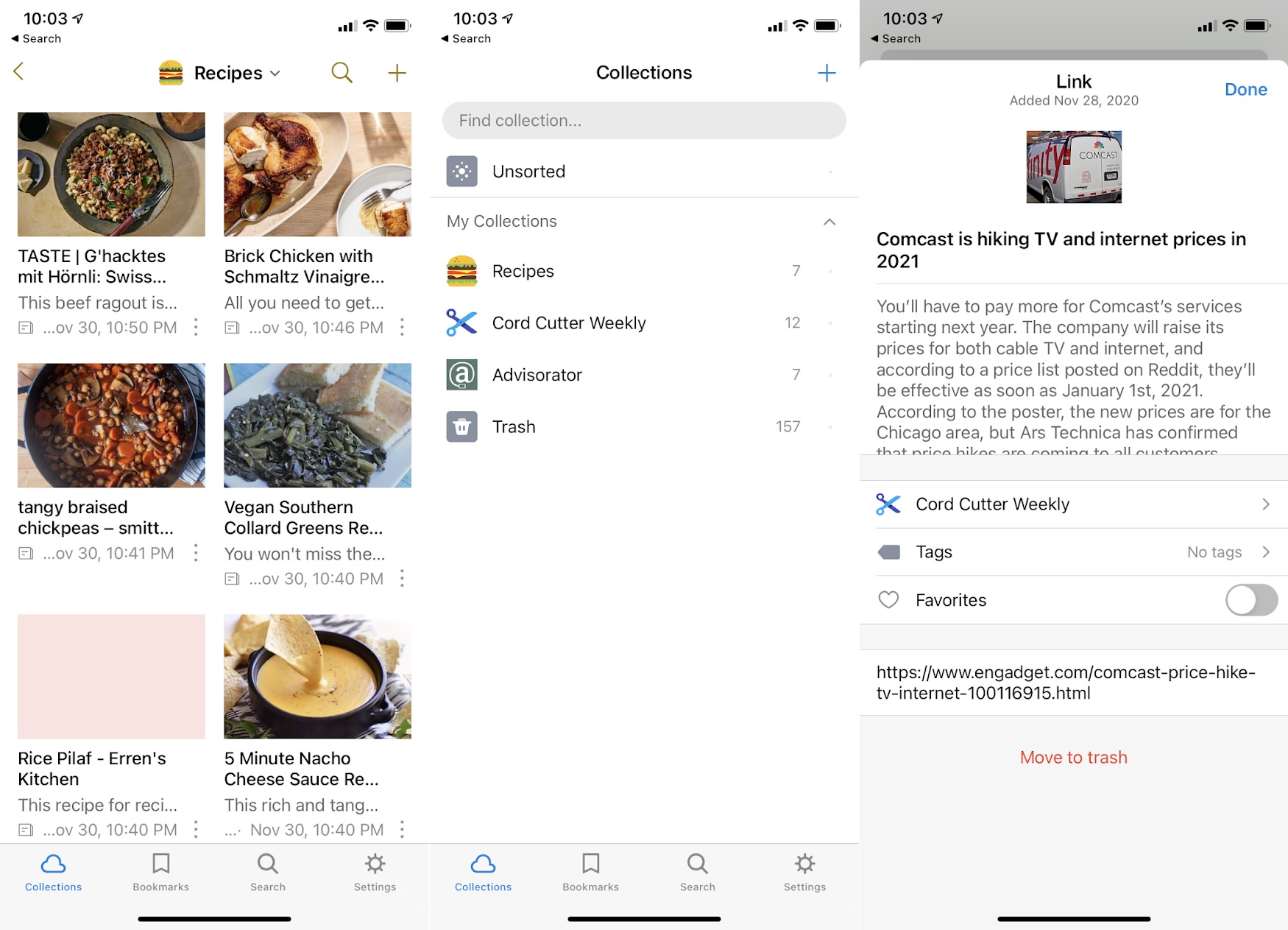
Embedded link trickery aside, I really like that you can assign icons to your bookmark collections and even upload custom icons to use instead of the prepackaged ones. Being able to have a scissors icon for my Cord Cutter Weekly bookmarks and the Advisorator logo for this newsletter just makes the app a bit more pleasant to use.
|
 |
|
Also neat: Raindrop offers multiple ways to view your bookmark collections, and the app will remember which views you've assigned to each one. You might have a Pinterest-style moodboard for recipes and a more utilitarian headline list for work-related bookmarks.
Of course, there are still some things I miss about my old Trello bookmarking system. I can't append comments, files, or other supplemental details to individual bookmarks, and I can't use it to move story ideas through their various phases of completion. It's less of a catch-all for project management and more of a purpose-built tool for link gathering.
But given that I was mostly using Trello just to manage bookmarks anyway, Raindrop is a better fit. It's faster and easier to navigate, and its embedded webpage viewer helps cut down on browser tab clutter. And compared your web browser's bland bookmarks bar, it's a major upgrade.
|
|
|
Just a friendly reminder that you can now read every past issue of Advisorator on the web! If you haven't set up an account yet, click this link first to set up your password. Then, log into the new members-only website at advisorator.com/members and head to "Archives."
|
|
| Need to know |
|
Amazon's home network intrusion: If you have any Amazon Echo speakers, you might've received an email recently about a new feature called Sidewalk. In the email, Amazon described Sidewalk as a "shared network that helps devices work better," for instance by letting them connect over longer ranges and helping to re-establish connectivity if Wi-Fi drops out. The company cheerily informed users that they'd be getting the feature automatically.
What that email didn't mention, however, is the way Sidewalk actually works, probably because it's kind of creepy: It's not just some new feature for individual devices, but rather a neighborhood-wide network that Amazon is stringing together between homes. The idea is for homeowners to share their bandwidth—up to 500 MB per home, per month—so if one Wi-Fi network flakes out, devices can still tunnel through a neighboring network to get back online.
Of course, Amazon claims this is all super secure, but security isn't really the issue here. The bigger concern is that Amazon is giving itself blanket permission to break down the boundaries between private home networks for uses that it hasn't even clearly defined yet. On a practical level, it will likely result in private surveillance cameras poking into more places that they couldn't reach before. But it's also just wrong in principle, like a neighbor who helps themselves to anything in your home because you let them borrow some power tools once.
The good news is that you can disable the feature by digging through the Alexa app on your phone. To do so, tap on the "More" tab, then head to Settings > Account Settings > Amazon Sidewalk and slide the toggle to the off position. Don't let tech companies do this kind of thing without explicit permission and clear uses cases attached.
|
|
| Tip of the moment |
 |
|
Full-page screenshot tools: Let's continue this week's "save stuff from the web" theme with some ways to capture the entire length of a web page. This can be useful if you want to keep an offline archive of specific websites, save an article that might become paywalled later, or make annotations on web content.
How you actually take the screeenshot will depend on which device and web browser you're using, so here's quick rundown:
- Google Chrome and Microsoft Edge: Hit Ctrl-Shift-I, then Ctrl-Shift-P (or Cmd-Shift-I and Cmd-Shift-P on Mac). Type "screenshot," and select "capture full size screenshot." (Thanks, JR!)
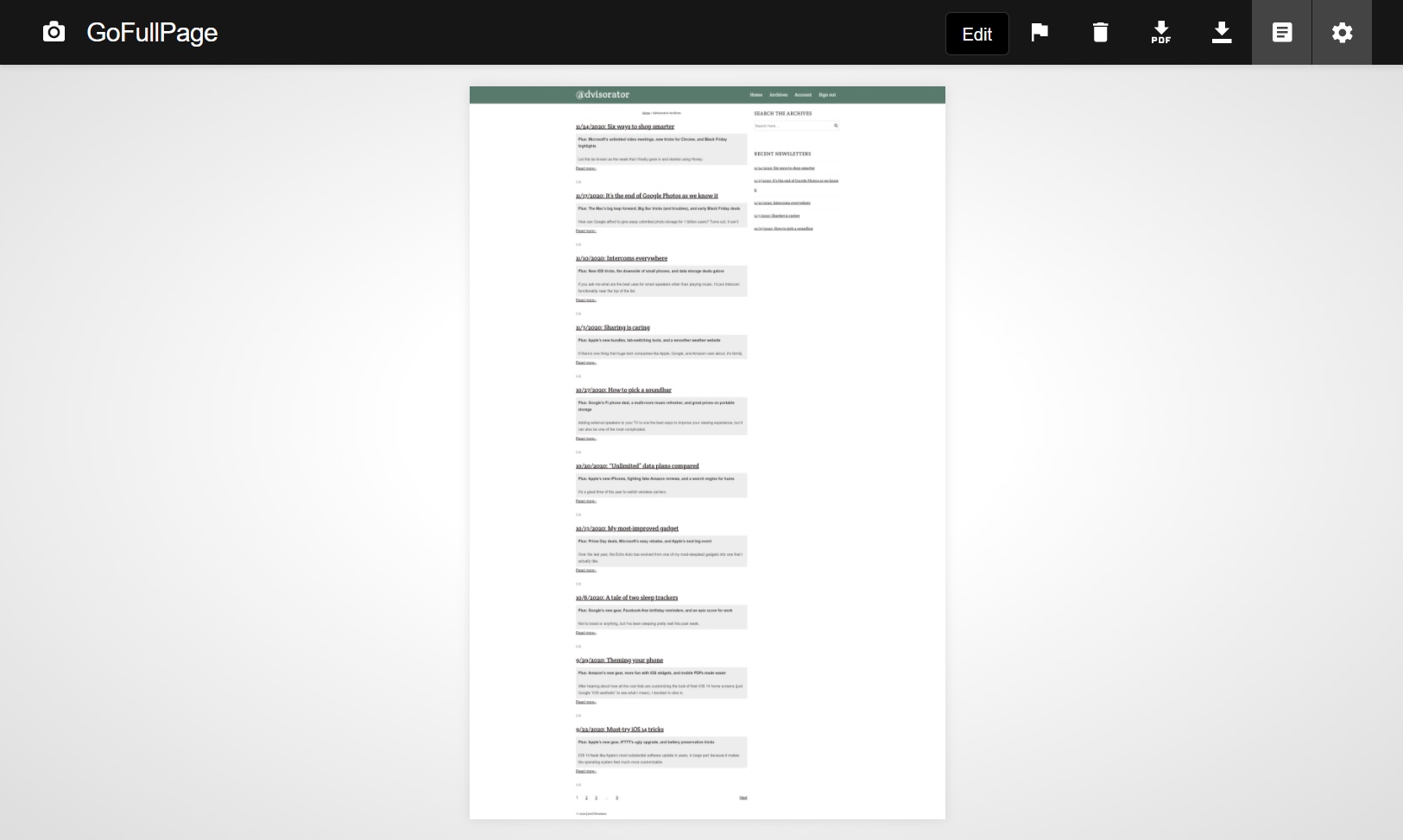
- Alternate way for Chrome and Edge: Use the GoFullPage extension, which is free, has no ads, and doesn't require any creepy privacy permissions. Once installed, click the extension's camera icon to capture the page.
- Another Edge option: Just hit Ctrl-Shift-S, then click-and-drag to select the area you want to capture. (This doesn't work for extra-long pages, though.)
- Firefox: Right-click anywhere on the page and select "take a screenshot." Then, select "Save full page" or click and drag the area you want to capture.
- iPhone and iPad: While viewing a page in Safari, take a screenshot (press power and volume up simultaneously), then tap the screenshot thumbnail that pops up. Select "Full Page," then hit "Done."
- Android: Download the Vivaldi browser and open the page in it. Tap the "V" icon in the top-right corner and select "Capture page," then choose "Capture visible area."
|
|
| Now try this |
|
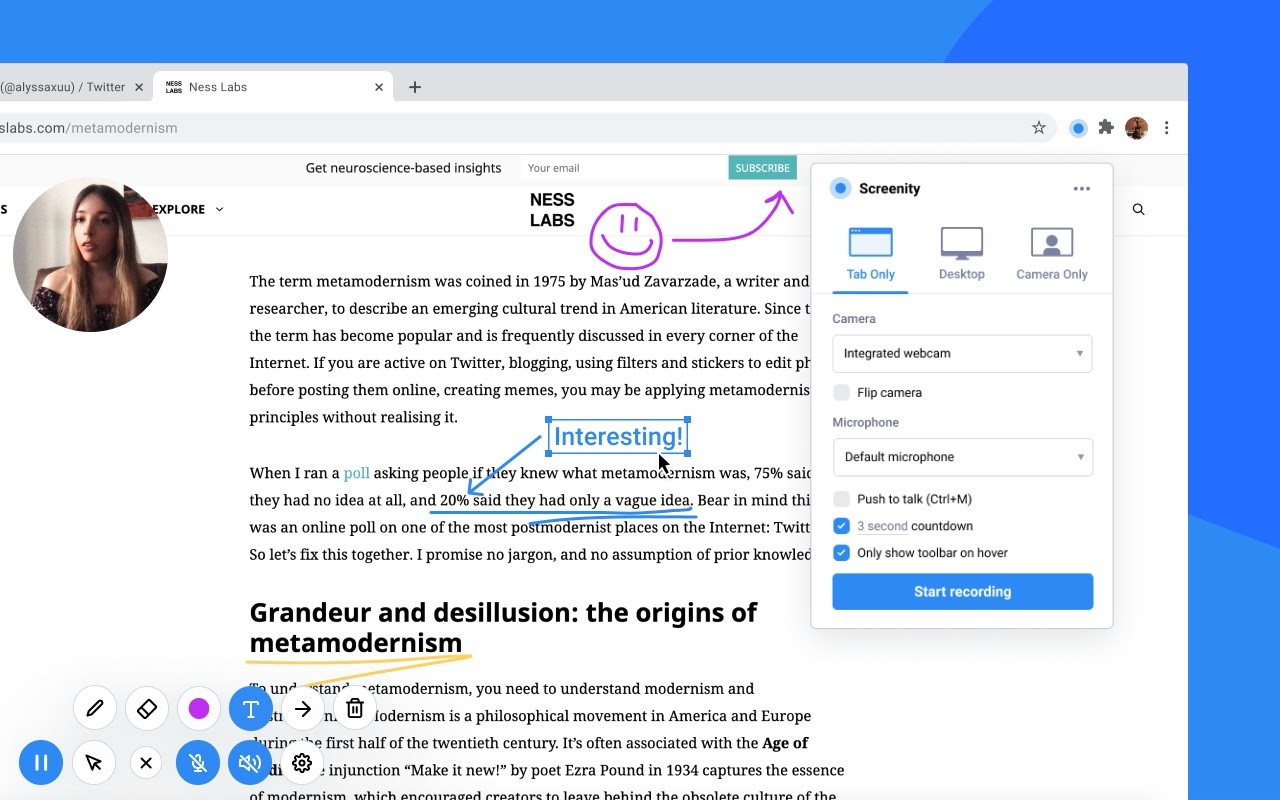
A powerful screen recorder: What if you need to capture more than just still images? For that, check out a new Chrome extension called Screenity. The free and open-source tool can capture your current browser tab, a specific application window, or your entire desktop, while optionally capturing video of you in a thumbnail view.
|
 |
|
Screenity also comes with some neat tools to liven up your recordings. There's an annotation tool for drawing or typing over the screen as you capture it, a cursor tool for highlighting where you point or click, and a push-to-talk function in case you don't want your microphone running the whole time. When you're done, you can trim the video and save it in WEBM, MP4, or GIF formats. You can even run the extension while your computer is offline.
I'll almost certainly be using Screenity for the occasional tutorial video, but it can also be useful for giving someone tech support or documenting a project you're working on. Check it out.
|
|
| Around the web |
|
|
|
| Spend wisely |
 |
|
While we're now in the aftermath of Black Friday and Cyber Monday, there are still handful of deals lurking about.
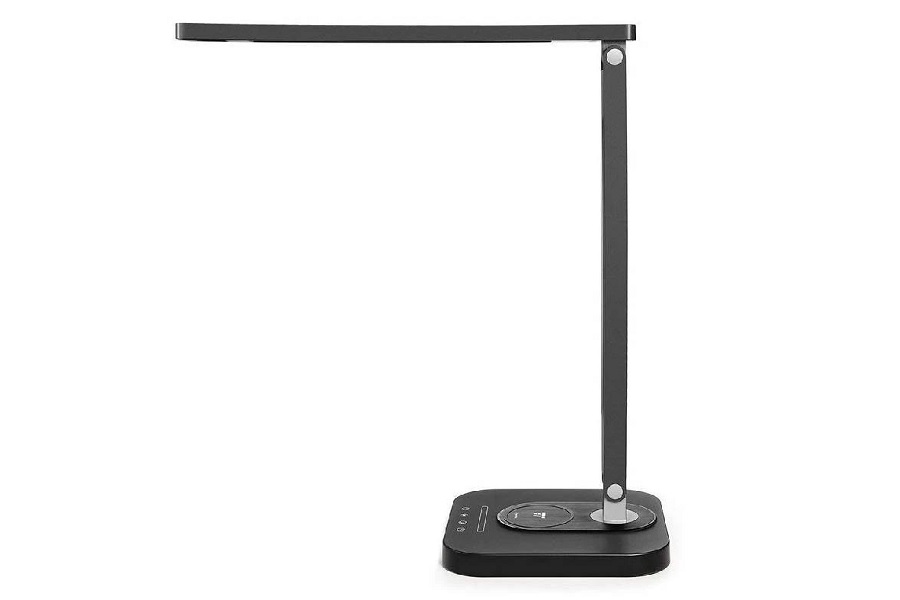
The one I'm most tempted by is this Taotronics desk lamp, which apparently is The Wirecutter's pick for the best feature-packed option. It has a 180-degree rotating arm and supports multiple brightness levels and colors, but what makes it especially gadgety (that's a real word, I swear) is built-in wireless charger, which lets you top up a compatible phone by placing it at the lamp's base. It's on sale for $44 direct from Taotronics when you use the code MONDAY at checkout.
Other notable deals:
- Speaking of The Wirecutter, their budget wireless headphone pick (Anker's Soundcore Life Q20) is on sale for $45.
- Lowe's is bundling the Google Nest Mini speaker with a smart plug for $20. (That's a buck more than the Black Friday price of the speaker alone.)
- For a fancy Windows laptop options, Dell's new XPS 13 with an 11th-gen Intel Core-i7 processor, 512 GB of storage, and 16 GB of RAM is on sale for $1279 with the code GIFT10 at checkout.
|
|
| Thanks for your support! |
|
This week's issue is a bit shorter than usual, mainly on account of last week being on the slow side for anything that wasn't Black Friday-related.
On a related note, I was glad to see more of you meander into the Advisorator chat room, where I've been posting additional deals, enjoying the conversation, and giving advice where I can. Come say hi, or just email me with any tech questions you might have.
Also: If you're digging this newsletter and know someone else who might, please consider an Advisorator gift subscription! Six-month and one-year plans are available, and you can set up a future delivery date with a personalized message. Buy one, and I'll credit $5 toward your own subscription. Thank you!
Until next week,
Jared
|
|
|
|
|
|