 |
| |
 |
| February 11, 2020 |
| How to Stop Paying for Gmail Storage |
|
Plus: Quick toggles for Mac and PC, Instagram's unfollow advice, and cheap Jabra earbuds
|
| |
 |
|
About two and a half years ago, Google finally got me to pay for Gmail storage.
Although the company once promised that you'd never have to worry about deleting emails, it stopped expanding Gmail's free storage space in 2013, pooling it with Google Drive for a combined 15 GB. After more than a decade of using the service, I eventually ran out of space, and was facing the threat of not being able to receive new emails. The process of trying to delete old messages and attachments eventually wore me down, and in August 2017 I gave up and started paying the toll.
Not anymore, though. Last week, I broke the cycle of recurring $2 per month Google Drive storage payments, and concocted an elaborate scheme to do so without having to delete any of my old messages:
- Set up a secondary Gmail account for the sole purpose of hosting old emails.
- Duplicate emails from my main Gmail account on the secondary Gmail account.
- Remove old emails from my main Gmail account.
This operation is not for the faint of heart, and it does have one notable downside: You'll no longer be able to access your entire message history through a single inbox. But if you'd like to join me in getting off the Gmail payment treadmill, here's what you need to do:
Set up a secondary Gmail account
This part's easy. In Gmail on the web, click on your profile icon in the top-right corner, select "Add another account," then select "Create account" on the next page. You can then switch between the two accounts by clicking your profile icon from within Gmail, or you can just use an incognito/private browser tab to manage your second account in a separate window.
From now on, I'm going to refer to your actual email address as your "main account," and your new address as your "secondary account." Keep that in mind as you'll be switching back and forth a lot.
Duplicate emails on the secondary account
Lifewire has a great step-by-step guide (with images) on how to accomplish this, but the short version is that you'll head into Settings > Forwarding and POP/IMAP on your main Gmail account and enable POP for all mail. Make sure "keep Gmail's copy in the Inbox" is selected from the drop-down list in this section.
Then, on the secondary account, you'll head into Settings > Accounts and Import and add your regular email under "Check mail from other accounts." This will start the process of pulling in old emails.
A few extra things to keep in mind:
- Duplicating all your emails can take several days, but you don't have to attend your computer while it happens.
- Emails transfer from oldest to newest, so you can fill up your secondary inbox with older emails until it runs out of space.
- Some of your old emails might end up in Spam on the secondary account. Once the transfer is finished, head to your Spam folder, hit the select all checkbox in the top-left corner, then hit "Select all conversations in Spam." You can then drag them into your inbox or the folder where your old emails are stored.
- Gmail may refuse to transfer some old email attachments due to virus concerns. You'll receive an email whenever this happens, so you can download the attachment from your original account if it's important.
Remove old emails from your main account
Once your secondary Gmail account is full of emails, you can disconnect the two accounts to prevent further transfers. On your secondary account, head to Settings > Accounts and Import and delete your main address under "Send mail as" and "Check mail from other accounts." You'll see a scary-sounding "Confirm delete email account" message, but this will simply remove the link between the two account.
Next, return to your main account and head to Settings > Forwarding and POP/IMAP. Select "Enable POP for mail that arrives from now on."
Finally, it's time to delete old emails from your main account. Set a cutoff date based on the amount of old email you'd still like to access through your main inbox, then use the search term "before: dd/mm/yyyy" (without quotes) to locate all emails from before that date. (I used "before: 02/01/2017" as my cutoff, figuring I'll seldom need to see any emails more than a few years old.) Hit the select all checkbox in the top-left corner, hit "Select all conversations that match this search," then click the trash button.
|
 |
|
Those messages will stay in your trash for 30 days, taking up storage space, but you can wipe them immediately by heading to the trash folder and selecting "empty trash now." You may have to select "empty trash" several times to fully wipe everything. Now, reload Gmail on your main account and take a look at the bottom of the page. Make sure it's well under the 15 GB limit, then cancel your Google Drive storage subscription.
One more somewhat-related tip: If you need to clear out some Google Drive space as well, this link will take you straight to a list of your files, from largest to smallest.
Why bother?
You might reasonably wonder if this is worth all the trouble. Paying Google a couple bucks per month to not worry about storage space is certainly easier. But that is perhaps by design as Google looks for new revenue streams. Whether you consider the savings significant or not, at least you've won a small victory on principle.
|
|
| Tip of the moment |
 |
|
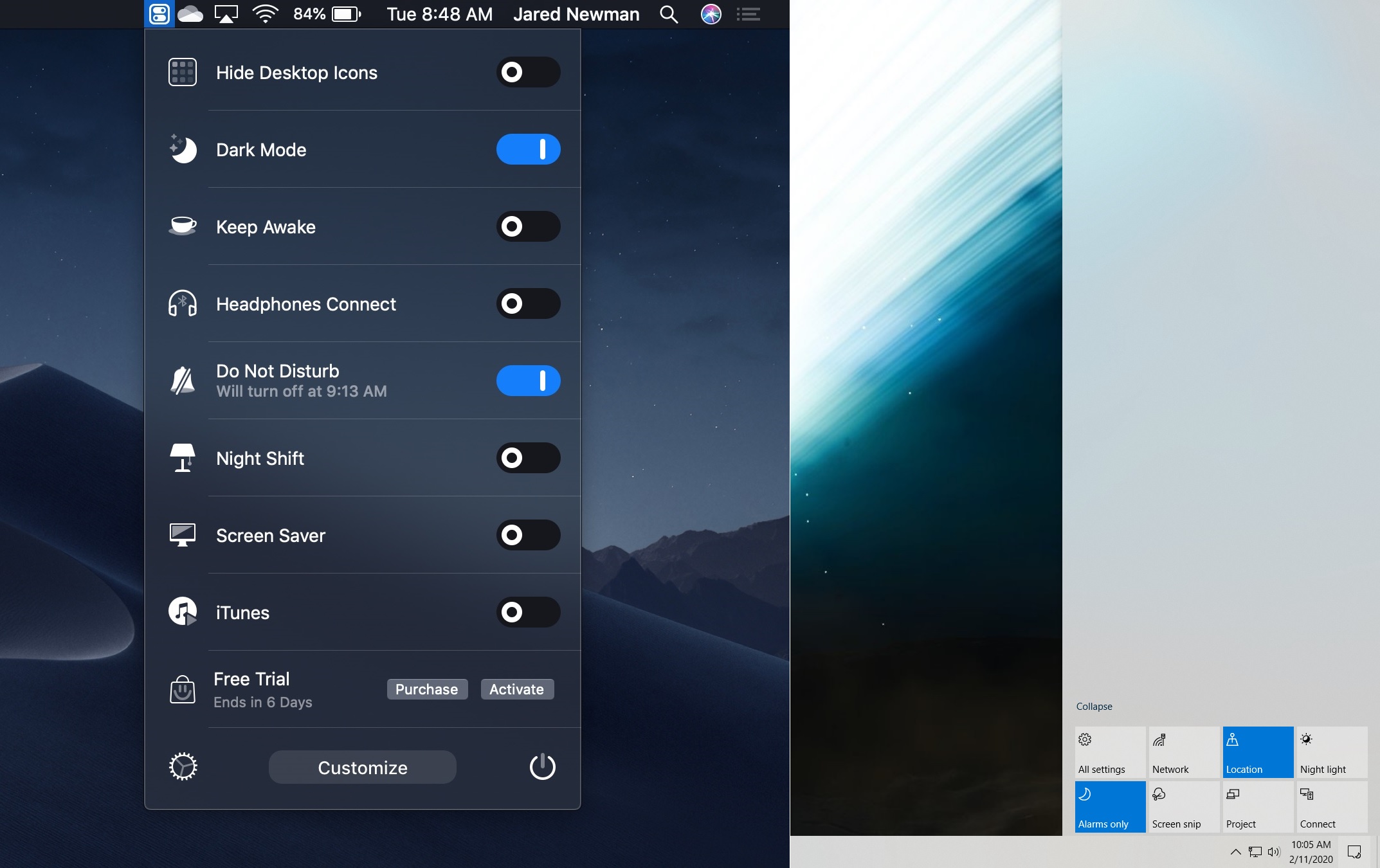
Over at TidBits, Josh Centers brings word of a great Mac utility called One Switch. Through a single icon on the menu bar, One Switch provides quick toggles for keeping the screen awake, connecting to a pair of AirPods, switching on dark mode, turning on your screensaver, and more. It also provides scheduling options for dark mode and night shift to help reduce eyestrain in the evening hours. The $5 purchase price seems reasonable for all the time it can save, but you can try it free for seven days first.
Once you've installed the app, click on the new toggle-shaped icon on the menu bar. Make sure to click the gear icon at the bottom fo the toggle list, then check "Start at Login" under the "General" tab. You can also add, rearrange, and remove toggles from the "Customize" tab in the same menu.
Windows 10 users might already know that a similar set of switches is built in when you click the speech bubble on the far-right side of the task bar. What's less obvious is that you can customize this menu by adding, hiding, and rearranging the switches. Just hit "Expand" in this menu to see all your available toggles, then right-click and select "Edit."
|
|
| Need to know |
|
Who to unfollow in Instagram: Seeing too much junk in your Instagram feed lately? Now there's an easier way filter them out. While viewing your Instagram profile--that'd be the bottom-right icon in the mobile app--tap on "Following," and you'll see a new section called "Categories," listing the folks you've interacted with least and the ones that show up in your timeline the most.
Tap on the "Following" button in either list to unfollow any account. Or, to kick friends out of your news feed in a more tactful way, hit the "..." button on the far-right side instead, then select "Mute." With muting, you can still interact with the person even if their account is private, but their posts won't appear in your feed anymore, and they'll have no idea you silenced them.
Chrome's quieter notifications: As announced last month, the latest version of Chrome (version 80) provides relief from websites' notification nags. If you constantly hit "Block" when a website asks to show notifications, Chrome should eventually get the picture and hide those pop-ups automatically. You can also disable them right now by heading to chrome://flags/#quiet-notification-prompts and selecting "Enabled" under "Quieter notification permission prompts."
While you're at it, take advantage of Chrome's secret new setting that stops loading ads if they're using too many of your computer's resources. Just head to chrome://flags/#enable-heavy-ad-intervention, select "Enabled" under "Heavy Ad Intervention," then restart your browser.
Google Photos' botched transfers: In other Google news, the company recently acknowledged that it mixed up some videos in its "Takeout" tool for Google Photos, which allows users to export all their media from the service. That means between November 21 and November 25 of last year, some people ended up downloading strangers' videos.
It's a huge mistake on Google's part, and one the company has handled poorly, with no specifics on how many people were involved or which videos it accidentally sent. (Google says the glitch affected less than 0.01% of users, but that could still represent up 10 million people.) I say all of this so that it doesn't sound like victim-blaming when I remind you of the following: Try not to put anything on the internet that you wouldn't be comfortable sharing with anyone.
Sonos' services experiments: This story from Protocol's Janko Roettgers makes for an interesting follow-up to my newsletter from a couple weeks ago. In search of new revenue streams, Sonos is apparently looking into various types of subscription services. It has dabbled in leasing speakers for a monthly fee in the Netherlands, has resold music services to retail stores, and has other ideas in the works. "We definitely see the opportunity for services that can augment the opportunity for our customers," CEO Patrick Spence said.
Subscription services are all the rage these days, so Sonos' interest in them makes sense, but the experimental nature of Sonos' plans are bit disconcerting. If you're deeply invested in Sonos systems--or are planning to be--you'd ideally want the company to have a clear idea of where the business is going instead of just throwing ideas at the wall. That said, Sonos will also have to tread lightly with subscriptions after announcing that it will cut off support some of its older speakers and amps, as any drastic changes could alienate customers further. It's a tricky situation all around, and one that underscores my previous point about approaching smart home gear with due diligence.
Spotify's exclusive podcast push: The news last week that Spotify is acquiring Bill Simmons' media company The Ringer would be entirely inside baseball except for one thing: It will likely lead to more Spotify-exclusive podcasts. That'll mean more switching between different apps to satisfy all your podcast needs--at least if you're a Simmons fan.
|
|
|
| |
|
| Spend wisely |
 |
|
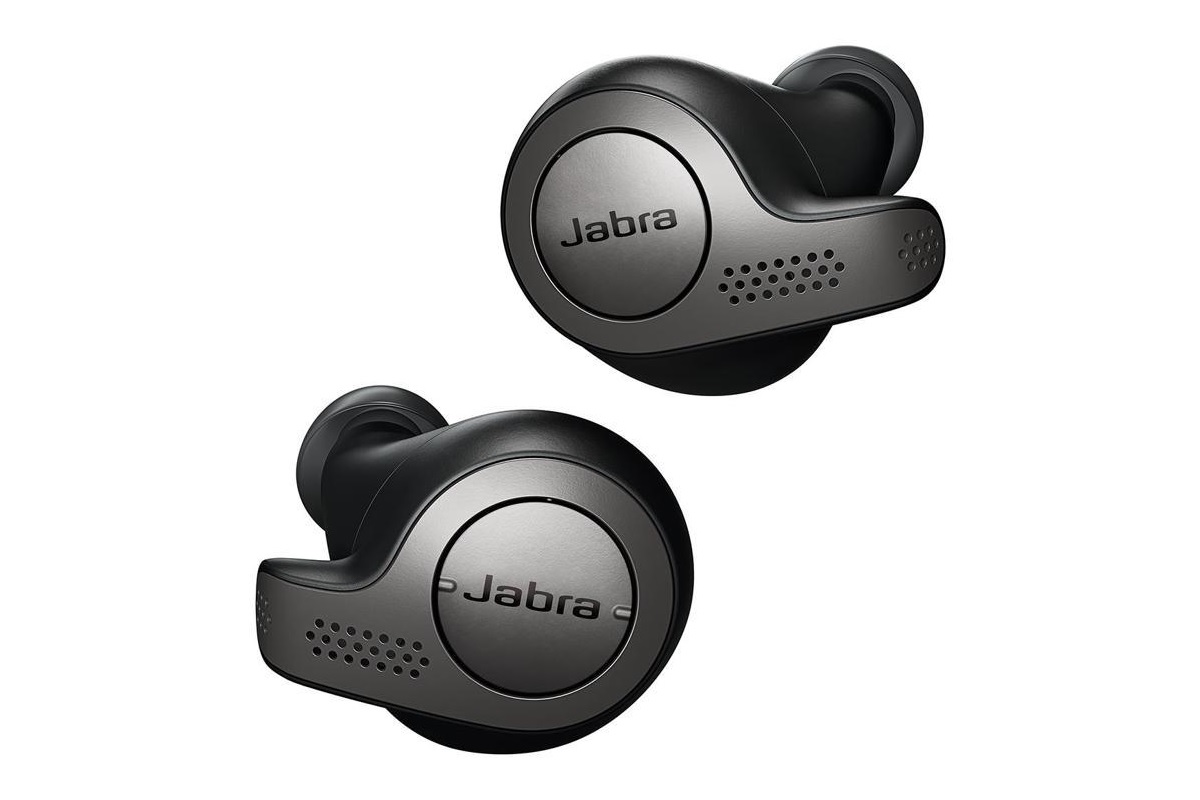
Once again, Jabra is selling refurbished Elite 65t wireless earbuds at a deep discount. These earbuds, which rival AirPods on battery life and have a slight edge on sound quality, originally cost $170 and sell for $100 in new condition. Get them from Newegg for $50, and you'll also receive $5 Newegg gift card.
Also a good deal: RAVPower's 61W charger for $21 when you clip the $5 off coupon on the product page. You can either charge two devices at once through the USB-C and USB-A ports, or you can get an extra-fast charge to compatible devices over USB-C. The output is high enough to charge a 13-inch MacBook Pro or other USB-C laptops as well. It beats paying $69 for Apple's official 61W power adapter, but keep in mind you'll have to supply your own cables.
|
|
| Thanks for your support! |
|
It's live chat week, so if you'd like to talk tech in real time, head to this link on Friday at 2 p.m. Eastern. You can also click here to get an email reminder beforehand. Got questions in the meantime? Just reply to this email to get in touch.
Until next week,
Jared
|
|
|
|
|
|
|