 |
| |
 |
| June 9, 2020 |
| Taking screen time outside |
|
Plus: Backing up Facebook photos, tab stashing in Firefox, and how the protests are affecting tech
|
| |
 |
|
"I should do this more often."
This is what I say to myself whenever I bring my laptop or iPad outside to get some work done. As the weather warms up, getting out in the sun just feels natural, even if there's screen time involved.
The problem, of course, is that computer screens and bright sunlight don't mix. After hearing from a couple of you who've been looking for ways to improve outdoor legibility, I decided to start experimenting to see what works best. Here's what I've come up with:
Basic stuff
A bright enough screen goes a long way toward counteracting the sun's glare, so your first step should be to crank screen brightness as high as it'll go. Screen direction and angle matter as well, so make sure the sun isn't directly behind you, and try tilting your screen until you find the least reflective angle.
If you're in the market for a new laptop or tablet, you might even want to take maximum screen brightness into consideration. Look for a measure of "nits" as you're perusing reviews; a peak brightness of around 400 nits, give or take, should do a pretty good job in the sun. (At PCWorld, we generally measure and report this figure for all our laptop reviews, and we're starting to see some laptop vendors use it as a selling point.)
Tweak your software
Even if your hardware isn't ideal for outdoor use, you can improve outdoor legibility through software.
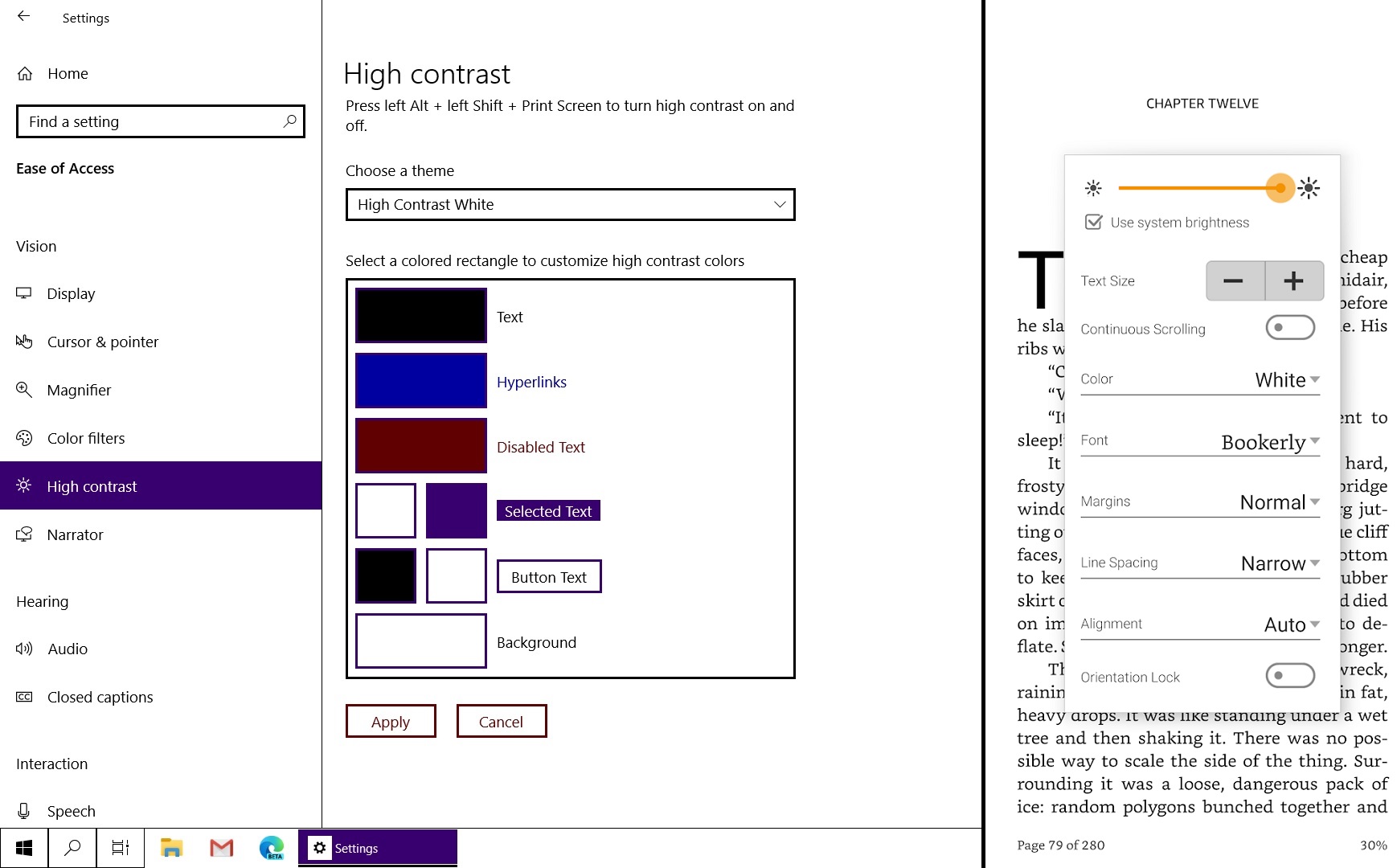
For starters, avoid using Dark Mode on your device, and if you're using an e-reader app like Amazon Kindle, set it to display black text on a white background. It's counterintuitive, since white is more reflecting, but fully lighting up the screen's pixels does the best job at reducing glare.
Windows 10 also has a useful high-contrast option, which you can access under Settings > Ease of Use > High Contrast. Select "High Contrast White" under the "Choose a theme" dropdown menu, and the system will force most apps to display black text on a white background. You can then toggle this setting at any time by hitting Shift-Alt-PrtSc.
|
 |
|
There's no comparable option on MacOS, but if you head to Apple > System Preferences > Accessibility > Display, you can check off the "increase contrast" option and boost the "Display contrast" slider. This should help a bit for apps and websites that don't have light backgrounds.
If you're using Chrome, Google's High Contrast extension can be helpful as well. Once installed, you can hit Shift-F11 to toggle the setting on and off. I suggest clicking on the extension and choosing "High Contrast" from the list.
Build some shade
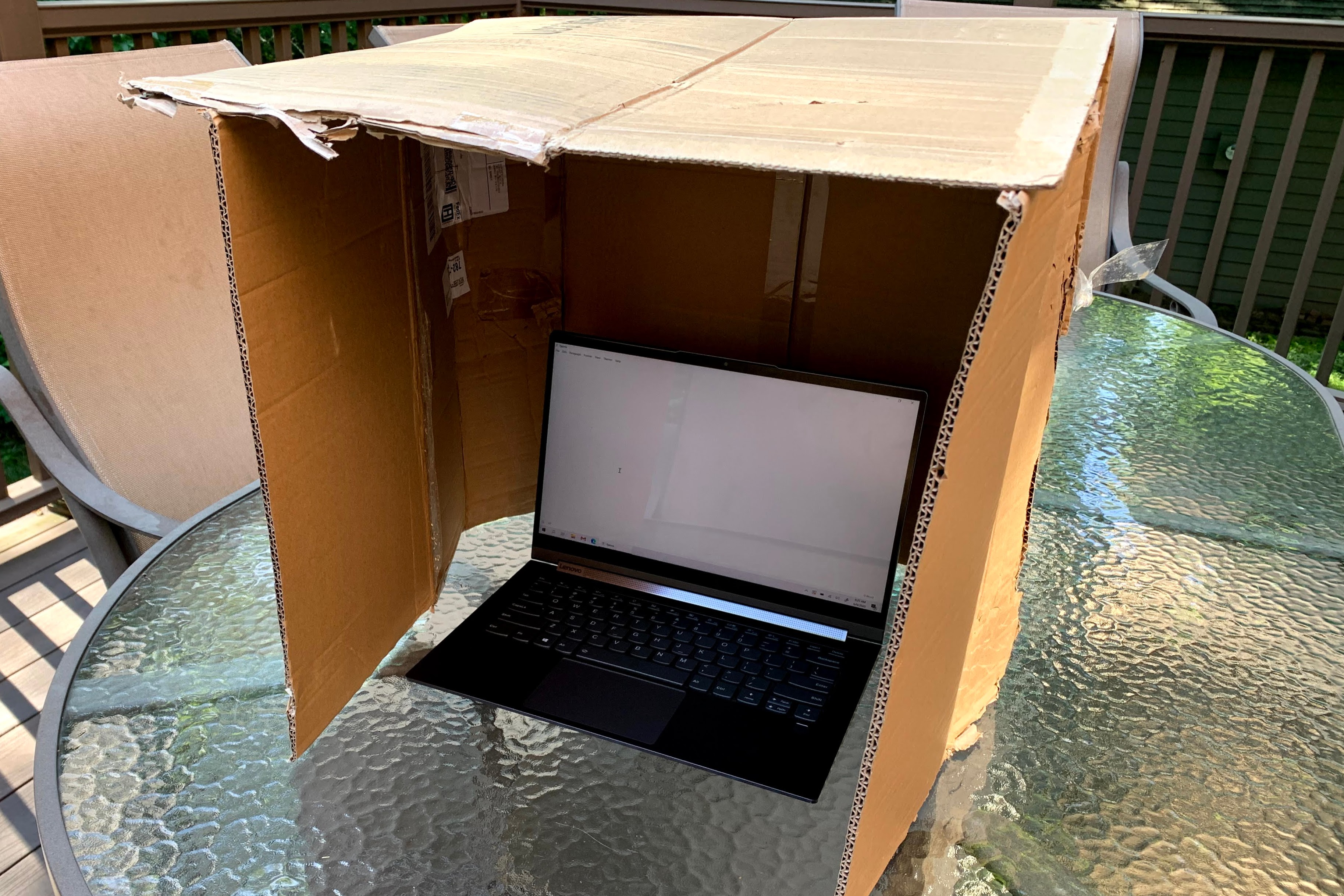
Staying out of direct sunlight will of course make your screen easier to read, but if a shady spot isn't available or you're intent on getting a tan, you can at least construct some shade around your laptop or tablet. It's possible to buy some pretty fancy laptop hoods for outdoor use—like this adorable little computing tent—but I just used an old cardboard box.
Get a piece of cardboard that's long enough to wrap all the way around both sides of your laptop, and tall enough to give your screen about six to 12 inches of headroom. Then, get a second piece that's wide enough to sit on top of the other piece. Stick it to the back of your first piece while it's wrapped around your laptop, then fold it over the top to form a makeshift laptop cabana. (Or, if you have a box that's just the right size already, you can just cut out one of the side panels.)
|
 |
|
Elegant? Not exactly, but the extra shade will defintely make your screen easier to read, and it'll reduce the odds of your device overheating under direct sunlight.
What not to do
While researching this topic, I found a couple pieces of bad advice: Wearing polarized sunglasses rendered my laptop screen nearly invisible, and when I applied a matte screen protector to my iPad, it added a film that made finer details less pronounced, canceling out any anti-glare effects. It turns out the most effective solutions were the ones I already had on hand—including that big pile of cardboard.
|
|
| Need to know |
|
The protests: For more than a week now, the biggest story in tech has also been the biggest story outside of tech, as the killing of George Floyd by a Minneapolis police officer has prompted nationwide protests and a broader reckoning for systemic racism in America. While the ramifications obviously extend well beyond the purview of this newsletter, we're already seeing a response from tech companies in ways that relate directly to their products and services.
Apple, for instance, has compiled a list of apps to help users stand up to racism, and Yelp is adding a way for businesses to identify as Black-owned so users can more easily support them. We've also seen Twitter become more aggressive about flagging posts from President Trump when they violate the site's standard content rules, and Reddit pledging a more consistent response to bigotry on its social network. (We're also seeing a new round of criticism for companies that haven't done enough.)
For my part, I wrote fa story for Fast Company about how voice assistants like Siri and Google Assistant have stopped dodging questions about Black Lives Matter and racial injustice, reflecting the larger protest PR response from corporate America. I also covered an app called Citizen, which launched as a way to discuss local crimes and other emergencies, but has now become a de facto social network for watching and participating in protests. Covering major societal issues is far outside my usual wheelhouse, and I'm more interested in learning than voicing my own opinions on this topic, but I'm still glad to have contributed to it in some small way.
Archive.org's risky e-book bet: I wish I'd realized this sooner, but The Internet Archive is hosting nearly 1.4 million e-books that you can read for free right now. The site maintains a scanned copy of each book, and you can borrow them over a two-week period in either encrypted PDF or ePUB formats, suitable for transferring or downloading to your phone, tablet, or e-reader.
Although Archive.org usually limits loans to one user at a time for each scan, it has been waiving that restriction since late March as a response to the coronavirus, under the rationale that libraries are closed and unable to loan out their own physical catalogs. The free books are available through June 30.
If you're wondering how this isn't a cut-and-dried case of copyright infringement, the publishing industry certainly believes it is, and has filed a lawsuit accordingly. (The lawsuit news is how I came upon the e-book offering the first place.) I'm worried about what might happen here, because Archive.org is also a treasure trove of other digital artifacts, from historical website records to free live music and classic software, and it could be on the hook for billions in statutory damages. By all means, enjoy the free e-books while they last, but let's hope the site has a backup plan for preserving everything else if publishers seek restitution.
|
|
| Tip of the moment |
 |
|
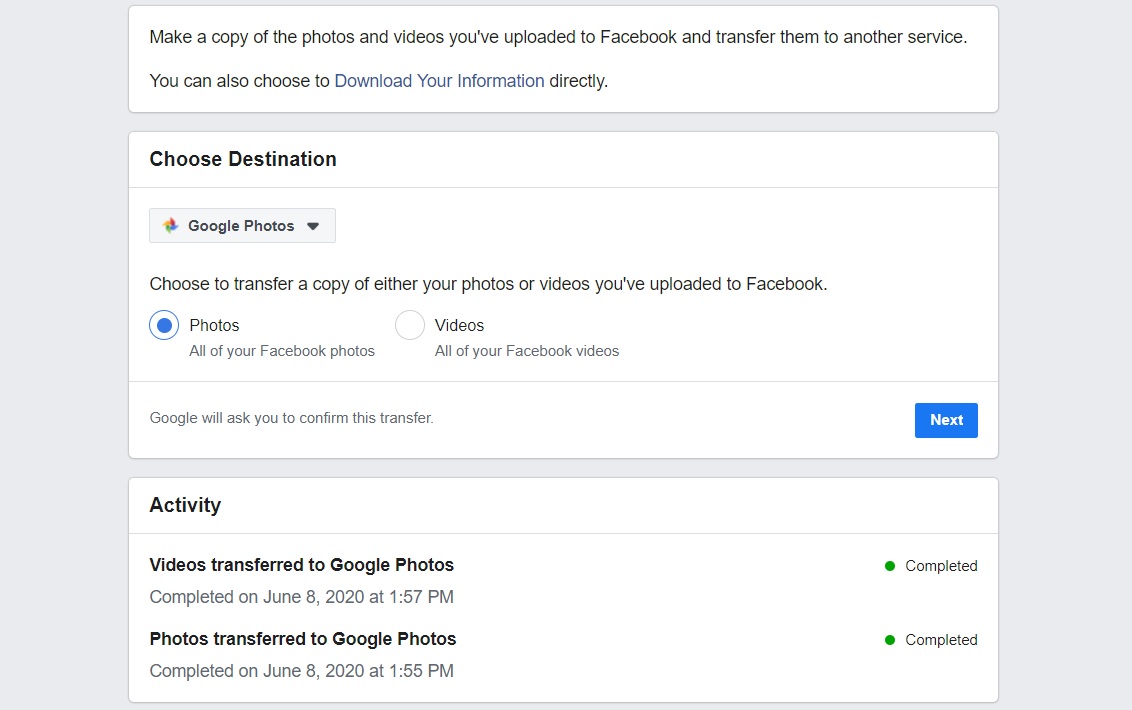
Send Facebook photos to Google: If you've been using Facebook long enough, you've probably got a bunch of old photos on the site that aren't stored anywhere else. Now, you can copy them to Google Photos for safekeeping.
To begin the transfer, head to facebook.com/dtp while signed into your Facebook account. Click the blue "Choose Destination" button, then select "Google Photos." You'll have to choose between transferring just photos or just videos, but you can always run the transfer a second time to export them both. Follow the on-screen prompts, and you'll receive a Facebook notification after the transfer is complete. Inside Google Photos, your photos will appear in new albums, titled "Copy of [Facebook album name]."
Keep in mind that this tool only works for photos you've uploaded, not ones you've been tagged in by other folks, and it won't delete anything on Facebook's end. Still, it's a handy way to centralize your photo collection if you're using Google Photos already.
|
|
| Now try this |
|
Stash Firefox tabs: Back in April, I wrote about a few ways to save browser tabs for later. Now, the folks at Ghacks bring word of a Firefox extension that can do the job even faster. It's called Tab Stash, and it allows you to save an entire window's worth of tabs with one click.
Once you've installed the extension in Firefox, click the icon next to your address bar that looks like a little bucket with a downward arrow on top. This will send all your open tabs to a sidebar menu so you can reopen them later. Behind the scenes, Tab Stash keeps your saved tabs running in the background for a period of time, so you can pop them back up without losing your tab history or any data you've inputted. It also backs up tabs to a Firefox bookmark folder, allowing it to sync your work between computers. Give it a try.
Google Duo's invite links: Google has added persistent group links to its Duo video chat app, allowing anyone in your chat group to join a call through a link even if it's already in progress. To create a meeting link, select a group from your contacts list in Duo, then copy or share the link near the bottom of the screen.
The new feature does come with a couple of catches: You can only generate meeting links for groups, not one-on-one calls (though you can create a group with just one person in it, and send a meeting link that way). Also, links only work with the iOS and Android versions of Duo for now, probably because the desktop site doesn't support group calls yet.
Free meditation: I am admittedly not a meditation person, but I like the idea of a free meditation app that has no ads, subscriptions, or other upsells. That's what Medito offers through its iOS and Android apps, which include dozen meditation "packs" full of routines for sleep, stress, and work-life balance.
Medito is a volunteer effort from a not-for-profit group, and the developers say it will always be free. While the app launched in April, it seems be flying mostly under the radar. At the very least, it's a way to dip your toes into meditation before diving into more expansive subscription-based services like Calm and Headspace.
|
|
| Around the web |
|
|
|
| Spend wisely |
 |
|
A few notable deals this morning:
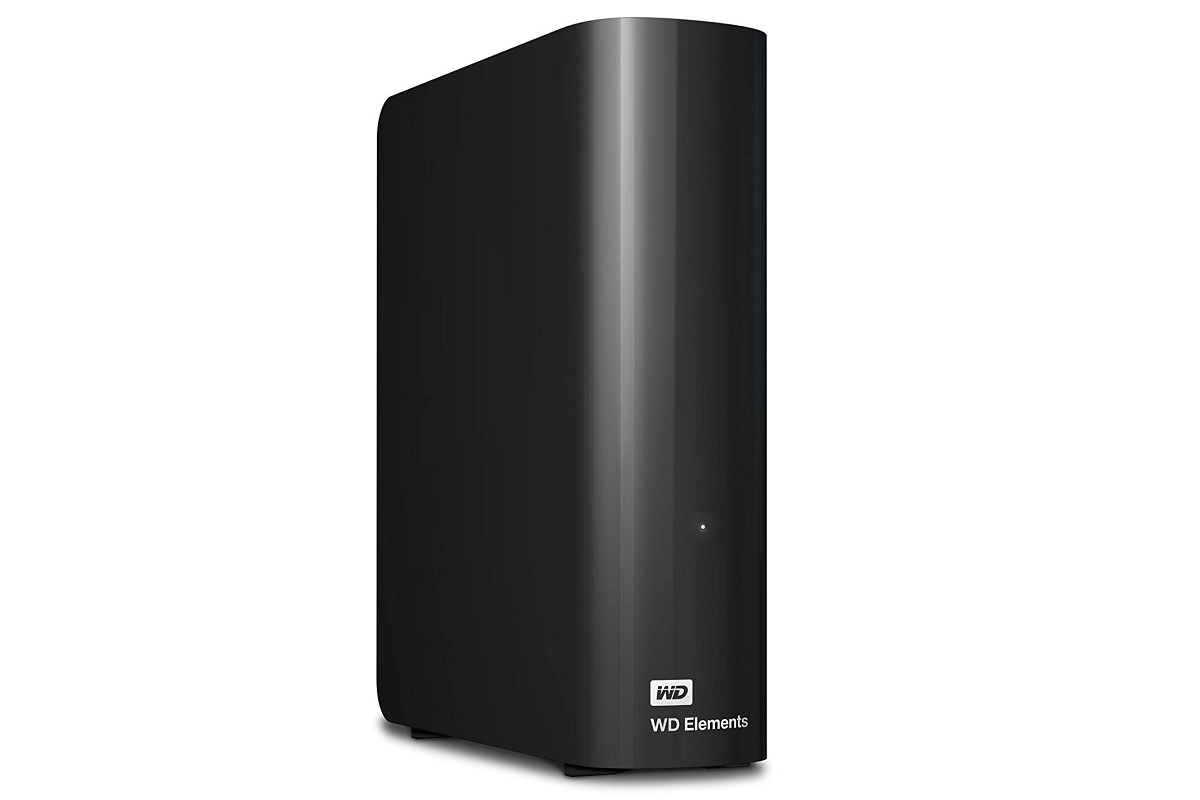
I've been using WD's 4 TB Elements desktop hard drive as part of my Plex over-the-air DVR setup for a while now, and it's been a solid performer. You can plug it into any computer via USB, though I have it plugged into my router's USB slot so it's available to any device on the home network. Amazon has it for $80, which is about $10 off the usual street price.
Amazon's Ring Peephole Cam is down to a record-low price of $80, and it includes a free third-gen Echo Dot speaker as well. It adds a security camera to any front door with a peephole, so you can look through it remotely or talk to whoever's outside.
This portable battery pack from Aukey looks similar to the one from Charmast I posted about last week, with ports for USB-A, USB-C, Lightning, and MicroUSB. It's a bit smaller, with a capacity 20,000 mAh, but it's also cheaper right now, at $28 with the coupon code 3RFAHIFT.
Most of the deals I mentioned in yesterday's deal alert email are still available, including a $39 Roku Streaming Stick+, a powerful wall charger for $16.80 (with code V8NW5CKO), and my Windows laptop of choice for $1000.
|
|
| Thanks for your support! |
|
I was happy to see a bunch of you pop up in Advisorator's Slack chat room after I mentioned it last week. If you want to talk tech with me in real time, just use this link to sign up. (Slack will ask you for a work email address to register, but any email will do.)
I'm also glad to see more of you sending in tech questions over email, including a couple that inspired this week's feature topic! If you have anything related to tech or cord-cutting that you want to talk about, just reply to this email to get in touch.
Until next week,
Jared
|
|
|
|
|
|