 |
| |
 |
| June 30, 2020 |
| Five cool privacy tools |
|
Plus: Colorize old photos, watch out for clipboard snooping, and save on a comfy mouse
|
| |
 |
|
Before getting to this week's feature topic, I wanted to thank everyone who reached out with kind words about last week's newsletter. It's always nice to hear when a topic resonates—especially now that I'm no longer collecting data on open rates and link clicks—so I appreciate your feedback.
The response also got me thinking about other easy ways to protect your privacy online. I don't think people should have to spend hours of their time or gobs of money managing and deleting all the personal data that's out there. The more you can protect automatically or proactively, the better.
To that end, here are five tools that can help provide some peace of mind. All of them are free to use, though some have premium versions for certain features.
Delete Google data with Jumbo
Last year, Google introduced a privacy setting that can auto-delete search history and other activity data when it's more than 18 months old. (The company is also now turning this feature on by default for new users.) It's a nice PR gesture, but it's also an empty one. Why can't you delete your data from Google when it's just a month old? How about deleting data after just a day, or immediately? Google won't let you, probably because that recent data is too valuable to advertisers.
Fortunately, a neat little app called Jumbo can clear out Google activity data automatically. It's available on both iOS and Android, and once you connect it with your Google account, it will scan for searches and remove them from Google's records, usually within 15 minutes or so. Jumbo doesn't just work with Google, either. It can also auto-delete your search history from Facebook and even clear out old posts from Facebook or Twitter after specified time periods. The app has been around since last year, but just received a major update.
There are some things I don't like about Jumbo. It can be cumbersome to set up, and it's optional warnings about data breaches are more annoying than helpful. I also wish the ability to auto-delete Alexa voice searches wasn't behind a paywall. Still, it's worth using just to dial down Google's data collection alone.
Stop mobile trackers with Lockdown
Tech giants like Google and Facebook aren't the only ones trying to collect data about you. Many other apps also collect details about your phone, your usage patterns, and possibly your location, then ship it off to analytics firms and advertisers.
Lockdown is a free and simple utility for iOS and Mac that prevents apps from connecting with these data trackers. I've had it on my iPhone since January, and in that time it's blocked more than 1 million tracking attempts in a completely unobtrusive way. (Until sitting down to write this newsletter, I'd forgotten that I'd set it up already.)
Keep in mind that Lockdown is not a VPN, so it's not routing any of your internet traffic through its own servers to mask your location, but I think that's mostly a positive, since it doesn't interfere with connectivity. If you do want VPN service, however, Lockdown sells it as an add-on subscription. (One other note: The app can hinder your ability to log into Facebook Messenger or WhatsApp, but turning it off while logging in seems to solve the problem.)
Mask your email address with Abine Blur
For marketers that want to track your online behavior, your email address is the ultimate prize. Once you log into a website or app, that site can use tracking cookies to follow you around and associate the data with your email, even after you've deleted data from big tech companies like Facebook and Google.
With the free version of Abine Blur, you can set up masked email addresses (such as "lsq9x1tecv1y@opayq.com") that forward to your real address. Each masked email can have a nickname for remembering what you used it for, and Abine's website shows you how many emails those addresses have received. If a sender is abusing its privileges, you can turn off forwarding or delete the masked email address outright.
Abine offers a $39 per year premium service that also provides masked credit cards and phone numbers, but there are free alternatives, as I'll describe below.
Protect your phone number with Google Voice
Next time a business asks for your phone number and you're not comfortable giving it out, consider handing out a number from Google Voice instead. When you sign up for Google Voice, you claim a phone number from an area code of your choosing. Incoming phone calls and messages to that number will then forward to your real phone number.
Why is this better than handing out your actual number? For one thing, Google Voice has some spam filtering built in (available through Settings > Security), but you can also screen incoming calls, set up do-not-disturb hours, and—if all else fails—switch to a different phone number. Use it as a defensive barrier for any businesses or other entities you don't fully trust.
Create a locked-down credit card at Privacy.com
Similar to how Google Voice can mask your real phone number, Privacy.com lets you use virtual credit cards for online stores and subscription services. You can then put spending limits on each virtual card, or even designate them as single-use cards, preventing untrustworthy vendors from running off with the card info.
This isn't just form of payment protection, though. It's also a privacy tool that prevents credit card companies from tracking and selling your shopping habits. Combine this with a masked phone number and email address, and vendors will have a much tougher time mining that data.
Got any other privacy tools that you can't do without? I'd love to hear your suggestions. Just reply to this email to get in touch.
|
|
| Need to know |
|
Watch out for clipboard snooping: Researchers have caught dozens of iPhone apps silently reading from users' clipboards, Ars Technica reports. The offenders include the social networking app TikTok, popular news sources such as The New York Times and Fox News, games such as Fruit Ninja, and information apps such as Accuweather. While some apps do have legitimate reasons to capture clipboard data—for instance, a web browser can offer to paste a link when it detects one in the clipboard—these apps apparently don't. Few of them have bothered to explain their behavior.
The findings date back to March, but they're getting renewed attention because Apple's iOS 14 update, which is now in beta testing, alerts users when their clipboards are being accessed. The problem isn't iPhone-specific. If anything, Android is more susceptible because all versions except the latest Android 10 allow apps to gather clipboard data in the background, while they're not in active use. But when iOS 14 launches in the fall, it'll provide a useful check on this nefarious behavior.
Until then, avoid keeping sensitive data in the clipboard whenever possible. Copying a single letter or a blank space is a good way to flush the clipboard of anything you don't want to be seen.
Microsoft Stores no more: Microsoft says it will not reopen any of its retail stores after closing them down at the start of the coronavirus pandemic in March. The company will still have its online store and says all its retail employees are moving into to online sales and support roles, but its decade-long foray into brick-and-mortar retail is over. (Four of the stores in major cities will become "Experience Centers," but they won't sell any products.)
There is—or was—a Microsoft Store in my nearest mall, and while the feeling of being in an Apple Store clone was unavoidable, I enjoyed periodically playing with the latest Surfaces and seeing what other computers Microsoft saw fit to highlight. Still, it was always quiet inside, and stepping in meant having to fend off overeager employees. Physical stores made some sense a decade ago, when Microsoft was reinventing the PC around touchscreens and trying to make Windows Phone happen. They don't seem so necessary now, with Windows Phone long gone and consumer PC sales recede to the periphery of Microsoft's business.
Google Photos updates: Have you noticed that Google Photos looks different? Google's rolling out a new design that reshuffles the app's menus and layout. An updated "Photos" tab will highlight both new and old pictures--a nod, perhaps, to the usefulness of smart displays like the Google Nest Hub for resurfacing memories--while a search tab will highlight ways to sift through your collection. (Notably, it'll also include a map that shows photos from the places you've been.) The Verge's Casey Newton has a nice deep dive into all the changes.
Like other recent Google rollouts, this one seems to be happening slowly. While I'm seeing a new icon on both my iPhone XR and Pixel 2 XL, the app design itself remains unchanged.
|
|
| Tip of the moment |
 |
|
Colorize old photos: Pictured above is a photo of my grandfather, grandmother, and aunt from 1950. (Not pictured: My dad, who wasn't born yet.) As you might've guessed, it was not originally a color photo, but I turned it into one using the website Image Colorizer. The site uses AI image processing to transform black and white photos into color ones with just a couple clicks—no Photoshop skills required. It's also available as an app on iOS and Android, though the web version can support larger photos, up to 3000x3000 pixels.
Image Colorizer is just one of several AI-based image editing tools that you can use online for free, a few of which I've mentioned in previous newsletters: Deep Image and Let's Enhance can blow up low-resolution photos, while Remove.bg can remove the background from an image.
|
|
| Now try this |
|
Fun with audio splitting: Speaking of funky AI processing tools, a new website called lalala.ai can take pretty much any music file and split the vocals and instruments into separate tracks. It's not perfect—you might sometimes hear a bit of vocals bleeding through, especially on heavy downbeats—but it's impressive overall. Use it to see how your singing sounds without the original vocals to back you up, or just marvel at your favorite tunes with the vocals and instrumentals isolated.
New Google Assistant tricks: If you have a Google Assistant device with a screen and a camera, such as the Nest Hub Max or Lenovo's Smart Display, you can now use it for group video calls of up with 32 people in Google Duo. You'll need to have established some groups in Duo's mobile app first, but once you do, you can say, "Hey Google, call [Group Name]" to get started. Video calls in Google Meet are also supported, but only from Google's own Nest Hub Max display for now.
Google's also added a speed dial feature for smart displays after announcing it way back in January. Swipe left from the edge of the home screen, and you should see an "Add Household contacts" panel, from which you can select your favorite contacts. You can then quickly reach them via voice or video chat by swiping left on the home screen again.
|
 |
|
One other somewhat-related new feature: Android TV devices such as the Nvidia Shield TV finally support Google Home speaker groups, so you can play music on your TV in sync with other speakers around the house. Open the Google Home app, tap on your Android TV device, hit the gear icon to bring up device settings, then hit "Group." From here you can create a new speaker group or add the device to existing ones.
The only problem I've found is that my Shield TV won't accept volume control from my phone, probably because it's set up to control my soundbar's volume level directly over HDMI-CEC. Connecting a Chromecast to the TV remains a crude workaround, allowing me to adjust volume downward from the maximum level set by the soundbar. Never a dull moment with home theater setups. (For more on creating a Google Home music system, see my March 10 newsletter.)
|
|
| Around the web |
|
|
|
| Spend wisely |
 |
|
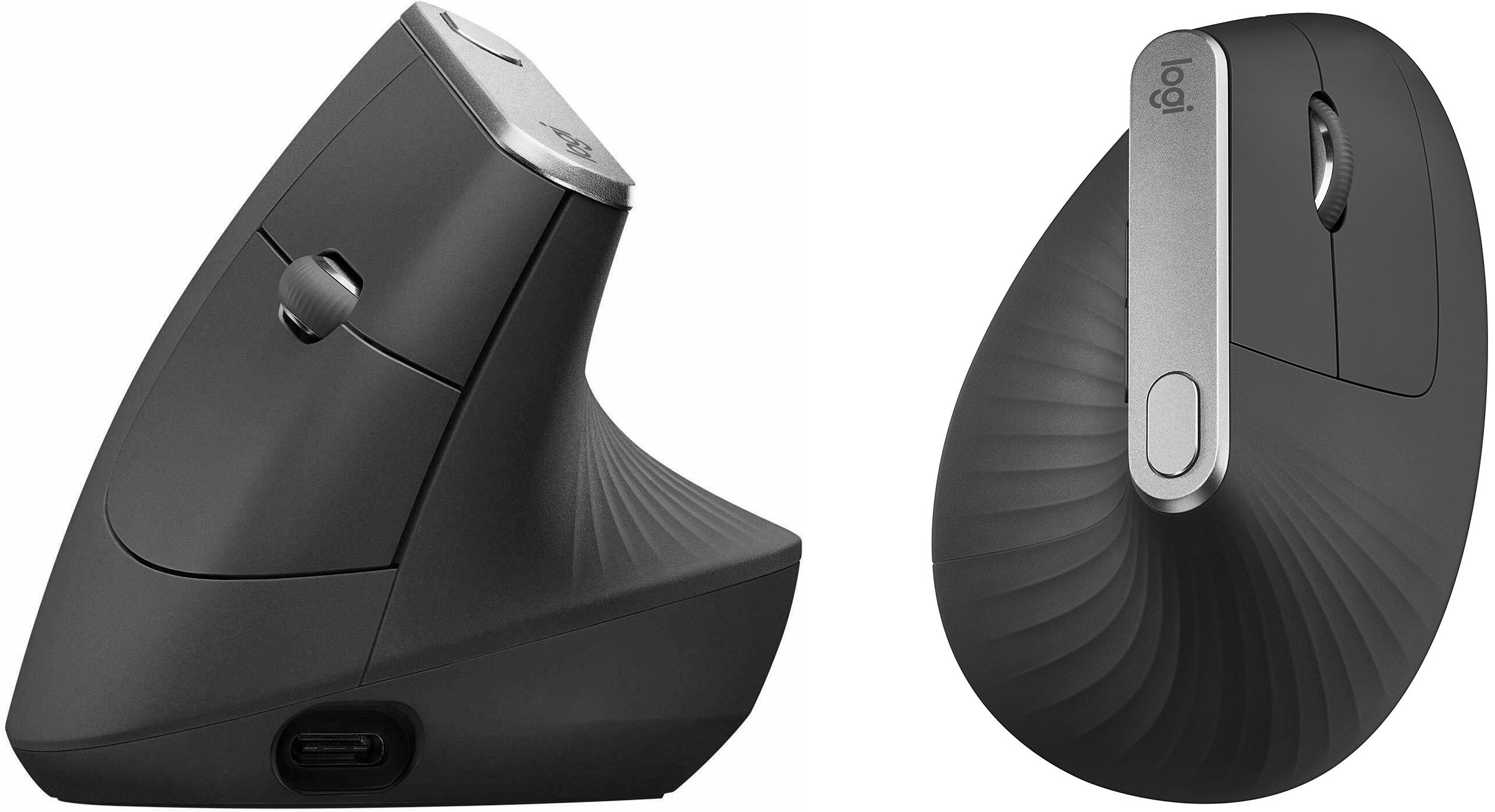
Staples is doing another one of its coupon promotions, where you can save $25 on purchases of $100 or more with the coupon code 34755 at checkout. With this promo, you can get Logitech's Advanced Vertical mouse for $75. The design is a lot different from most mice, as it keeps your wrist in its natural position.
To reach the $100 threshold, you'll have to add both the mouse and a $7 filler item to your cart. I suggest throwing in this 16 GB USB thumb drive. That'll bring the price down to $75, which is still $17 less than what the mouse alone costs anywhere else. Keep in mind that the discount won't show up until you hit the final checkout page.
Other deals this morning include Simplisafe's home security system for $181 (regularly $300), a three-pack of TP-Link smart light switches for $38.25 (regularly $55, requires an on-page coupon), and SanDisk's tiny 256 GB USB thumb drive for $28 (regularly $33).
|
|
| Thanks for your support! |
|
If you want to talk tech with me, I'll be around in the Advisorator Slack channel today (or most days). Just click here to sign up. It'll ask for a work email while registering, but any email will do. You can also send me your questions and comments via email. As Advisorator grows, it's been great to see more questions and comments rolling in, translating into more things for me to write about!
Until next week,
Jared
|
|
|
|
|
|