 |
| |
 |
| January 19, 2021 |
| Must-know smartphone tricks |
|
Plus: WhatsApp's privacy scare, Samsung's new gear, and a better Windows file browser
|
| |
 |
|
I'm willing to wager that most of you know how to use a smartphone. I would not be surprised if many of you were quite adept at doing so.
And yet, even if you're a seasoned smartphone user, some fundamental tricks may still have escaped your attention. The nature of iOS and Android is to be simple on the surface while hiding a fair amount of complexity, which means you might pick up your phone dozens of times a day without realizing what's possible.
So while I occasionally delight in filling this newsletter with extra-nerdy material, sometimes it's nice to get back to basics. To that end, here are 10 smartphone tricks that everyone should know about, whether you're an expert or not.
Quick controls
For fast access to things like Wi-Fi, Bluetooth, and Airplane mode, swipe down from the top-right on iPhones with FaceID (or swipe up from the bottom on iPhones with home buttons). On Android, swipe down from the top of the screen, then swipe again for even more options.
On both iOS and Android, you can also press and hold these quick settings icons for more options. That's useful for switching between Bluetooth devices, adjusting display options, or fine-tuning the level of your iOS flashlight. For further customization of these menus, head to Settings > Control Center on iOS, and look for a pencil icon or vertical "..." button on Android.
Act on notifications
When you want to respond to a notification, taking action directly from the notification center is much faster
Taking actions directly from your notification center is a great way to get things done faster. On iOS, long-press any notification to view available actions. On Android, swipe down on the notification or hit the down arrow in the top-right corner.
For apps that are bothering you too much, you can quickly disable their notifications altogether. On iOS, swipe to the left and tap "Manage," then select "Turn Off." On Android, long-press the notification, then switch the toggle to the off position or select "Turn off notifications."
Declare notification bankruptcy
When you're feeling overwhelmed by iPhone notifications, you can clear them in bulk by long-pressing the "X" button above the notification list, then pressing "Clear All Notifications." On Android phones, the "Clear" button is usually easier to find, though you may have to swipe up to the bottom of your notification list to see this option.
Type to launch
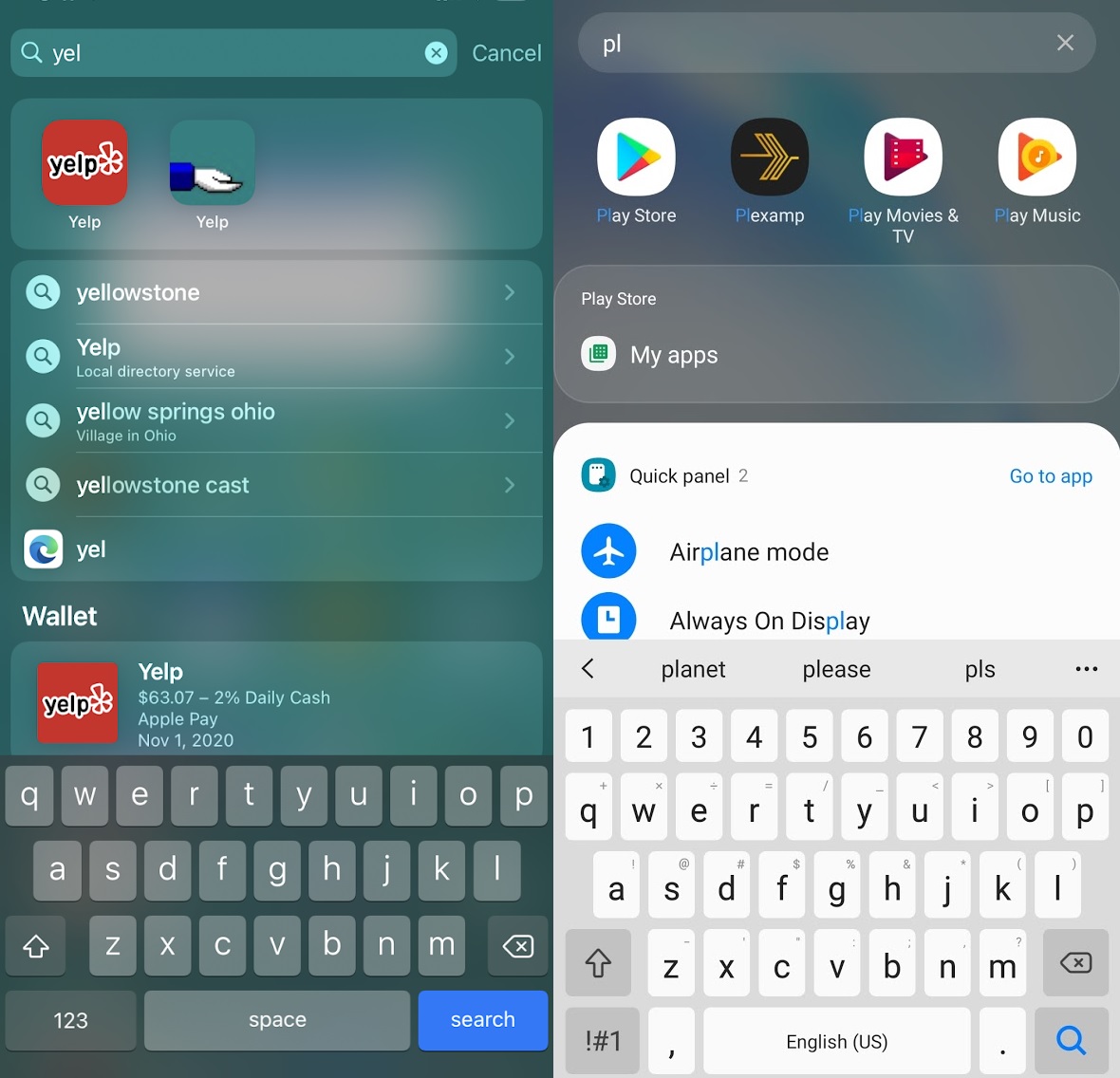
As the number of apps on my phone increases, I've started to rely more on searching for apps by name instead of hunting for them on the home screen. In most cases, just typing a letter or two into the search bar is enough to find what I'm looking for.
To search through your apps on an iPhone, swipe down from any part of the home screen and start typing. With Android, you can either swipe up to reveal a search box in your app tray, or just tap the Google bar on Pixel phones.
|
 |
|
Hide your home screens
Once you've grown accustomed to launching apps through search, consider slimming down your home screen to just one or two pages. On iOS, press and hold any blank part of the home screen, tap the series of dots above your app dock, then uncheck the home screen pages you want to hide. Instructions can vary on Android phones, but try long-pressing the home screen to see what options come up. (On Samsung phones, you'll be bale to delete individual home pages after doing so.)
Do more with Do Not Disturb
Stop getting bothered with calls, texts, and noisy notifications during the night by setting up a schedule for Do Not Disturb mode. You'll find options under Settings > Do Not Disturb on iOS, or Settings > Sound or Settings > Notifications on Android.
In addition to setting up a schedule, you can also use Do Not Disturb for temporary moments of quiet time. On iOS, open Control Center and long-press the moon icon, and you'll see options to turn on Do Not Disturb for just an hour, until you leave your current location, or until the next morning. On Android, head to the Do Not Disturb menu in settings, then tap on "Duration" and select "Ask every time." Now, you'll be able to choose how long to remain undisturbed whenever you turn the feature on outside of scheduled hours.
Avoid flash photography
Seriously, modern smartphones have become so adept at low-light photography that you shouldn't need the harsh light of a flash bulb in the vast majority of situations. In your camera app, hit the flash icon until there's a cross through it to avoid accidentally lighting up the room. (Thankfully, some Android phones now disable flash by default.)
Get higher-quality video
Speaking of camera settings, your phone may be capable of capturing better video than what's enabled by default. On iOS, head to Settings > Camera > Record Video for options. On Android, look for a settings button inside your camera app, or hit the down arrow while using video mode on Pixel phones.
Personally, I love the "soap opera" or home video effect of 60 frames per second video capture on my phones, and with newer high-end phones you can enable 4K video as well. Just remember that any bump in video quality will eat up more storage.
Reach for the top
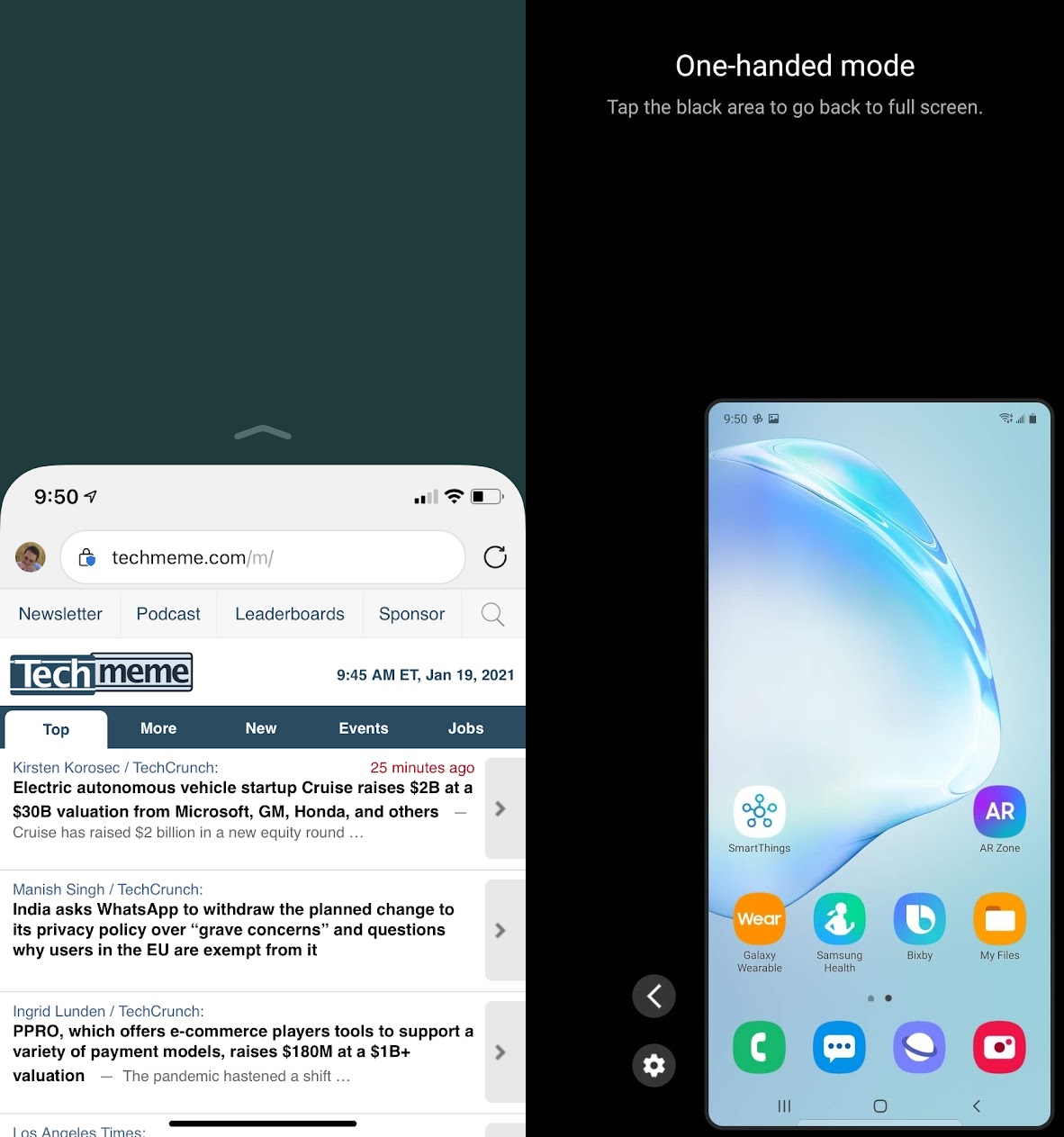
I'm not sure why, but Apple no longer enables by default the "Reachability" mode that temporarily slides the top half of the screen down for easier one-handed access. Enable it again under Settings > Accessibility > Touch, then swipe down on the bottom of the screen to use it. (On iPhones with home buttons, you can still just double-tap the button instead.)
There's no system-wide equivalent on Android, but Samsung phones have a One-Handed Mode you can enable under Settings > Advanced Features > One-Handed Mode.
|
 |
|
Control the dark side
Tech-savvy folks love to obsess over Dark Mode—praising apps that support it, shaming those that don't—but I've fielded enough questions from confused relatives to know it's not intuitive to everyone.
To make your screen backgrounds dark or light, head to Settings > Display & Brightness on iOS, or Settings > Display on Android. From here you can turn dark mode on or off, or schedule it to change based on the time of day.
Use your hotspot
I've probably mentioned this at least a few times in previous newsletters, and I will never stop mentioning it for as long as laptop- and tablet-specific data plans exist: Just use your phone as a Wi-Fi hotspot instead.
Assuming your wireless plan supports this—and most of them do—just head to Settings > Personal Hotspot on iOS, then toggle "Allow Others to Join." This will create a Wi-Fi network with the same name as your phone, and anyone can access it with the password shown on that settings page. (You can also change the password.) On Android, a similar option appears under Settings > Connections (or Netweork & Internet) > Hotspot and Tethering. Just bear in mind that your hotspot will almost certainly have usage limits, even if you're on an unlimited plan.
So, how many of these did you know already? And did I miss any good ones? Send me an email to let me know!
|
|
| Need to know |
|
WhatsApp's privacy scare: WhatsApp is delaying a new privacy policy that's become the source of much fretting over the past week.
The updated policy clarified how WhatsApp could share data with corporate parent Facebook, specifically for when users chat with businesses on the platform. Unlike personal chats, which are end-to-end encrypted and can't be read by anyone but the recipients, business chats don't play by the same rules. If you were to, say, order a pizza or shop for clothes through WhatsApp, businesses would be able to use those interactions for marketing purposes, including on platforms like Facebook. (This notion of businesses using WhatsApp is more popular in developing markets than in the United States, at least for now.)
But because WhatsApp announced its new privacy through a scary-looking pop-up—and, perhaps, because we're all primed to distrust Facebook—people assumed that Facebook would begin monitoring their personal communications as well. Those assumptions helped send a surge of users to alternatives like Signal and Telegram, and sent Facebook into damage control mode. The company now says it won't implement a new privacy policy until May, when it'll presumably do a better job explaining the whole thing.
Samsung's new gear: As is custom this time of year, Samsung has announced a trio of new Galaxy S phones, but in many ways, they're a step backwards from what came before.
The Galaxy S21 and S21 Plus both have lower-resolution screens than their predecessors, and the baseline S21 has a plastic back instead of glass. None of the models include MicroSD card slots anymore, and Samsung is following Apple in removing a charger from the box. Camera quality, meanwhile, is unchanged from last year's S21 and S21 Plus, while the S20 Ultra's main improvement is a larger sensor. All of this is in service of reducing prices; the entire range is $200 cheaper than last year's models, bringing the unlocked price to $800 for the S21, $1,000 for the S21 Plus, and $1,200 for the S21 Ultra. (CNet has a useful spec comparison between them.)
I'm not a huge fan of Samsung phones anyway. The company's software has always seemed too busy to me, and as my pal JR Raphael pointed out last week, Samsung's labyrinthine privacy policies and sluggish software updates are concerning. But if you're undeterred, make sure not to pay full price. Retail and carrier deals abound at launch, and we're sure to see unlocked prices drop in the months ahead.
In addition to the new phones, Samsung also announced a Tile-like item tracker and a pair of high-end wireless earbuds for $200. I was able to try the latter myself, and while I remain ambivalent about Samsung's phones, the earbuds really are excellent.
Google buys Fitbit (probably): Google is declaring "mission accomplished" on plans to buy Fitbit for $2.1 billion. The deal was announced in November 2019, and has been under regulatory review by various governments ever since. But as Ars Technica reports, Google hasn't gotten the go-ahead from the U.S. Department of Justice. Google merely claims that the DOJ raised no objections during an agreed-upon waiting period, and has now assumed it's free to proceed. (The DOJ is currently suing Google over broader anti-trust issues, which could be a complicating factor.)
I bring all this boring business stuff up because it speaks to the current state of limbo in which Google's wearable strategy is trapped. While Fitbit released several new smartwatches and fitness trackers last year, Google's last major Wear OS update came in 2018. Google says it will continue to support Fitbit devices—and won't use their fitness data for targeted ads—but hasn't offered much clarity on its vision for the two platforms. My money's on Fitbit subsuming Wear OS in the long run, but buying into either platform feels like a bit of a risk right now, especially if the Google-Fitbit union isn't quite consummated yet.
|
|
| Tip of the moment |
 |
|
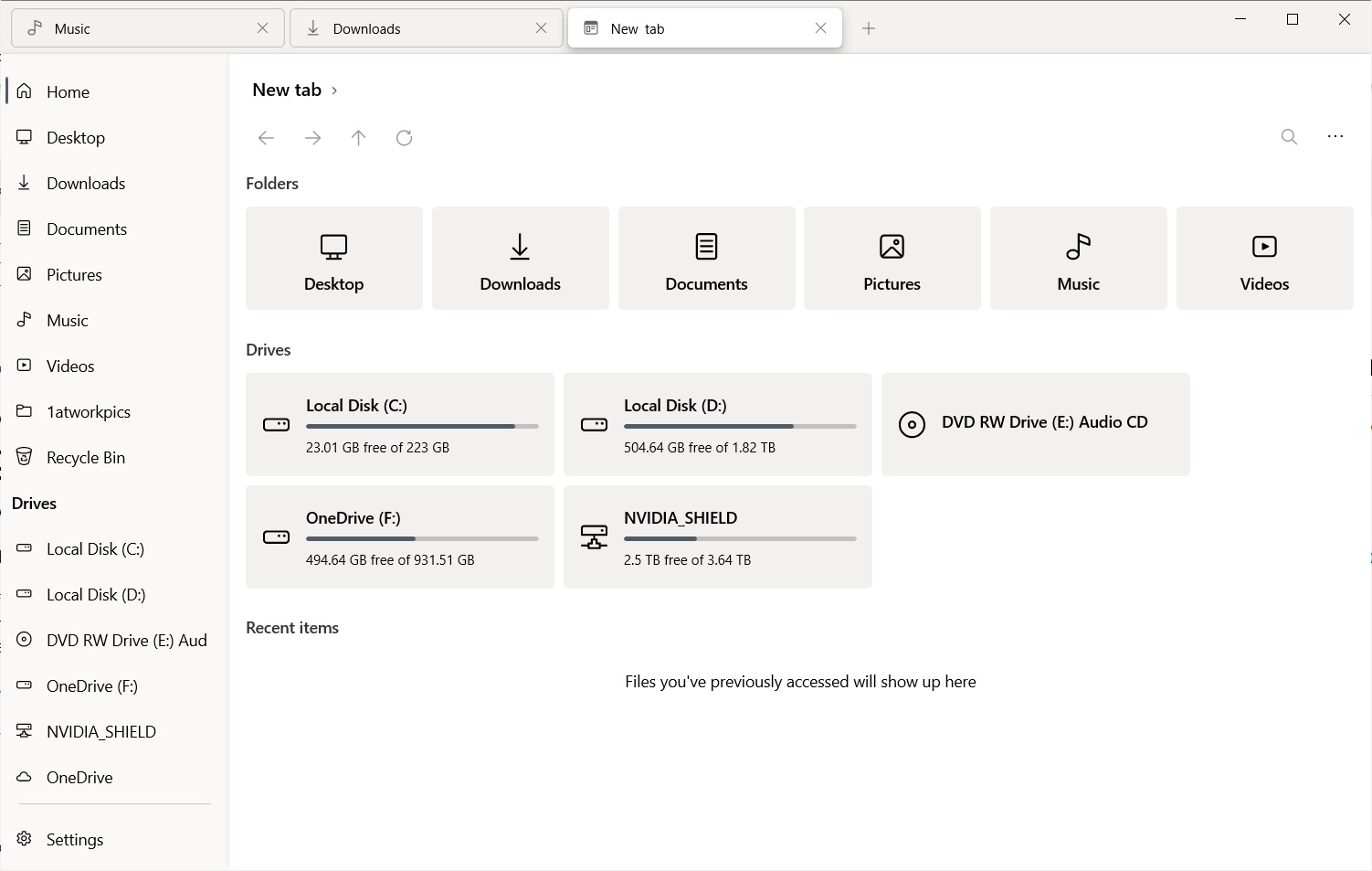
A better Windows file browser: As a sucker for apps with slick designs, I just had to check out a free app called Files after reading this write-up over at GHacks. Files is a replacement for the standard File Explorer in Windows, and one that doesn't look like it was designed in the previous century. Open it up, and you'll get a clean view of all your documents folders, and you can see how much space is left on your storage drives without any extra clicking.
Best of all, the Files app supports tabs, so you can flip between multiple storage locations within a single window. The app supports dragging and dropping files between tabs as well—and between Files and any other app, for that matter.
The only downside is that you can't use Files as your default browser—you'll still need File Explorer in some cases, like when choosing a save location in other programs—but it's a great standalone app for all those when you need to manage your files. I've already pinned it to my taskbar and Start menu in the spots where File Explorer used to be.
|
|
| Now try this |
|
Simple tab management: Speaking of tabbed things, I want to point out a little web browser trick that I just recently started using even though it's been hiding in plain sight for years.
If you're staring at a mess of unorganized browser tabs, try right-clicking on one of them, then selecting "Move to..." Most major browsers will let you move the tab to a new window, and with Chrome or Microsoft Edge, you can move the tab to an existing window as well. Even better, you can select multiple tabs at once by holding Ctrl (or Cmd on a Mac) while clicking on them, then use the "Move to" command to send them all off to a separate window. Grouping tabs into separate windows by task is a great way to stay organized, and while I used to do a lot of dragging and dropping between windows, "Move to" is so much easier.
For more simple tips on managing your browser tabs, check out this write-up I put together for Fast Company, which was my impetus for using the "Move to" trick in earnest.
|
|
| Around the web |
|
|
|
| Spend wisely |
 |
|
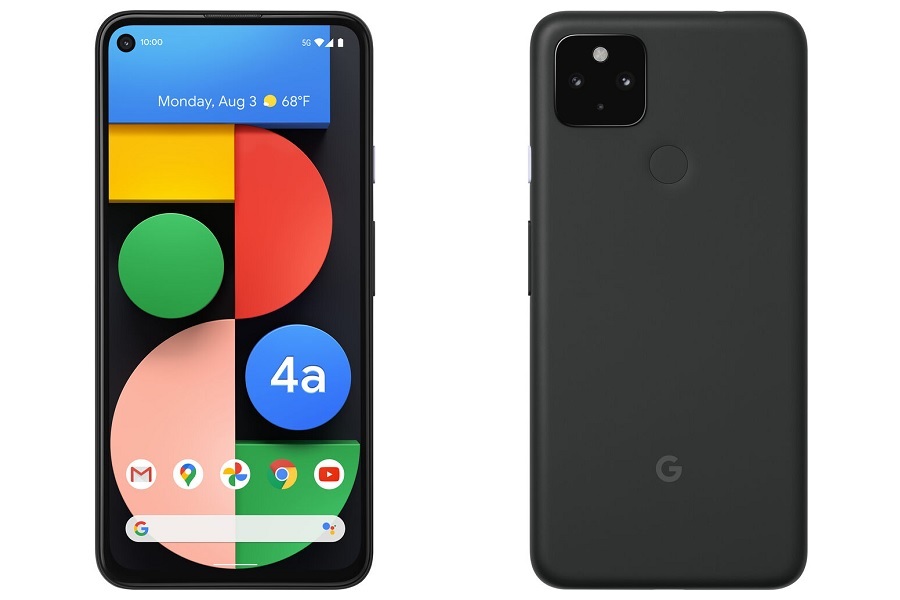
Keeping with this week's smartphone theme, Google's Pixel 4a 5G is on sale for $459 through B&H,—down from a regular price of $500—and also comes with a free clear case. Best Buy has the same price (without the case) and is taking an extra $50 off with activation on AT&T or Verizon. You can also buy through Google and pay off the phone in monthly installments.
The Pixel 4a 5G tries to hit the sweet spot between the flagship Pixel 5 and low-end Pixel 4a. It has the same dual-lens camera and processor as the former but without water resistance, wireless charging, or a higher screen refresh rate. Compared to the regular 4a, it has a larger screen and battery, along with 5G support. This price matches pervious record lows.
Other notable deals:
- Logitech's Combo Touch keyboard for the iPad Pro 10.5 and third-gen iPad Air is still on sale for $109.
- Walmart still has the Apple Watch Series 6 (40mm, Space Gray) for $339.
- Amazon's Fire HD 8 and Fire HD 8+ are both $30 off, which is $5 more than Black Friday pricing.
- eBay has a 6-foot USB-C to Lightning cable from Anker for $9.38.
|
|
| Thanks for your support! |
|
Thanks so much to those of you who filled out my reader survey, and congrats to Jeff L. for winning the $50 Amazon gift card. Your answers were super insightful and will be of great help as I look to make Advisorator even better in the year ahead. (Also: Special shout-out to the 13% of respondents who wrote some form of "keep up the good work" in the open feedback section. I'll try!) Although the gift card drawing is over, you can still fill out the survey if you haven't done so already.
Got any tech questions you'd like me to answer? Send me an email or stop by the Advisorator chat room on Slack. And remember that you can read all previous issues of Advisorator online at the members-only website.
Until next week,
Jared
|
|
|
|
|
|