Plus: Google Docs' new view and more tech tune-up advice |
Browse better with these tips |
Plus: Google Docs' new view, remote computer control, and more tech tune-up advice. |
For the ultimate example of a simple tool with hidden depths, look to the desktop web browser. |
You needn't be a tech whiz to know the basics of how to visit a website or search the web. Even the notion of opening, closing, and rearranging browser tabs is pretty straightforward. But behind those basics are all kinds of powerful features that make web browsing more efficient. |
Here are 10 of my favorites. While I've scattered some of these tips in previous newsletters and articles, I've yet to compile them all into one place. Note that most of these features work in any web browser, whether it's Chrome, Firefox, Safari, or Chromium-based browsers (such as Edge, Brave, Opera, and Vivaldi): |
I'm admittedly not a huge user of browser keyboard shortcuts, but I still consider a handful to be essential: |
-
Ctrl/Cmd + T: New tab
-
Ctrl/Cmd + W: Close the current or selected tab
-
Ctrl/Cmd + L: Highlight the address bar
-
Ctrl/Cmd + Shift + B: Show or hide bookmarks (or Safari favorites)
-
Ctrl/Cmd + F: Find text in page
|
In all browsers except Safari, select individual tabs by holding Ctrl or Cmd, or hold Shift to select an entire range. Now you can move them all around, drag them into another window, or—for maximum satisfaction—press Ctrl/Cmd+W to close them all at once. |
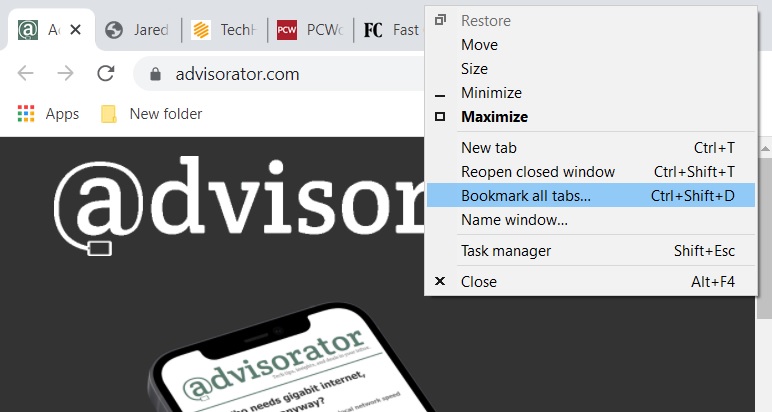
No need to get anxious about closing your browser and losing all your tabs. Just right-click the area next to your tabs in Chrome—or right-click the tabs themselves in Firefox and Microsoft Edge—then select "Bookmark all tabs." This will create a new folder with all your open tabs in it. (In Safari, you'll find a similar option under Bookmarks > Add Bookmarks for These Tabs.) |
I suggest saving the folder to your bookmarks bar for easy access. Then, you can right-click the folder for an option to open them all at the same time. |
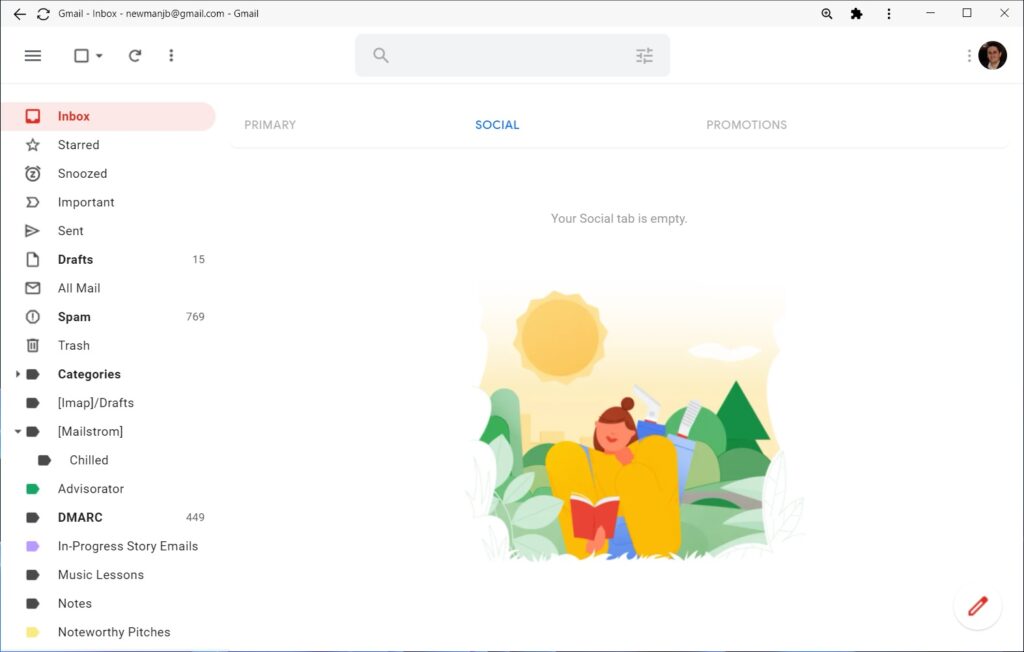
This feature of most Chromium-based browsers lets you launch websites as standalone desktop apps, so you can open them via your taskbar or dock, and you won't have any browser menus hogging screen space. I've said it before, but this has fundamentally changed the way I work in web apps like Gmail, Google Keep, Notion, and Raindrop. |
-
In Chrome: In the vertical "..." menu, click More Tools > Create Shortcut, then make sure "Open as window" is checked off.
-
In Microsoft Edge: In the "..." menu, click Apps > Install this site as an app.
-
In Vivaldi: Right click any tab, select "Create Shortcut," then check off "Open as Window."
|
Share tabs with a QR code |
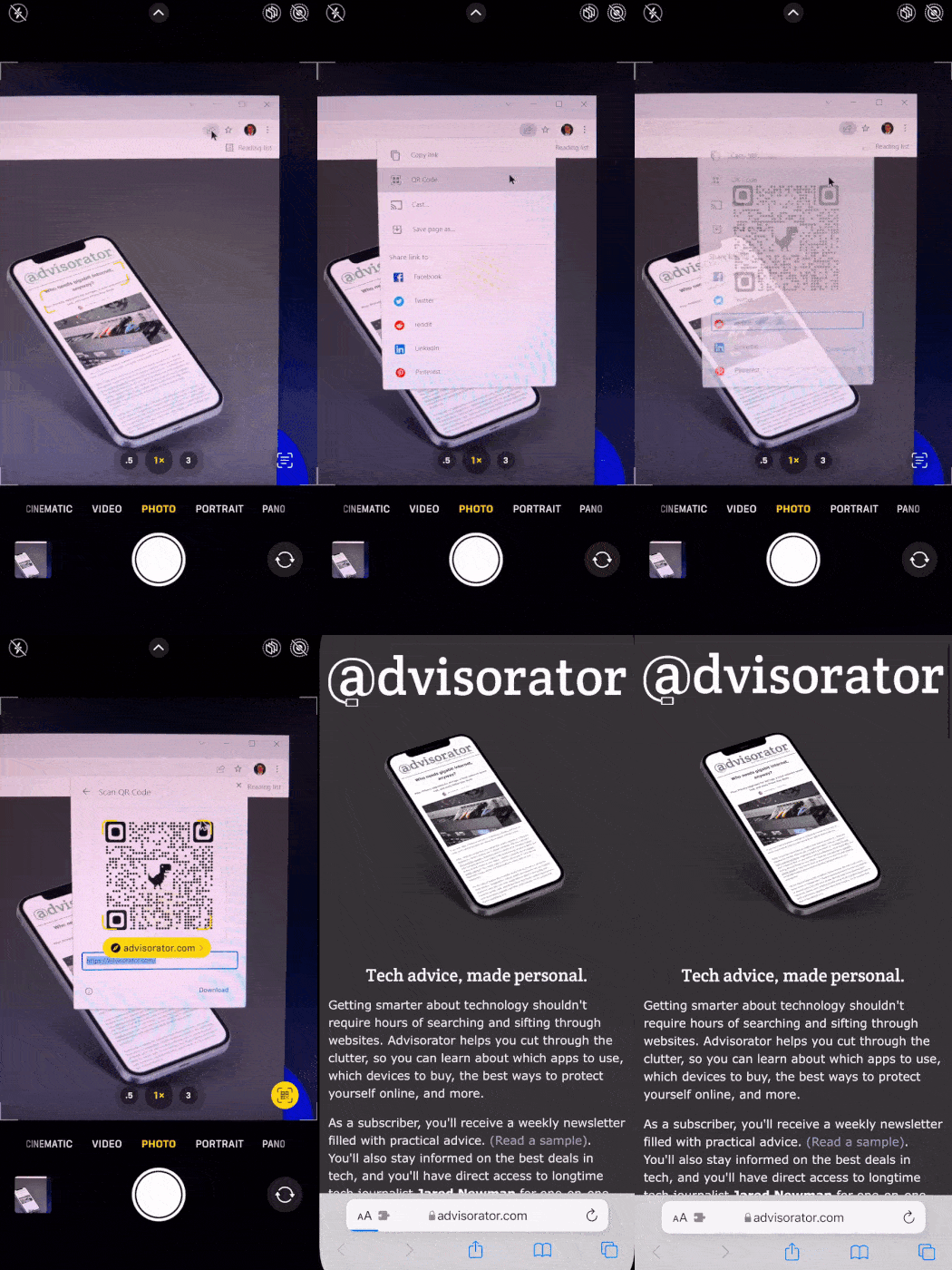
Click the Share icon in the Chrome address bar (or click the address itself in Edge or Vivaldi), then click the icon that looks like a set of four squares. With your phone camera, scan the QR code that pops up to load the site on your phone. |
While there are other tab-sharing methods to consider, such as the Send Tab feature in Chrome, I always come back to QR codes because of how intentional and dependable they are. (For Firefox and Safari, see the “Bookmarklets” section below for a workaround.) |
The private modes built into most web browsers aren't merely for unmentionable activities. They're also a quick way to browse in a logged-out state. This has all kinds of innocent (or semi-innocent) uses, such as viewing non-personalized results on websites, bypassing the occasional paywall, checking a second online account without logging out in your main window, and searching Google without tying the results to your profile. |
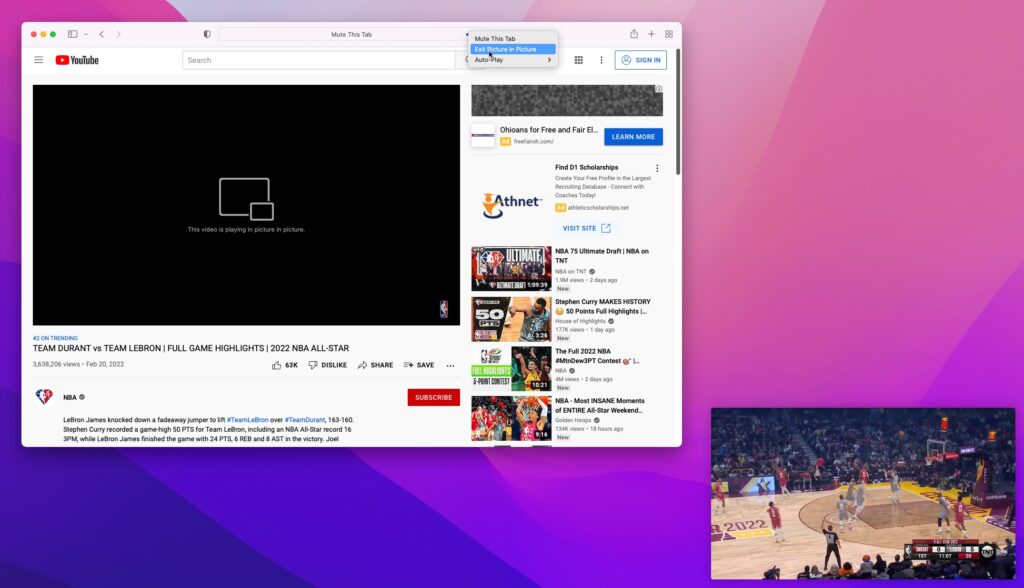
Safari and Firefox both offer handy picture-in-picture modes that always show your video in a small preview window. In Safari, right-click the speaker icon in the address bar, then select "Enter Picture in Picture." In Firefox, just click the little picture-in-picture icon that appears next to any video. Firefox even lets you open multiple picture-in-picture windows at the same time. |
For Chrome and other Chromium-based browsers, you'll have to install Google's Picture-in-Picture extension instead. Then, click the extension icon or hit Alt-P while a video is playing to enter picture-in-picture mode. |
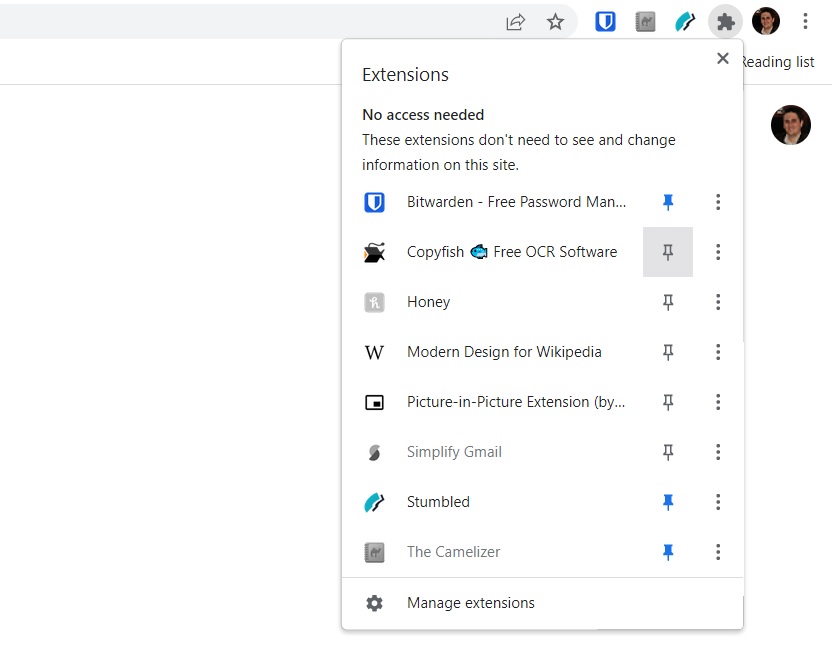
If you've installed a lot of browser extensions, take a minute to decide which ones should appear next to your address bar. Generally, you'll want to show the ones that require regular interaction—your password manager or the Camelizer, for instance—and hide the passive extensions such as ad blockers and Modern for Wikipedia. |
In Chrome or Edge, right-click the puzzle-shaped extension icon, then pin the ones you want to see on the toolbar. With other browsers, you'll have to right-click each extension to hide it. |
Add custom extension commands |
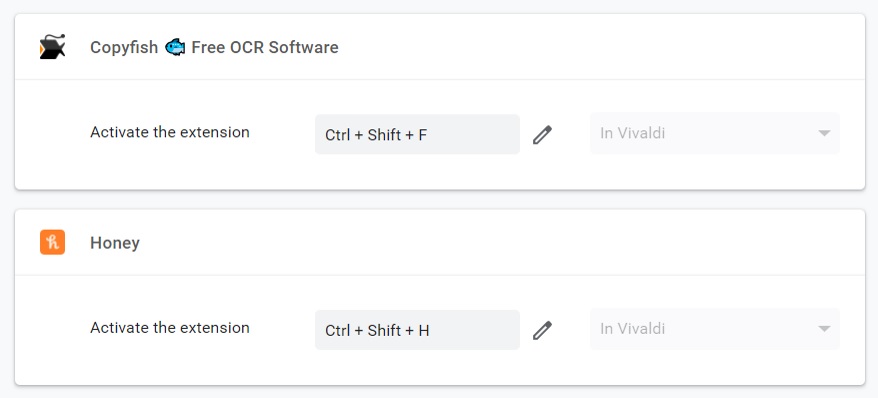
Avid extension users should also consider setting up keyboard shortcuts to activate them. You might, for instance, set a shortcut to extract text from images with Copyfish, or modify the tab search shortcut for Omni. |
In Chrome and other Chromium-based browsers, head to the extensions menu, then click the sidebar and select "Extension shortcuts." From here you'll see a list of compatible extensions, along with the option to assign a shortcut to each one. Firefox users can head to "Add-ons and Themes," then click the gear icon and select "Manage Extension Shortcuts." |
I first wrote about the power of browser bookmarklets a couple years ago, and I still rely on them to quickly make websites more readable, bypass paywalls, create links with excerpts, and more. Think of bookmarklets as a way to execute complex actions with one click, and without any of the downsides of installing full-blown browser extensions. |
Did I miss a tip that you can't live without? Send me an email and let me know your favorites! |
Google Docs goes pageless: Google is rolling out a pageless view for Docs after announcing it nine months ago. Once enabled, it eliminates page breaks and extends the whitespace around the document to the edges of the screen. |
You can enable for individual documents under File > Page Setup, then selecting "Pageless" at the top. If you then select "Save as default," it'll make all new documents pageless as well. (If you're not seeing these options, you may have to wait a few more days.) |
The format is part of a broader effort to modernize Docs and take aim at newer document tools such as Notion and Coda. I wrote more about that in a story over at Fast Company. |
Windows 11 updates: Microsoft's foray into running Android apps on Windows 11 is now available in a preview for all users. Just head to the "Library " section of the Microsoft Store and select Get Updates, and you'll be able to install more than 1,000 apps and games via a pop-up version of Amazon's Appstore. (Some notable examples: Kindle, Lords Mobile, and Khan Academy Kids.) The selection isn't great, and having to load a secondary app store isn't ideal, but it'll have to suffice until someone finds a better way of sideloading the full Google Play Store. |
The latest Windows 11 update also includes a revamped version of Notepad with sorely-overdue features such as multi-level undo and dark mode support. There's also a new Media Player app to replace Groove Music and—as in Windows 10—the ability to see the system clock on multiple monitors. I'm still holding off on updating my desktop PC, but bigger changes coming this year may finally convince me to switch. |
Firefox's struggles: Over at Wired, Matt Burgess has a great story on the Mozilla's challenges with the Firefox browser. Among them: Usage has cratered over the past 15 years, the company is too dependent on a default search deal with Google for revenue, and its attempts to find new revenue streams (for instance, through search bar ads) risk alienating users. |
To me, the overarching issue is a lack of direction. Firefox's attempts at privacy leadership have been upstaged by Brave and DuckDuckGo, which have their own search engines (DuckDuckGo's desktop version is in development) and aren't beholden to Google. Its emphasis on customization has been outdone by Vivaldi. Its forays into subscriptions—for instance, with Mozilla VPN and Pocket—haven't yet jelled into anything cohesive. Mozilla even walked away from installable desktop web app support—a stunning change of course for a company that once championed web apps over walled gardens. |
I'm rooting for Mozilla and Firefox, if only because we all benefit from having another competitive browser with its own rendering engine, but a browser can't thrive on sentiment alone. |
In praise of Chrome Remote Desktop: This week's tip comes in response to a question from Jim S., who asked about the best software for remotely accessing and controlling another computer. |
While I haven't tried every solution, I've been a happy Chrome Remote Desktop user for years. The free software from Google lets you control another computer from any web browser, or from the Chrome Remote Desktop app on iOS and Android, and I've found it to be both reliable and responsive. |
I use the software to manage my Mac Mini's Plex and Channels DVR servers when I'm not at home, and to remotely begin downloading games and other large files on my Windows desktop PC. You can also use Chrome Remote Desktop for tech support, accessing another person's PC through a one-time access code. (Note that all of this requires the host computer to be turned on; you can't use it to magically power up a laptop from afar.) |
While you do need a Google account to use Chrome Remote Desktop, Google's Chrome browser isn't required. |
To get started, just head to the Remote Desktop site on the computer you want to access remotely, download the software under "Set Up Remote Access," then create a PIN, which you'll need along with your Google account to use the computer from elsewhere. You can also head to the "Remote Support" tab to share your computer screen with another user, or vice versa. |
If you're using a web browser, Chrome Remote Desktop will feel just like controlling your actual computer, albeit with slightly more input lag. Click the little arrow on the right side of the screen, and you can adjust display options, set up keyboard shortcuts, and even directly transfer files between the two computers. |
The mobile app, meanwhile, provides a touchscreen interface so you can simulate mouse clicks by tapping with one or two fingers. Alternatively, switching to "Trackpad Mode" lets you drag your finger to move your computer's cursor around. Neither is an ideal way to control your computer, but they've gotten me out of numerous media server-related jams over the years, so I'm not complaining. |
First, I'll just excerpt this email from Shawn P., who apparently grimaced at my section on canned air: |
I am a full-time IT guy, and I never recommend compressed air anymore. I have seen too many people misuse and cause damage with it. I have seen hundreds of people take the can of compressed air and shake it before use, causing the liquid to come out of the can and ruin their electronics (motherboards, hard drives, etc.). Even though the cans say, "DO NOT SHAKE," the user's first instinct is always to shake it first then spray.
|
As an alternative, Shawn suggests an electric air duster like this one. (He also noted that my use of the phrase "pry your laptop or desktop open" was perhaps a bit too colloquial. If you're performing surgery on your computer, exercise caution and use the right tools.) |
Jason D. also chimed in with a couple of helpful suggestions: A pricier computer repair kit has some extra tools not included in the cheaper kit I linked to, including various tweezers, pliers, and wire strippers. Watch aficionados can buy a kit specifically for that as well. |
Lastly, Rick A. asked about the best way to clean the screen of a MacBook Air. The best tool for this job is a microfiber cloth, like the kind you use for eyeglasses (or, perhaps, Apple's "most elite" $19 version). If the cloth alone doesn't do the job, a dab of water is okay—but take care to avoid the seams of the device—and Apple itself approves of using a 70 percent isopropyl alcohol wipe, a 75 percent ethyl alcohol wipe, or Clorox Disinfecting Wipes. |
These tools should work with any phone, tablet, or glass computer screen. But no matter the method, be gentle, avoid sprays, and never use other cleaning solutions such as Windex. Lifewire's Matthew Smith just wrote a great story on this topic if you want more details. |
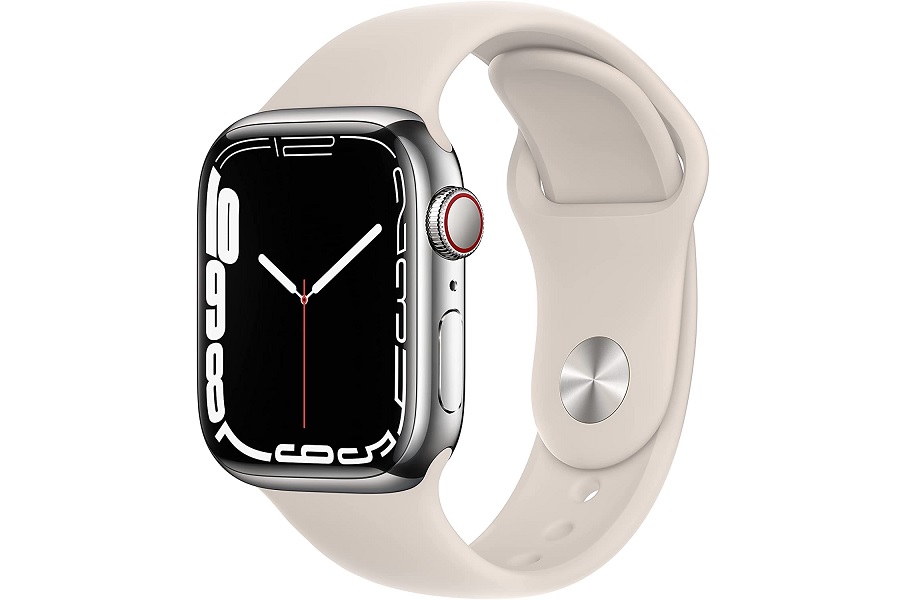
The most notable deal available right now is the cellular Apple Watch Series 7 in stainless steel (41mm), on sale for $450 instead of the usual $700. Some aluminum models are also $50 off, bringing the price to $349 in 41mm and $379 in 45mm. |
If you didn't get that email and would like to receive additional email alerts like it in the future, let me know. (You should be on the mailing list already unless you've previously unsubscribed, or you joined Advisorator prior to late 2018.) |
I hope you enjoyed this especially browser-centric issue of Advisorator. While I don't always plan to write these newsletters around a specific theme, it's always fun when it works out that way! |
Got tech questions you'd like me to answer? Just reply to this email to get in touch. |
This has been Advisorator, written by Jared Newman and made possible by readers like you. Manage your subscription by clicking here, or reply to this email with "unsubscribe" in the subject to cancel your membership. |
Advisorator LLC, PO Box 42711, Cincinnati, OH, 45242 |
|
|
|

 Jared Newman | February 22, 2022 |