|
| |
 |
| March 3, 2020 |
| Adding "Driving Mode" to the iPhone |
|
Plus: Avoiding Apple News upsells, Pixel's new tricks, and a Raspberry Pi price drop
|
| |
 |
|
Fair warning: This week's topic is on the nerdy side, but I'm hoping it'll include some useful information for everyone.
About a month ago, I wrote about my attempts to bring some Android creature comforts to the iPhone, one of which was access to convenient mapping and music controls while driving. On Android, Google's own Android Auto app does the job, providing a simple menu for directions and music along with extra-large buttons and Google Assistant voice controls.
After a bit more work, I've finally come up with an alternative approach for iOS. And in some ways, it's even better than what Android offers.
The trick is to use Apple's Shortcuts app, which lets you automate all kinds of actions through your phone. In my case, I created a Shortcut that does the following:
- Activates "Driving Mode" with a voice command
- Turns up the phone's volume for my car's Bluetooth connection
- Asks if I'd like directions, and if so, asks for the address
- Presents a menu of music options, selected with voice or one tap
- Starts navigating if directions were selected
All of this assumes you have some way to connect your phone to your car's audio system. If your car isn't equipped with Bluetooth but has auxiliary input, you can get a receiver for under $20. A vent mount also helps to keep the phone within glancing distance for directions.
To try the Shortcut yourself, you can install it through this link. You'll have to enable "Allow Untrusted Shortcuts" in the Settings app under Shortcuts first, and after clicking the link above, you'll have to scroll to the bottom of the page and hit the red "Allow Untrusted Shortcut" button. (Scary, I know, but hopefully you all trust me by now.)
To run the Shortcut, you can either open the Shortcuts app and hit the green "Driving Mode" button, or just activate Siri and say "Driving Mode." You can also swipe right on your home screen and run Driving Mode through the Shortcuts widget.
When the Shortcut runs, Siri will ask if you'd like directions, with "Yes" and "No" as the two possible responses. Selecting Yes will give you an extra "What text?" prompt to dictate the address, which will be stored for later. Selecting No take you straight to music selection.
Here's where things get a little tricky. For this Shortcut, I pre-loaded four music options:
- Pandora Thumbprint Radio
- Spotify Stations
- Google Play Music
- The Beats 1 radio station in Apple Music
The Shortcut therefore assumes that all these options are on your phone and ready to use. If you want every option to work for you, you'll have to install Apple Music, Google Play Music, Spotify Stations (separate from the main Spotify app, but excellent for radio), and Pandora. For the latter, you'll also have to install the separate Pandora Thumbprint Radio shortcut, which provides an instant mix based on your Pandora listening habits.
Once you've chosen a music option, the Shortcut will wait for eight seconds in case you need to make any additional selections in your music app. It will then trigger your phone's Play function and, if you chose directions at the beginning, return to Google Maps to load the address. Unfortunately, you'll still have to hit "Start" in Google Maps to begin navigation; I haven't found any way around that.
Advanced tweaks
If you're comfortable messing around with the Shortcuts app, you can also modify my Shortcut to match your own music preferences. Start by heading into the Shortcuts app and hitting the "..." button next to the Driving Mode shortcut.
One thing you can try is replacing the launch command for Google Play Music with a different app such as Spotify. To do this, scroll down to the prompt that says "Choose your music," then replace the "Google Play Music" text with the name of the app you want to launch. Then, scroll down to where you see "Open Google Play Music" and tap on the app icon. This will bring up a menu where you can choose a different app instead. Here's a short video of me doing just that.
Some music apps even allow you to launch directly into specific playlists. With Pandora, for instance, any station you request through Siri will be available to launch within Shortcuts. If you scroll to the bottom of the Shortcut and select "Search for apps and actions," you can add the action and drag into the music selection menu. Here's a video of me replacing Thumbprint Radio with a Snarky Puppy radio station.
You can also change your mapping provider from Google Maps to other sources such as Apple Maps or Waze. Just scroll to the bottom of the Shortcut and tap on "Google Maps," then choose the app you'd like to use instead.
One last tip, which is tangentially-related: If you haven't already, head to your iPhone's Settings menu, select "Do Not Disturb," and at the bottom, make sure the "Do Not Disturb While Driving" setting is set to " Automatically" or "When Connected to Car Bluetooth." This will prevent you from getting nagged with notifications and unimportant calls while you drive. After adding a Driving Mode for your phone, you might as well take the extra step of shutting down other distractions.
|
|
| Tip of the moment |
 |
|
As Apple tries to get more iPhone and iPad users to pay for its various subscription services, its sales tactics are getting harder to avoid. One example is the Apple News app, which by default will periodically promote stories you can only read with a $5 per month Apple News+ subscription.
Fortunately, you can disable this particular act of promotion, but not without some drawbacks.
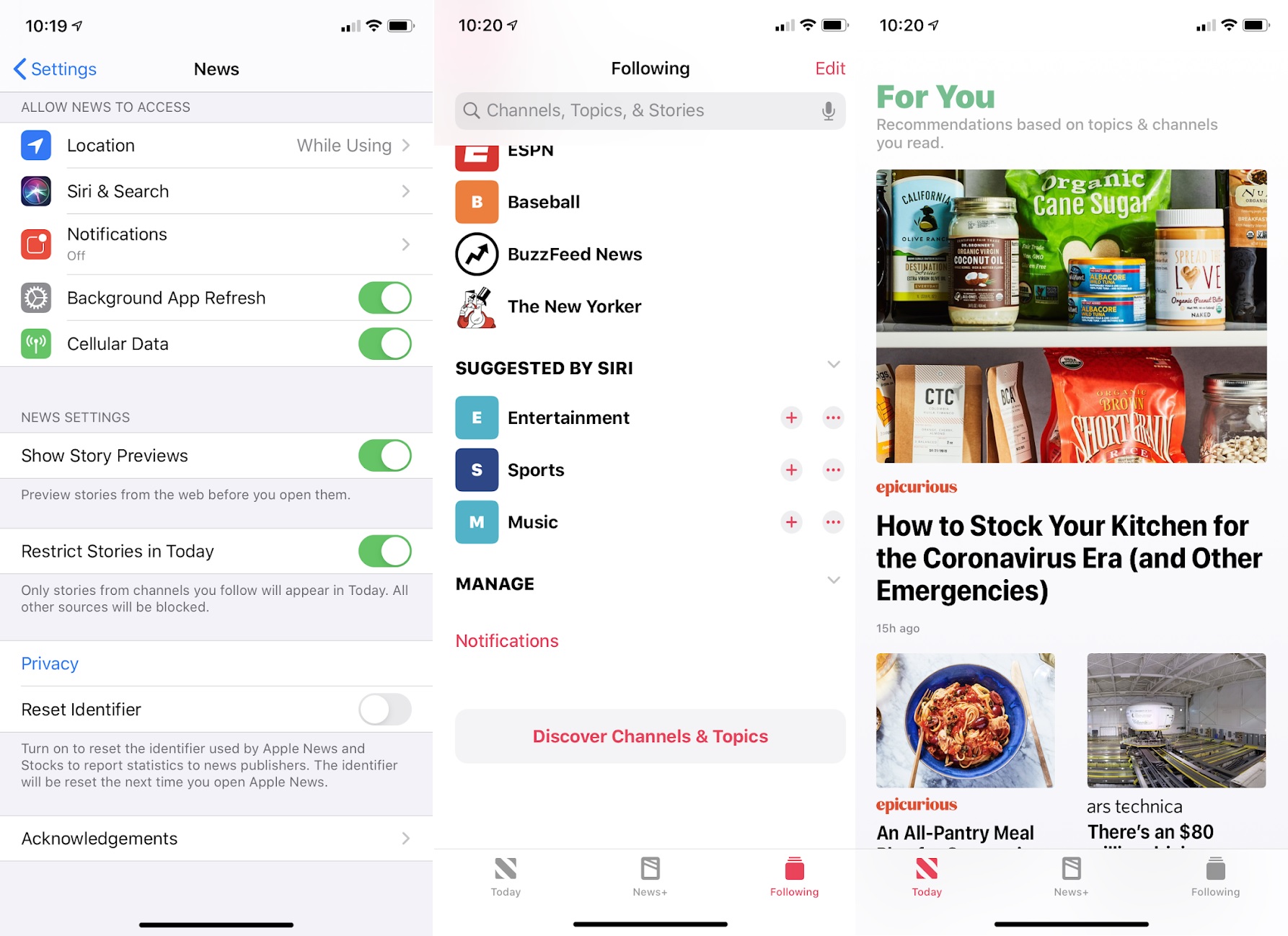
To turn off the Apple News+ teases, head to your iOS device's Settings menu, scroll down to News, then enable "Restrict Stories in Today." This will prevent any sources or topics you haven't explicitly followed from showing up in the app's main section.
The only problem is that your Today view will now look pretty bare unless you've added lots of topics yourself. To fix this, go back to the News app, then head to the "Following" tab. Scroll to the bottom of this page and select "Discovery Channels & Topics," then pick as many that seem interesting. You can also use the top search bar to find specific publications or topics.
After making these changes, your "Today" tab will gradually begin to populate with a wide range of stories, but without any News+ subscription nags alongside them. The big "News+" tab in the app's menu bar, however, is unavoidable.
|
|
| Need to know |
|
Facebook Messenger debloated: If you use Facebook's Messenger app on iOS, you might soon notice that it seems lighter. Facebook says it's rebuilt the entire app to make it faster and smaller, and it's eliminated the "Discover" tab that pushed people to talk with businesses and brands. The changes will be rolling out to all iOS users over the next few weeks, though it's unclear when the Android version will slim down.
Messenger got so bloated in the first place because Facebook wanted it to be a platform unto itself, similar to WeChat in China and Line in Japan. The hope was that people would come to Messenger not just to talk with friends, but to play games, read the news, or shop. With this overhaul, Facebook is demoting or outright eliminating some of those ideas, which always seemed to make more sense for Facebook's business than they did for actual users. (I'm still mad that I can't view my once-in-a-blue-moon Messages directly through the Facebook app or mobile website, but that's another story.)
How Samsung's latest cameras stack up: For those who get deep into smartphone camera quality, Ray Wong's photo shootouts (formerly for Mashable, now at Input Mag) are a must-read. In his latest write-up, Wong and fellow editor Evan Rodgers compare Samsung's top-of-the-line Galaxy S20 Ultra with Apple's iPhone 11 Pro, Google's Pixel 4, and Samsung's Galaxy Note 10 from last year, with side-by-side shots under a wide range of scenarios.
The S20 Ultra's main attraction is "100X Space Zoom," which uses a combination of sensors and cropping techniques to extend zoom range beyond what the camera's 4x telephoto lens can offer. Predictably, the digitally-zoomed images are way too blurry at 100X, but they still look great at 10X, and the camera gets impressively sharp photos without zooming. On the whole, though, the iPhone 11 Pro comes out ahead on face details, color reproduction, video stabilization, and panoramas.
Wong also discovered one major issue: Autofocus is far too slow on the S20 Ultra, producing blurry results when multiple photos are taken in succession. Samsung says it plans to improve the camera through software updates, but it isn't being clear about what issues it's fixing. Waiting for Samsung's phone prices to drop was already a good idea, so you might as well wait for those software updates as well.
Google's new Pixel tricks: Speaking of Android updates, Google's been pushing the idea of quarterly feature upgrades, or "Feature Drops," for its Pixel phones. The first batch, which started rolling out in December, included automatic robocall blocking and the ability to blur the background in Google Duo video calls.
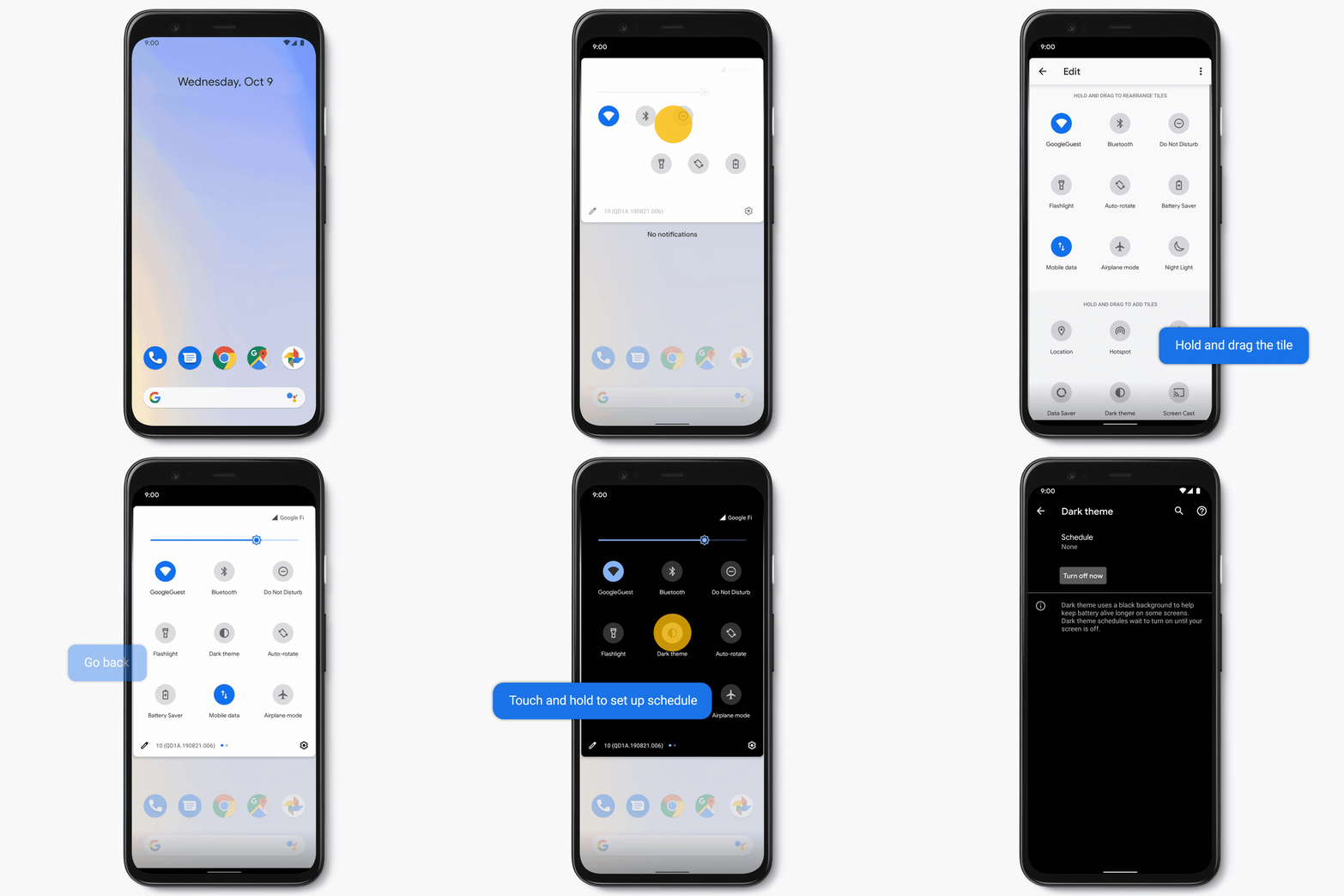
A new set of Pixel phone features is rolling out now and includes more controls for Dark Mode and Do Not Disturb. For instance, you can activate the former automatically at Sunset, or activate the latter when you connect to your home Wi-Fi network. To find these scheduling controls, just long-press their icons in the quick settings menu. This animation from Google illustrates how to do that.
Google's also added an easier way to access boarding passes when you fly. Just take a screenshot of any digital boarding pass, whether it's in an email, text message, or mobile app, and Google will automatically start delivering flight updates. On the day of the flight, you can view the boarding pass by pressing and holding your Pixel phone's power button, which also now brings up a menu of anything else you've stored in Google Pay.
Raspberry Pi price drop: The Raspberry Pi is a cheap microcomputer that can run all kinds of do-it-yourself tech projects, from playing classic video game emulators on your TV to blocking ads throughout your home Wi-Fi network. To mark the Pi's 8th birthday, its creators have reduced the price of the latest Raspberry Pi 4 with 2 GB of RAM to $35, down from $45 previously.
Doing anything with a Raspberry Pi requires some technical know-how, but my PCWorld colleague Brad Chacos has a great roundup of projects that are on the easier side. If you're inclined to tinker with tech stuff, now's a fine time to jump in. (I did.)
|
|
|
| |
|
| Spend wisely |
 |
|
Let's round up a handful of notable deals this morning:
|
|
| Thanks for your support! |
|
Ah, early March, that time of the year where you brain thinks winter really ought to be over, only to be met with the harsh reality when you step outside—or, in the case of the Newman household, when the flu sweeps through. Yes, I am using this as an excuse for this week's slightly later newsletter delivery. Got questions of feedback? Just reply to this email to get in touch.
Until next week,
Jared
|
|
|
|
|
|
|