 |
| |
 |
| September 29, 2020 |
| Theming your phone |
|
Plus: Amazon's new gear, more fun with iOS widgets, and mobile PDFs made easier
|
| |
 |
|
Well folks, I did it.
After hearing about how all the cool kids are customizing the look of their iOS 14 home screens (just Google "iOS aesthetic" to see what I mean), I decided to dive in. Pictured to the left is my iPhone's new home screen, with custom icons ripped straight from Windows 95. I also wised up to the theming potential of Android; to the right is the home screen on my Pixel 2 XL, with an icon pack that reminds me of playing Super Nintendo.
I'll admit that setting this up was an ordeal, especially on the iPhone side, but in a way it was worthwhile. I unlock my phone dozens of times a day, usually just to fritter away some time reading or looking at social media. Why not spend a little of that time sprucing up your home screen in a way that sparks joy whenever you look at it?
Here's how to go down the theming rabbit hole on both iOS and Android.
Creating custom iOS icons
The key to creating your own home screen icons on an iPhone or iPad is Apple's Shortcuts app, which lets you automate all kinds of actions within iOS. At a high level, you'll be creating multiple Shortcuts—one for each app—then creating a home screen icon with a custom image for each Shortcut.
Before you get started, you'll need a set of icons to work with. This website has a bunch of icon packs you can download, or you can grab my Windows 95 icons from here. Just save the icons you want to use as images in your camera roll. (Alternatively, an app called Launch Center Pro lets you build your own icons, but this is even more time-consuming.)
Once you've got some icons handy, check out my video tutorial or follow the steps below:
- Open the Shortcuts app on your iPhone.
- Create a Shortcut by hitting the + button.
- Tap on "Add Action," then type "Open App" and select it from the Actions menu.
- Tap on "Choose," then select the app you want to create an icon for.
- Hit "Next," give your Shortcut a name (the name of the app is fine), and hit "Done."
- From your Shortcuts list, hit the "..." next to the Shortcut you just created.
- Tap "..." again on the next screen, then hit "Add to Home Screen."
- Tap the small icon on the page, then select "Choose Photo."
- Pick an icon image from your camera roll, then press "Choose" and hit "Add."
At the end of this process, you should have a new icon on your home screen, and tapping on it will take you to the app you've selected. You'll also want to set a wallpaper to match by heading to Settings > Wallpaper.
Using custom icons in iOS does have a couple of downsides beyond just the work it takes to set them up: Your custom icons won't have notification badges (I see that as a positive), and apps will take a tiny bit longer to load since they have to jump through the Shortcuts app first. To me, though, the pros of a nifty home screen outweigh the cons.
Customizing Android icons
Now, it's Android users' chance to gloat; customizing your home screen is a considerably easier process compared to iOS. All you need is a home screen launcher that supports theming and a compatible icon back from the Google Play Store.
If you're unfamiliar with third-party launchers, these are essentially replacements for your phone's standard home screen. There are a lot of launchers with theme support, but I like Lawnchair 2 as a simple and free option.
Once you've installed the launcher, set as your default home screen in your phone's Settings menu, likely under Apps > Default Apps > Home app. (One caveat here: After switching launchers, you'll have to rearrange your home screen again, since neither launcher lets you import your old home screen layout.)
For the actual theming part, you'll have to install and launch an icon pack from the Google Play Store. Android Central has a great list of classy-looking packs, and the one I've got pictured above is called PixBit. You can open up the icon pack just like any other app, and from there you should see an option to install it as a theme.
Many Android launchers allow you to customize individual icons as well. In Lawnchair, you can do this by long-pressing an app icon, hitting "Customize," then tapping on the icon. From there you can choose an alternate icon from your theme pack, or choose a photo from your camera roll.
What about widgets?
You may have noticed that my iPhone home screen also includes a couple of larger images for the Windows Notepad and Start menu. For those, I used a couple of apps called PinPhoto and Widgetsmith, both of which let you turn photos into widgets on your home screen. (The former is simpler to set up, while the latter lets you add other elements to your widgets, such as the date, the time, or your next calendar event.)
Why did I use two separate apps for this purpose? Because in the Shortcuts app, you can also set up automations so that whenever you open an app, it triggers another action. Tapping on my Start image, for instance, takes me to the Shortcuts app, while tapping on my Notepad image launches a shortcut I've created for taking voice notes. For more details on setting that up, check out this video tutorial.
On Android, you can set up something similar with an app called KWGT, which lets you create all sorts of custom widgets on your home screen. I've got another video here with instructions on setting it up with a photo.
Of course, if you need more advice on making your home screen more aesthetically or functionally pleasing, I'm happy to help. Just reply to this email or head to the Advisorator chat room on Slack for further discussion.
|
|
| Need to know |
|
Amazon's new gear: Amazon announced a slew of new gadgets at a press event last week. (I counted 17 product and service announcements in total.) Here's my best attempt at a concise rundown:
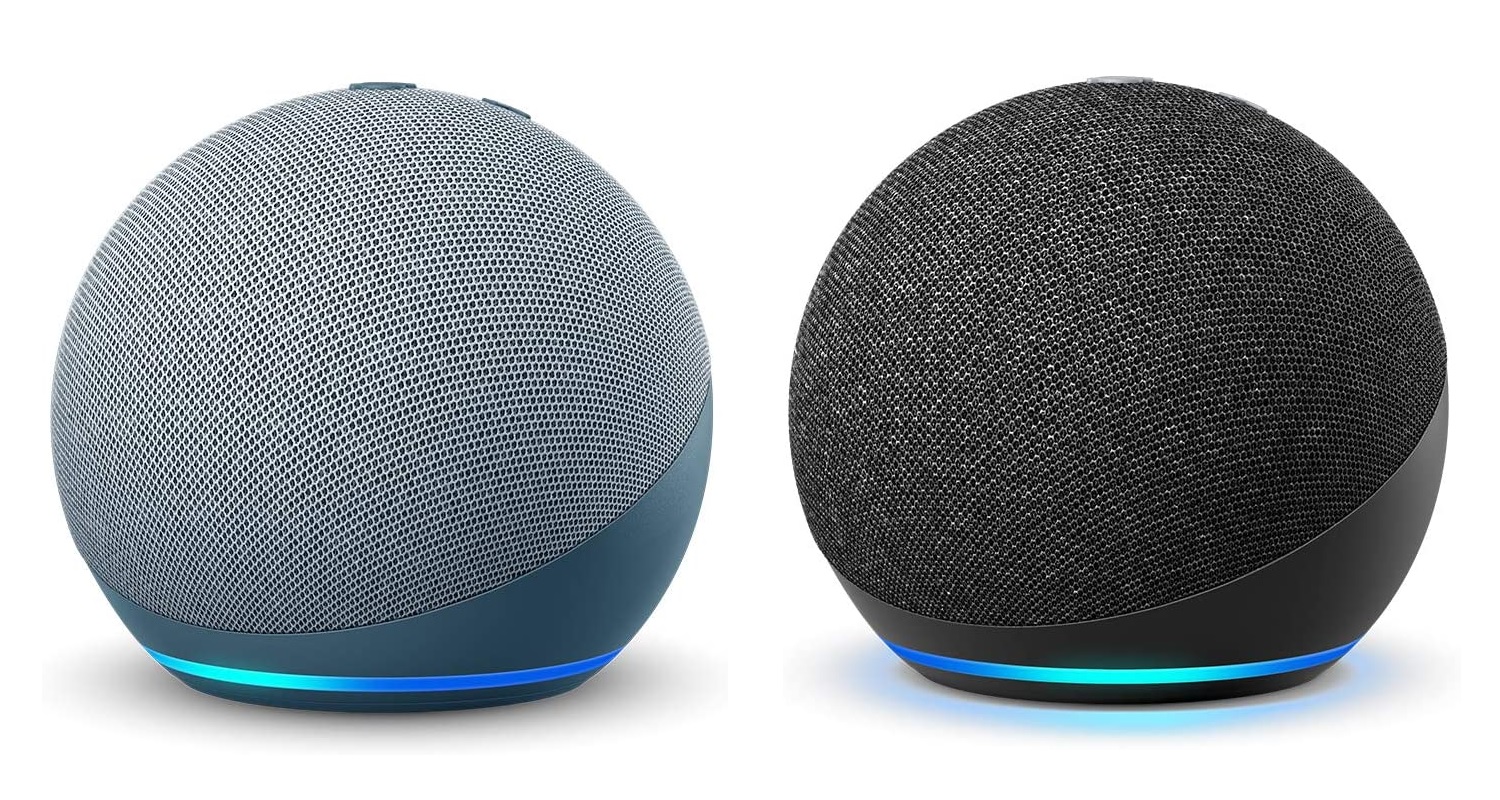
- Amazon's Echo ($100)and Echo Dot ($50) smart speakers are spherical now, and they have better sound than before. The pricier version also includes a custom chip that processes voice commands locally, which is faster and a little less creepy than sending them up to Amazon's servers for analysis, and it doubles as a Zigbee hub for controlling smart smart home products.
- Amazon's Alexa Guard service, which uses Echo speakers to listen for alarms or broken glass, is expanding into a $5 per month subscription service called "Guard Plus." When you're not home, it'll listen for other events, like footsteps and doors opening, and it'll try to ward off intruders with the sounds of sirens and dogs barking.
- A forthcoming Echo feature called Care Hub will let users monitor the Alexa activity of family members or loved ones who might be at risk of a medical emergency—ostensibly with permission.
- Ring is working on a car alarm, a car camera, and—strangest of all—a drone that flies around your home to capture security footage. None of those products are coming until next year. It will also add optional end-to-end encryption for its security cameras.
- A pair of new Fire TV Sticks are coming this week, as I mentioned in Cord Cutter Weekly last Friday.
- Amazon will take a shot at cloud gaming with Luna, a service that streams video games from remote servers so you don't need a game console or high-end PC to play them. An early access program starts next month.
|
 |
|
Some the new gadgets sound neat, through the event on the whole left me feeling unsettled. As I wrote in Fast Company on Friday, Amazon seems to be building an ecosystem around the idea that danger is everywhere, and that you need its products to feel safe. That message might be good for business, but I'm not sure it's the best one to send in our current climate.
Spatial Audio for AirPods: Amid all the Apple news a couple weeks ago, I missed this nifty "Spatial Audio" update for the AirPods Pro. The new feature adds a surround sound-like effect to Apple's high-end wireless earbuds while watching video through a supported iPhone or iPad. And if you move around the room, the audio will sound like it's coming from the direction of your device. You can enable or disable the feature by heading to Settings > Bluetooth > (Your AirPods) and finding the Spatial Audio toggle..
I don't have a set of AirPods Pro on which to try Spatial Audio, but apparently it's impressive. Unfortunately the effect doesn't work with video from an Apple TV, where it might be the most useful.
|
|
| Tip of the moment |
 |
|
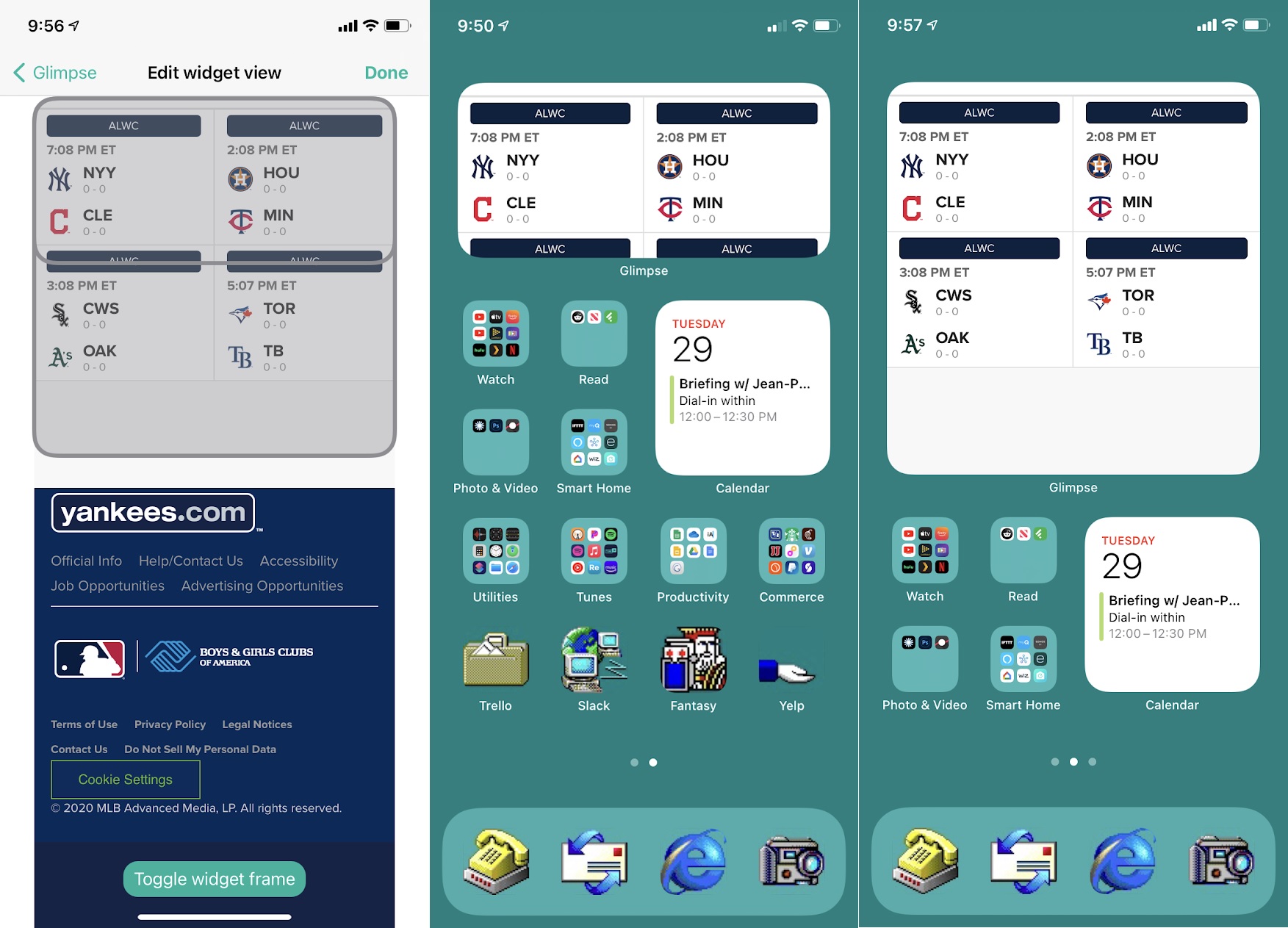
More fun with widgets: Now that iOS 14 is here, I suspect we'll see a lot more apps starting to take advantage of the home screen widgets I mentioned in last week's newsletter. But until they do, an interesting new app called Glimpse 2 can help fill the gaps.
With Glimpse, you can select a small portion of any web page to appear as a widget. The app will periodically refresh the snapshot, showing new information on your home screen as the web page gets updated. I used it to make widgets for Yankees scores from MLB.com, the top headlines on Techmeme, and the current conditions from Weather.gov.
Using Glimpse does introduce a couple of issues: It only works for information that consistently appears in one place on a page, and getting the snapshot position just right can take some finagling. Still, I've found it to be pretty useful for getting the information I want onto my home screen.
For Android users, a free app called Web Image Widget performs the same function, though it's clunkier to set up, and it's admittedly less essential when so many Android apps have proper widget support already.
|
|
| Now try this |
|
Mobile PDFs made easier: Now that every major web browser has the ability to display PDF files, I haven't found much reason to use third-party software such as Adobe Acrobat. That changed last week with the launch of "Liquid Mode" in Acrobat's free iOS and Android apps. Tap the little droplet icon while reading a PDF, and the text will reflow to fit your pocket-sized screen, so you don't have to squint at tiny text or repeatedly zoom and pan across the page. You can even hit the "Aa" icon to make text larger or smaller.
Liquid mode doesn't work with some PDFs, such as scanned documents, slideshows, and ones longer than 200 pages, but it's impressive when it works. To check it out, try downloading this sample PDF to your phone, then opening it in Acrobat.
Google Assistant's remote alarm controls: Google's added another helpful feature for folks with multiple Google Home speakers. If you set an alarm in one room, you can remotely turn it off from a different speaker in another room by saying "Hey Google, stop the alarm." The Assistant will automatically find any alarms that are playing in the house and silence them.
Sadly, you still can't ask Google to set a timer on a different speaker, or have one alarm play across multiple speakers at the same time. But maybe this is a step in that direction.
|
|
| Around the web |
|
|
|
| Spend wisely |
 |
|
We may be entering a deal dead zone with Amazon having announced a date of October 13 for Prime Day. (You may recall that the event was delayed over the summer due to the coronavirus pandemic.) The best deal I'm finding right now is a two-pack of third-gen Echo Dot speakers for $40 with the code DOTPRIME2PK if you're an Amazon Prime subscriber. You can also grab two of the new Echo Dots for $80 with the code DOT2PACK, or two of the new Echoes for $170 with the code ECHO2PK.
I'd be shocked if Prime Day did not yield equal or better discounts, but the new devices aren't shipping until October 22, so you'll have time to evaluate before then.
Also, it's not strictly tech-related, but if you spend $10 at Whole Foods—online or in the store while scanning your Prime member code—you'll get $10 to spend during Prime Day.
|
|
| Thanks for your support! |
|
Perhaps you've noticed that I've been dabbling a bit more in video tutorials, a few of which appear in this week's feature topic. I hope they're a helpful way to explain certain ideas in more detail without bogging the newsletter down in a lot more extra text, but I'd love to hear some feedback on whether they're useful to you. As always, you can get in touch by replying to this email.
Until next week,
Jared
|
|
|
|
|
|