|
Plus: More serene browsing and free Apple Music
Plus: More serene browsing, memory recall tools, and free Apple Music |
While I love recommending new apps through this newsletter, this week I'm going to do the opposite. |
After all, installing new apps can come at a cost, if not literally, then in the data they collect, the storage they consume, and the advertising they serve. Adding yet another app to your phone or computer isn't always worth the trouble, especially when the same functions are built right into your device. |
Below are six types of apps that you should avoid, or at least avoid paying for: |
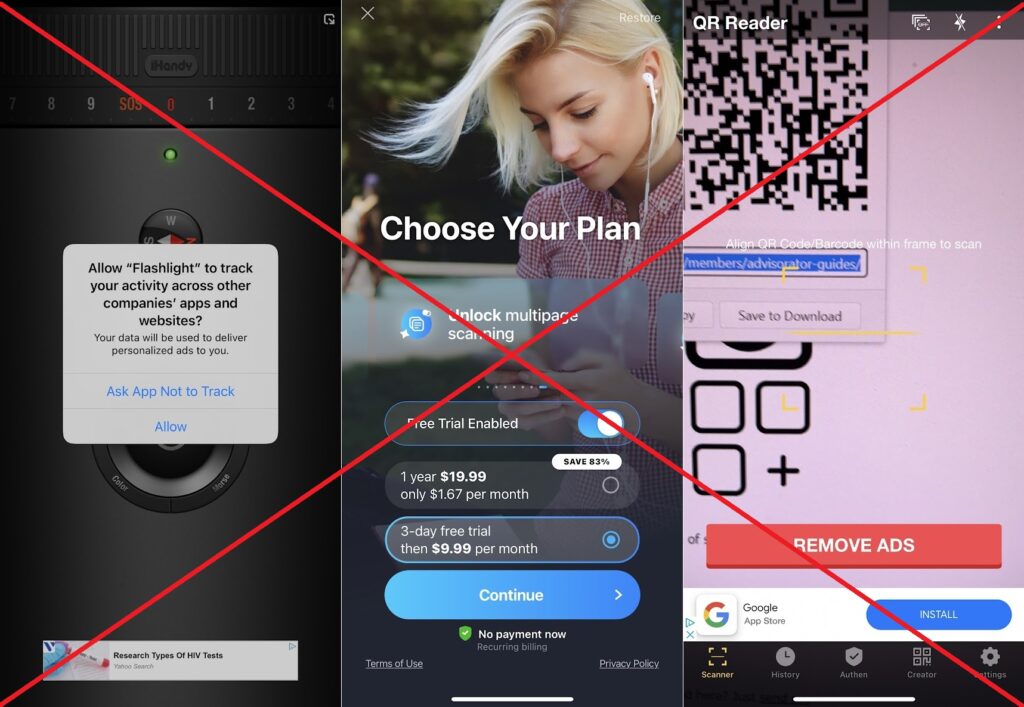
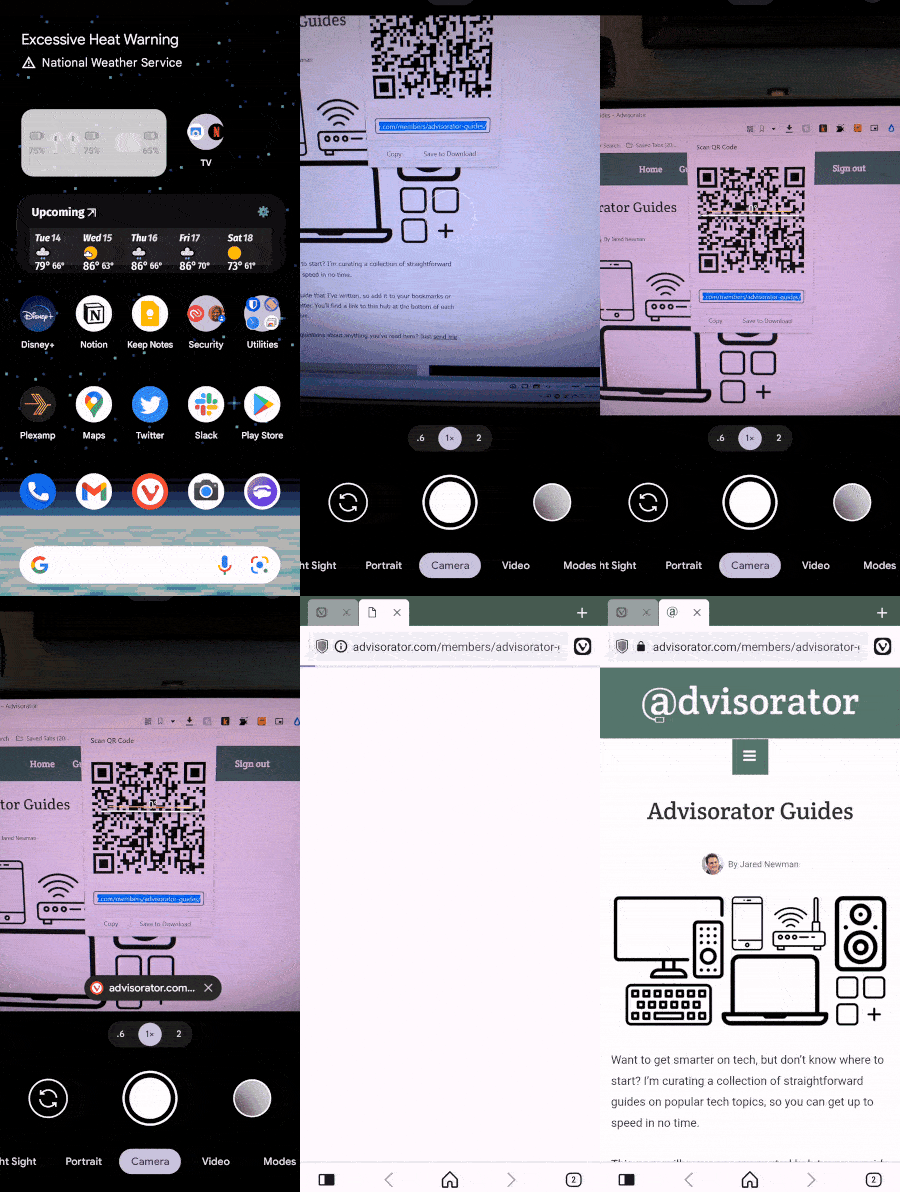
The iOS App Store’s top sponsored search result for “QR code scanner” is an app that immediately demands a $4 per week subscription and is otherwise riddled with ads. These kinds of scammy apps are all too common, and they're completely unnecessary when your phone's camera has similar functionality built in: |
-
On iOS and most Android phones: Open the camera, point at a QR code, then tap the link that appears on screen. You can also press the camera button in the Google app.
|
| Using the Pixel camera's QR code scanner |
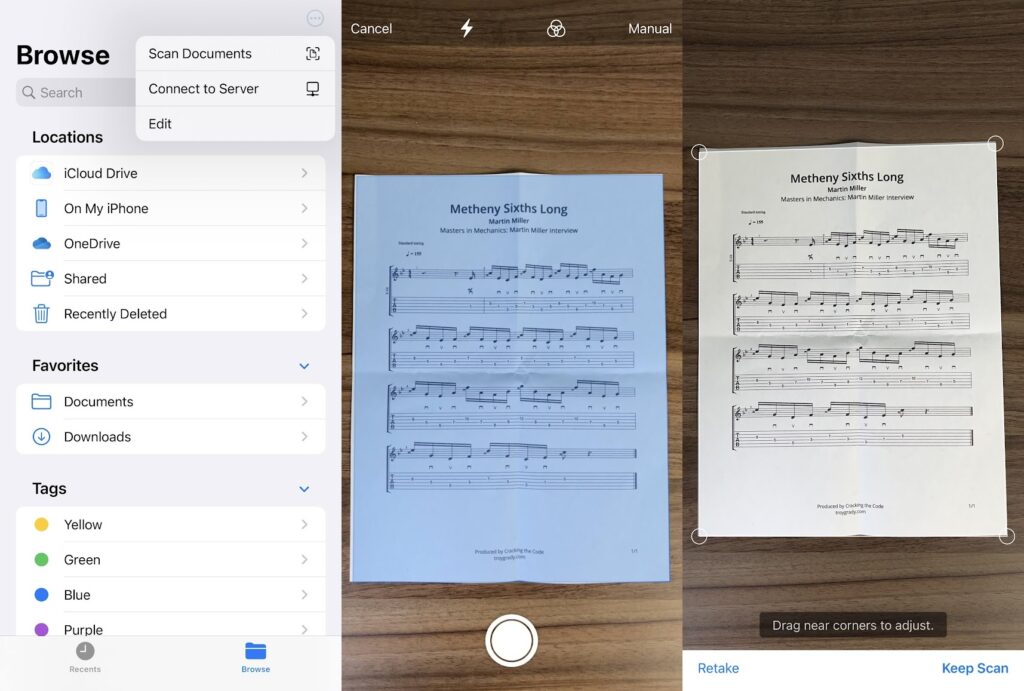
Document scanning apps with expensive subscription tiers abound on iOS and Android, but your phone already has built-in scanning capabilities that should be fine for most use cases. |
| Scanning a page in the iOS Files app |
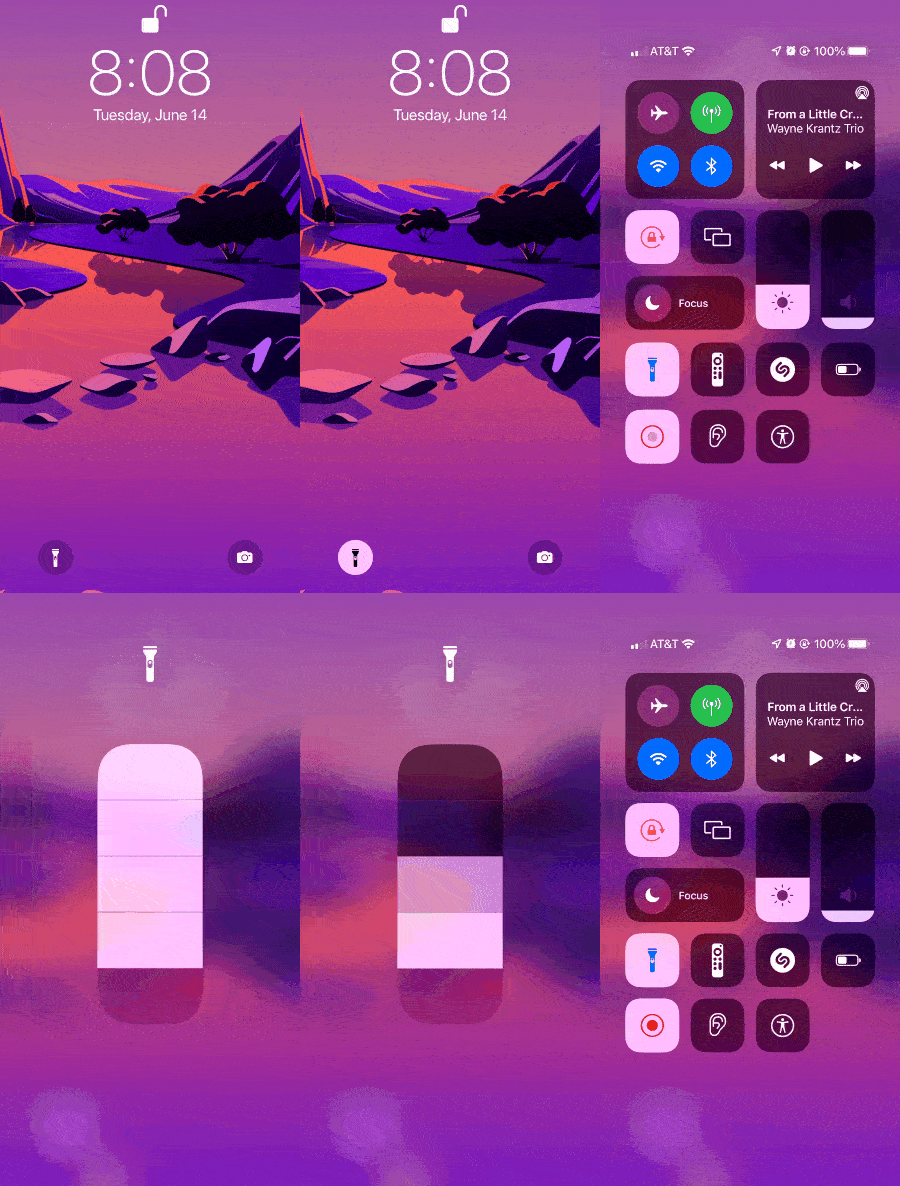
I thought to include this one after seeing a recent How-to Geek story with the appropriate headline "Stop Using Flashlight Apps." Your phone already has a flashlight tool that’s easy to access, so you don't need a separate app that will hit you with adds or collect data on your behavior. |
-
On iOS: Long-press the flashlight icon on the lock screen, or tap the icon in Control Center. You can also long-press the Control Center icon to change the flashlight's brightness.
|
-
On Android: Look for the flashlight in your quick settings panel. On Samsung phones, change the brightness by tapping the word "Flashlight."
|
| Flashlight toggles in iOS |
Expensive antivirus software |
I'm not going to rehash the entirety of this newsletter from last year, but I will reiterate that for most people, expensive antivirus software isn't necessary. Your Mac or Windows PC already has strong built-in protection against security threats, and security itself has become decentralized through major web browsers and email providers, which can detect malware before it hits your computer. |
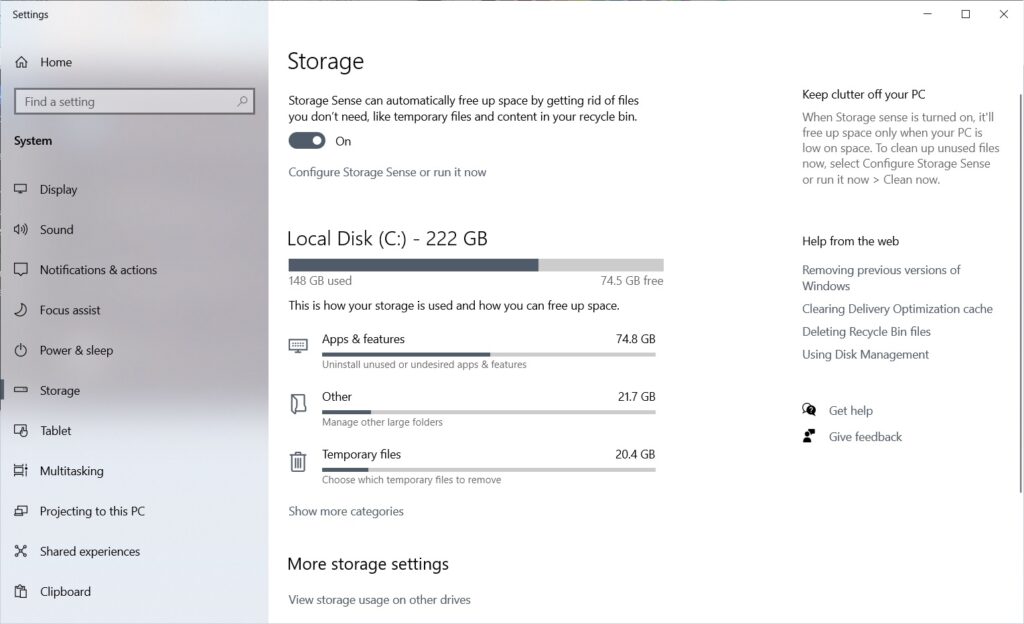
| Storage management in Windows 10 |
I'm always wary of apps that claim to magically clean up your computer. Either they're performing functions you can accomplish without extra software, or they're inventing problems that don't actually need solving. This is especially true with Windows registry cleaners, which can do more harm than good according to both Microsoft and third-party expert. |
Taking a few minutes to clean your own system beats trusting the job to some mystery tool. |
-
In Windows: Head to Settings > System > Storage, then turn on Storage Sense to automatically clean up junk files.
-
In MacOS: Click Apple > About this Mac, then click the Storage tab and select "Manage." From there you'll find suggestions on what to delete. Your Mac will also automatically clear temporary files when you reboot it.
-
Also: You can quickly clear your browser's cache, cookies, and other data by pressing Ctrl/Cmd + Shift + Delete, or following these instructions.
|
I've saved my spiciest take for last: After dabbling in various third-party camera apps, such as Halide and Obscura, I've concluded that none of them are really worth the time and expense. For phones that have excellent cameras, like the iPhone and Google's Pixels, the stock camera app will take the best pictures with the least amount of fuss. And for phones with middling cameras, third-party software will not magically make them better. |
-
What to do instead: Get more out of your built-in camera by learning some new tricks for iPhone, Samsung phones, and Pixel phones. Advanced editors can also enable RAW image support on iOS and Android without a separate app.
|
If you can make a great case for third-party apps in any of these categories, I'd love to hear it. Just reply to this email to get in touch. |
Facebook Portal goes poof: According to Protocol, Facebook will no longer make new versions of its Portal smart displays or TV cameras for consumers, and will instead "pivot" the devices toward business use. This is part of a broader hardware shake-up for Facebook (or Meta, as it's now called), which is also reportedly scrapping its smartwatch plans and delaying its foray into augmented reality glasses by at least a few years. |
The first Portal devices launched in 2018 as an answer to Amazon's Echo Show and Google's Nest Hub, but with a bigger focus on video chat. They never gained much traction despite a pandemic bump, and I'd like to think general distrust of Facebook was at least somewhat of a factor. While Facebook will likely continue to support its current Portal devices for consumers, I'd avoid buying them either way. Enterprise use is where failed consumer hardware often goes to die. |
Apple feature planning: Last week, I glossed over Apple's long list of iOS 16 announcements, as they won't be available until this fall. I'd much rather dive into the new features once you can actually use them without installing bleeding-edge beta software. |
That said, a couple of things are worth knowing about ahead of time for the purpose of planning any potential purchases: |
The Stage Manager limitations are particularly noteworthy, as they seem to represent the future of iPad multitasking. If you fancy the idea of using your iPad as a laptop, sticking to M1-based hardware would be wise. |
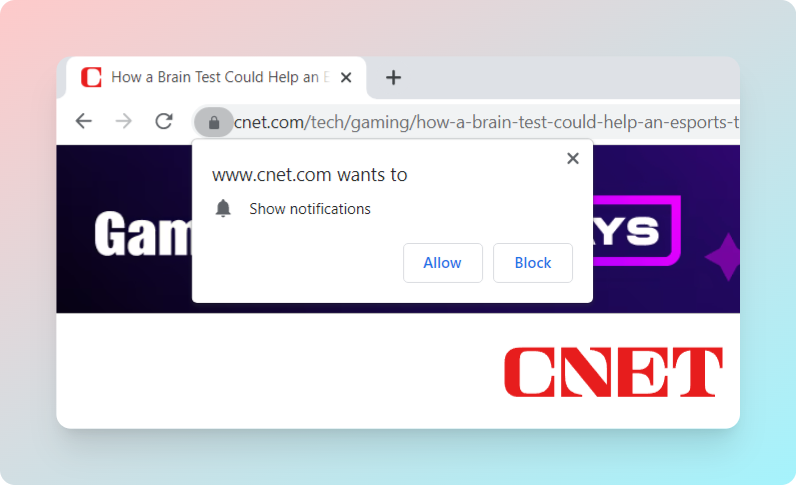
Turn off browser notification nags: Last week, Google added a novel way to block websites' annoying notification requests. Chrome will now automatically hide those pop-up prompts if its machine learning algorithms predict that you might be bothered by them. This will be indicated through a "Notifications Blocked" button on the left side of the address bar. |
It's a neat idea, but based on my experience so far, it's still better to just turn off notification prompts entirely. To do this in Chrome, head to Settings > Privacy & Security > Site Settings > Notifications, then select "Don't Allow." |
Here's how to block notification prompts in other browsers: |
-
Safari: Under Safari > Preferences, click the "Websites" tab and the "Notifications" section, then uncheck "Allow websites to ask for permission to send notifications."
-
Firefox: Under Settings > Privacy & Security, scroll down to "Permissions," hit the Settings button next to "Notifications," and check the "Block new requests" box.
-
Microsoft Edge: Under Settings > Cookies & site permissions, click on "Notifications" and uncheck "Ask before sending."
-
Vivaldi: Under Settings > Privacy, find the Notifications dropdown and select "Block."
|
From these same menus, you'll also be able to revoke notification privileges from websites you've previously approved. The minute or two it takes to adjust these settings is well worth the more serene browsing experience you'll get in return. |
What's that word again? Tip of My Tongue is a clever website for recalling those words you just can't quite remember. Enter part of a word along with its meaning—or perhaps another similar-sounding word—and this site will try to figure out what you're thinking of. (Via the Dense Discovery newsletter.) |
An extra memory bank: Speaking of recall tools, Jot & Paste is a free Windows and Mac app for quickly storing text snippets you might want to access later. Just press Ctrl/Cmd+Shift+Enter to bring up the notepad, write something down, and press Ctrl/Cmd+Enter to save it. Then, press Ctrl/Cmd+Shift+L to access your snippets, which you can copy to the clipboard or insert directly into any text field. |
The resulting experience is like a cross between a clipboard manager, text shortcut tool, and freeform notepad. I love the idea and am looking forward to using it more. (Via the Tech Productivity newsletter.) |
Apple Music isn't just limited to Apple devices. It's also available on Echo, Google, and Sonos speakers, along with Android phones and Roku streaming players. Just sign up through Best Buy's website, and you'll get an email with instructions on activating your subscription. Once you've signed up, you can immediately cancel and still get the full trial period. |
A few quick reminders about your Advisorator subscription: |
Thanks again for being a subscriber. Catch you next week! |
This has been Advisorator, written by Jared Newman and made possible by readers like you. Manage your subscription by clicking here, or reply to this email with "unsubscribe" in the subject to cancel your membership. |
Advisorator LLC, PO Box 42711, Cincinnati, OH, 45242 |
|

 Jared Newman | June 14, 2022 |