|
Plus: A space-saving Google Photos trick and a like-free Facebook
Make a Fire tablet Amazon-free |
Plus: Old phones expiring, a space-saving Google Photos trick, and a like-free Facebook |
When you buy an Amazon Fire tablet, there's a certain expectation that comes with it. |
In exchange for cheap hardware, you'll have to tolerate some of Amazon's money-making tactics, including ads on your lock screen, a home screen that heavily promotes Amazon content, and the use of Amazon's own Appstore instead of the Google Play Store. Compared to other Android tablets or Apple's iPads, the experience is more bloated and less useful, especially since you can't use any Google apps. |
But it turns out that Amazon's expectation is easily defied. I'm currently in the process of reviewing Amazon's Fire HD 10 Productivity Bundle for Fast Company, and one of the first things I did was strip away the Amazon bloat and install the Google Play Store. Now, this previously-clunky, feature-limited device works just like any other Android tablet, and it's a vastly better tablet as a result. |
While there are several ways to perform this operation, the best method I've found is a Windows utility called Fire Toolbox. With just a handful of clicks, it automates what would otherwise be a long and laborious process. |
If you've got a Fire tablet and are feeling boxed in by Amazon's approach, grab the latest version of Fire Toolbox (currently 17.0) from XDA-Developers or directly via this mirror link. |
Before you run the program, make sure Developer Options are enabled on your Fire tablet by heading to Settings > Device Options and tapping your device's serial number seven times. Then head to Settings > Device Options > Developer Options and enabled "USB Debugging." |
Next, plug your Fire tablet into your computer with a USB cable, then extract and run Fire Toolbox. On your tablet, make sure to click "OK" when you see the "Allow USB Debugging" prompt. On your computer, feel free to skip the tutorial when Fire Toolbox asks if you've used the program before. |
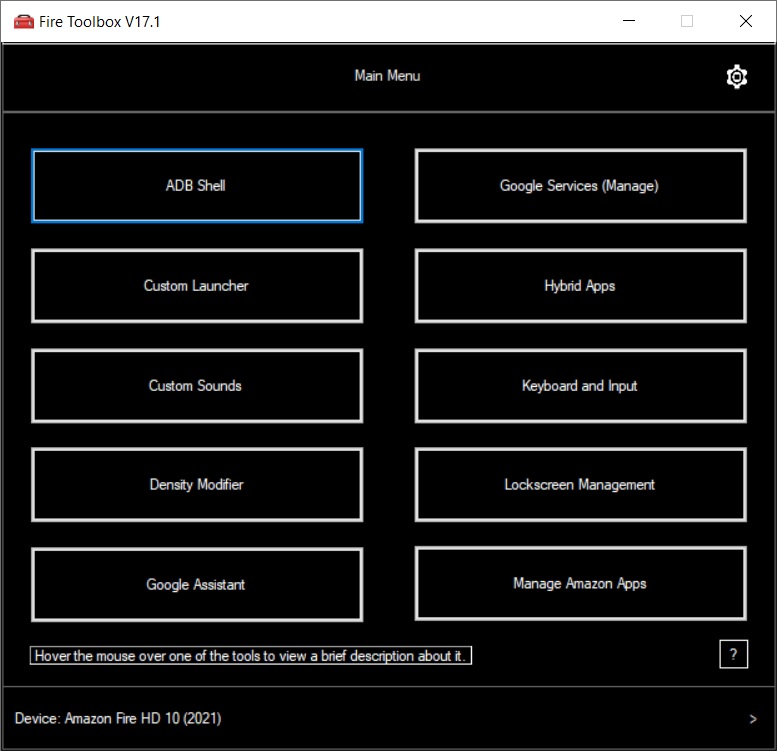
Now comes the fun part: Fire Toolbox presents a menu of options for removing Amazon bloat and making the experience more Android-like. Some of these you can ignore, but here are the ones I suggest using (in order): |
-
Google Services: Installs the Google Play Store, letting you use Google apps and download any Android app instead of Amazon's more limited selection.
-
Custom Launcher: Replaces the Amazon home screen with your choice of several other popular options. (I suggest Lawnchair for a simple layout or Nova Launcher for maximum customization.)
-
Manage Amazon Apps: Lets you remove Amazon's pre-loaded software. "Standard Debloat" preserves the Amazon Appstore and core apps like the Calendar and Calculator. "Complete Debloat" removes all those things, letting you start fresh with Google Play Store alternatives. (The latter can cause some features to break.)
-
Hybrid Apps: If you remove the Amazon Appstore in the above menu, this setting lets you install Netflix and Disney+, because the Google Play Store versions of these apps won't work on your Fire tablet.
-
Lockscreen Management: Lets you install wallpapers and remove Amazon's lockscreen ads.
-
Google Assistant: Disables Alexa and installs the Google Assistant app.
|
Once you're done, just unplug the tablet from your computer, open the Google Play Store, log into your Google account, and start downloading apps. I find that the home screen is zippier when you don't have to wade through Amazon's custom menus, and of course it's great being able to use the many Android apps and games that Amazon's store lacks. |
I can't imagine using a Fire tablet any other way—except when I'm obligated to do so for my review. |
Google's sneaky location tactics: Location data is gold for a company like Google, so perhaps it's no surprise that you can't easily stop the search giant from collecting it. Newly-unsealed court documents describe how Google pressured Android phone makers into removing location controls from their quick settings menus after seeing a big drop-off in data from users. Even if you do tell Google not to follow you, the company still collects location data in other ways, such as by looking at your IP address when you search the web or by gathering info from third-party apps that use Google's mapping services. |
In any case, here's a reminder on how to minimize the location data that Google collects with two steps: |
- Make sure Location History is turned off here. (This stops Google from logging your specific whereabouts over time.)
- Under Web & App Activity on this page, make sure "Include Chrome history and activity from sites, apps, and devices" is unchecked. (This stops Google from looking at things like where you were when you asked Google Assistant to set a timer.)
- You can also disable "Web & App Activity" on that same page, though in the past I've found that some Google product features stop working if you do this.
|
The fact that Google offers these controls is laudable, but as the lawsuit points out, Google would clearly prefer that most people didn't take advantage. You might as well be the exception to the rule. |
Old phone abandonment: If you're buying or hanging onto a phone that's more than a few years old, it may stop receiving wireless service in the months ahead as carriers begin dropping 3G network support. AT&T, for instance, plans to turn off its 3G network next February, and has just released a list of devices that will keep working after that. As Android Police points out, some notable omissions include the OnePlus 6 (from May 2018), Google's original Pixels (from 2016), and the iPhone 5S (from 2013). Without network support, those devices will only be usable on Wi-Fi. |
AT&T isn't alone in trying to leave 3G behind as it expands its 5G coverage. Verizon has some guidelines on devices that won't work on its network after December 31, while T-Mobile's compatibility checker will tell you whether phone will keep working after it shuts down 3G for Sprint and T-Mobile networks early next year. While I'd advise against using phones that have stopped receiving security updates anyway, the end of 3G support may force the issue for some extremely old handsets. |
A space-saving Google Photos trick: With the end of unlimited Google Photos storage, we all have to cut back on how much we upload. Unfortunately, the way Google deals with edited photos on iOS makes this trickier than it ought to be. If you edit a photo through the iPhone's Camera Roll after you've already uploaded it, Google Photos will then upload the modified version as a second copy, wasting space. |
Fortunately, reader John W. pointed me to a clever workaround that lets you quickly remove the original copies from Google Photos, leaving only the edited versions behind: |
- Open the Google Photos app and select a large batch of photos, making sure at least one of them is an edited copy. (Remember, you can quickly select lots of photos by long-pressing and dragging your finger across a group of them.)
- Hit the delete button.
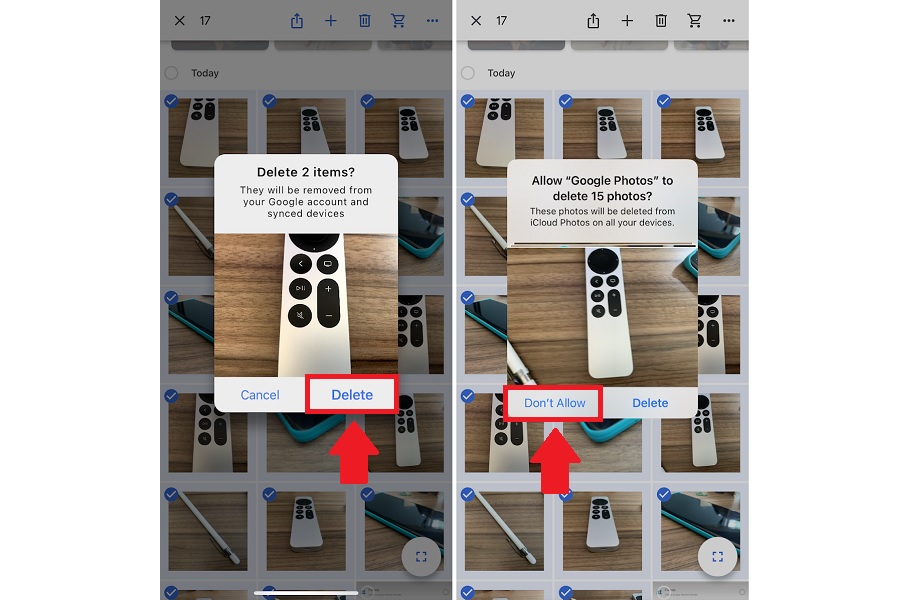
- If you see a prompt that says "Delete items," hit Delete. (Do not hit Delete if the prompt says "Allow 'Google Photos' to Delete" instead. That means you didn't select any edited copies, and you'll be immediately deleting your selected photos instead.)
- Now, you'll see a second prompt, asking to "Allow 'Google Photos to delete.'" At this step, hit "Don't Allow." This will preserve all your photos except ones that have edited copies.
|
I suggest trying this once with a single pair of photos to see how it works. After that, you can select larger batches to remove lots of duplicates at once. And if you do accidentally delete any photos you wanted to keep, just open your Photos app, tap on "Albums," then scroll to the bottom and select "Recently Deleted." From there you can tap on any photo and hit "Recover" to get it back. |
Make your Venmo private: Of all the social media trends that escape my understanding, the one I find the strangest might be the Venmo feed. By default, the cash-sharing app makes all your transactions public, so you can see how your friends (and their friends) are spending their money. And apparently, people enjoy this aspect of Venmo instead of being utterly creeped out by it. |
Anyway, thanks to this Buzzfeed story on Joe Biden's "secret" Venmo account, we now have a timely reminder to keep your payments to yourself. Inside the Venmo app, tap the menu icon and head to Settings > Privacy, then set your default setting to "Private." From this same menu, tap on "Friends List," and select either "Friends" or "Private" instead of "Public." That'll prevent strangers—or investigative journalists—from seeing your friends list even if your posts are private. |
(Biden, for what its worth, kept his account private, but not all of his connections did the same, and until last week Venmo didn't let you hide your friends list at all.) |
Hide your likes: Let's roll with the social media tips for just a little longer, as you can now disable "Like" counts in both Facebook and Instagram. |
Why do this? The thinking goes that if you can't agonize over how many people like your posts, you might find the whole endeavor less stressful and more meaningful. Whether that's actually true is still up for debate, but it's worth trying either way: |
-
On Facebook: Hit the menu button and head to Settings & Privacy > Settings > Reaction Counts, where you can choose to hide likes on your posts and in your feed. (This may still be rolling out as I'm not seeing it on my phones yet.)
-
On Instagram (to hide likes in your feed): Tap your profile image, then head to Settings > Privacy > Posts and enable "Hide Like and View Counts."
-
On Instagram (to hide likes on your own posts): On the final page before posting, tap "Advanced Settings," then enable "Hide Like and View Counts." You'll have to do this on a per-post basis.
|
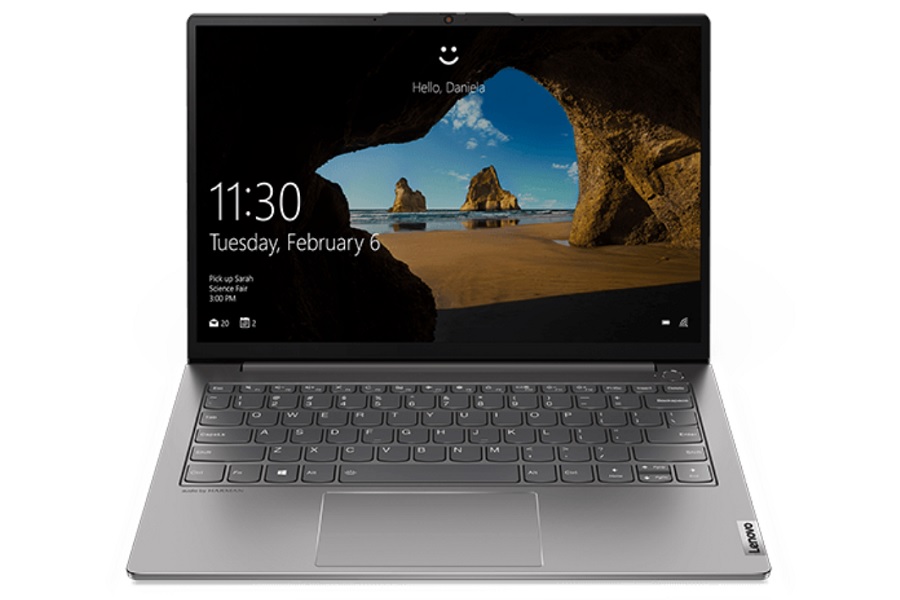
Here's an intriguing laptop deal for the Windows users out there: Lenovo is selling the ThinkBook 13S Gen 2 for $805 with an 11th-gen Intel Core i7-1165G7 processor, 16 GB of RAM, and 512 GB of storage. That's about $100 off the typical street price. There's also a Core-i5 variant with 256 GB of storage for $724. |
This laptop is notable for its 13-inch, 2560x1600 resolution display, which sits right in between 1080p and 4K resolution. Not enough laptops strike this middle ground between sharpness and battery life, so it's nice to see an exception. |
It turns out that I forgot to celebrate my own anniversary last month. |
By that, I mean Advisorator is now three years old! Whether you've been on board since the beginning or have just subscribed recently, I'm so grateful for your support, and I'm looking forward to making this newsletter even better in its senior year. |
To that end, don't hesitate to reach out if you have any tech questions, comments, or feedback. And say hello in the Advisorator chat room on Slack if you'd like to talk tech. |
This has been Advisorator, written by Jared Newman and made possible by readers like you. Manage your subscription by clicking here, or reply to this email with "unsubscribe" in the subject to cancel your membership. |
|

 Jared Newman | June 1, 2021 |